 English
 Nederlands
 Français
 English (UK)
 Deutsch


If Windows blocks the Y813 driver installer or says it can only run Microsoft-verified apps, check whether your computer is in S mode.
Windows in S mode only allows apps from the Microsoft Store. The Y813 driver installer downloaded from our website cannot run while S mode is on. To install our driver, you must first switch out of S mode.
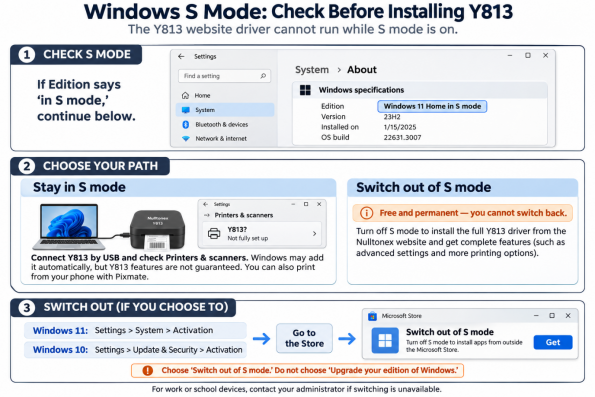
1. Check Whether Your Computer Is in S Mode
Open Start > Settings > System > About. Under Windows specifications, check the Edition line. If it includes “in S mode,” follow the instructions below.
If the Edition line does not mention S mode, the installation problem has another cause. Take a screenshot of the error message and contact our support team instead of changing Windows settings.
2. Before You Switch
Switching out of S mode is free and permanent. You cannot turn S mode back on afterward. Read this before continuing. If your computer belongs to a company or school and the option is unavailable, contact its administrator.
If you prefer to keep S mode, connect the Y813 by USB and check whether Windows adds it in Settings > Bluetooth & devices > Printers & scanners. A built-in driver may not provide the correct Y813 label settings. If the printer is missing or a test label fails, use Pixmate on your phone or contact support.
3. Switch Out of S Mode
Windows 11: Open Settings > System > Activation.
Windows 10: Open Settings > Update & Security > Activation.
Find the section for switching out of S mode and select Go to the Store. On the Microsoft Store page titled Switch out of S mode or similar, select Get and follow the prompts until Windows confirms the change.
Choose the option to switch out of S mode. Do not select Upgrade your edition of Windows; that is a different process. Microsoft Support
4. Install the Y813 Driver
After Windows confirms that S mode is off:
1. Check the model label underneath your printer. It should say Y813, not Y813BT.
2. Visit the Y813 driver page and select Y813.
3. Download the Windows driver. If it comes in a ZIP file, extract it before opening the installer.
4. Follow the installation prompts and select USB as the connection method.
5. Connect the Y813 to your computer by USB and turn on the printer.
6. Open Settings > Bluetooth & devices > Printers & scanners and confirm that LabelDriver Y813 appears.
5. Print One Test Label
Open a saved shipping label PDF. Select LabelDriver Y813 and a paper size matching your labels (4 × 6 in for the included labels). Check the full preview, then print one test label.
Still Need Help?
If Windows still blocks the installer, confirm that “in S mode” no longer appears under Settings > System > About, then restart your computer and try the Y813 installer again.
Still stuck? Send your order number and screenshots of Windows Edition, the error, and Printers & scanners. Confirm whether Y813 connects by USB.



