 English
 Nederlands
 Français
 English (UK)
 Deutsch


The Y813 label printer supports USB connection with Windows computers. To use the printer normally, you need to install the correct Windows printer driver.
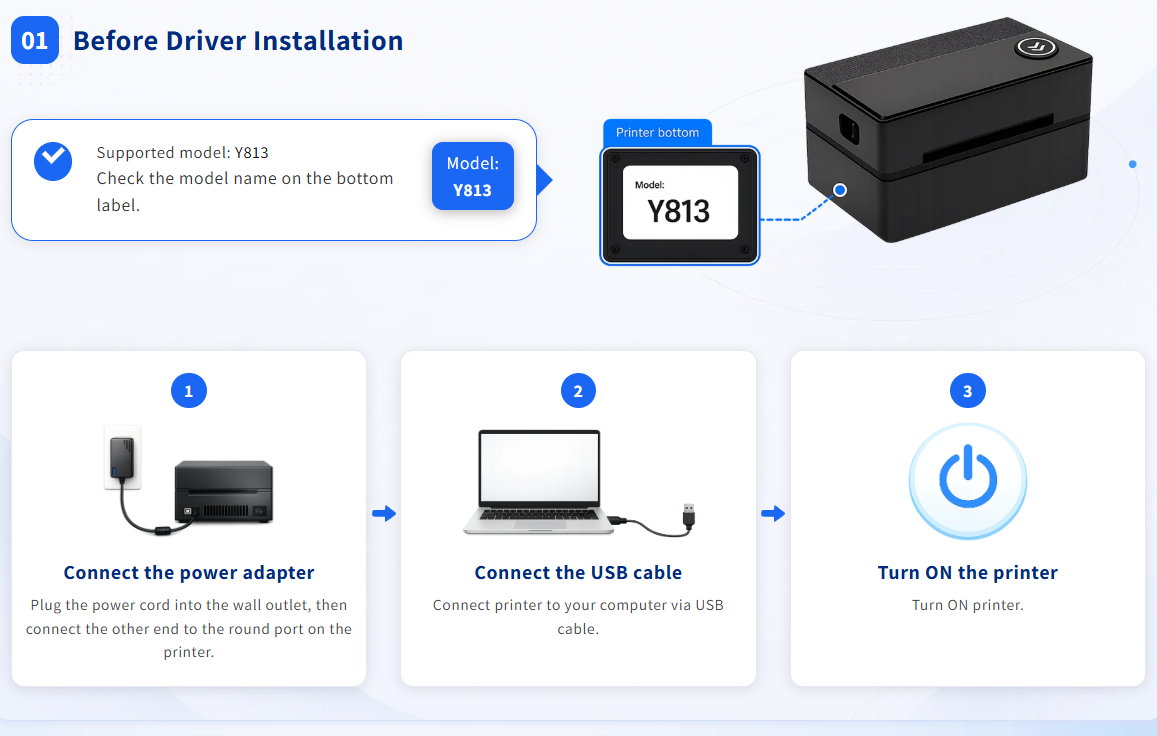
Please follow the instructions below.
1. Check Your Printer Model
Before installation, check the model label on the bottom of your printer.
Supported Model: Y813: Make sure you download the driver specifically for Y813.
2. Connect the Printer to Your Computer
Please follow these steps:
1. Connect the original Y813 power adapter to the printer, then plug it into a wall outlet.
2. Connect the USB cable between the Y813 printer and your computer.
3. Turn on the printer.
Make sure all cables are securely connected before proceeding.
3. Download the Y813 Windows Driver
Visit our official Y813 driver installation page, Download the Windows driver and unzip the downloaded file if necessary.
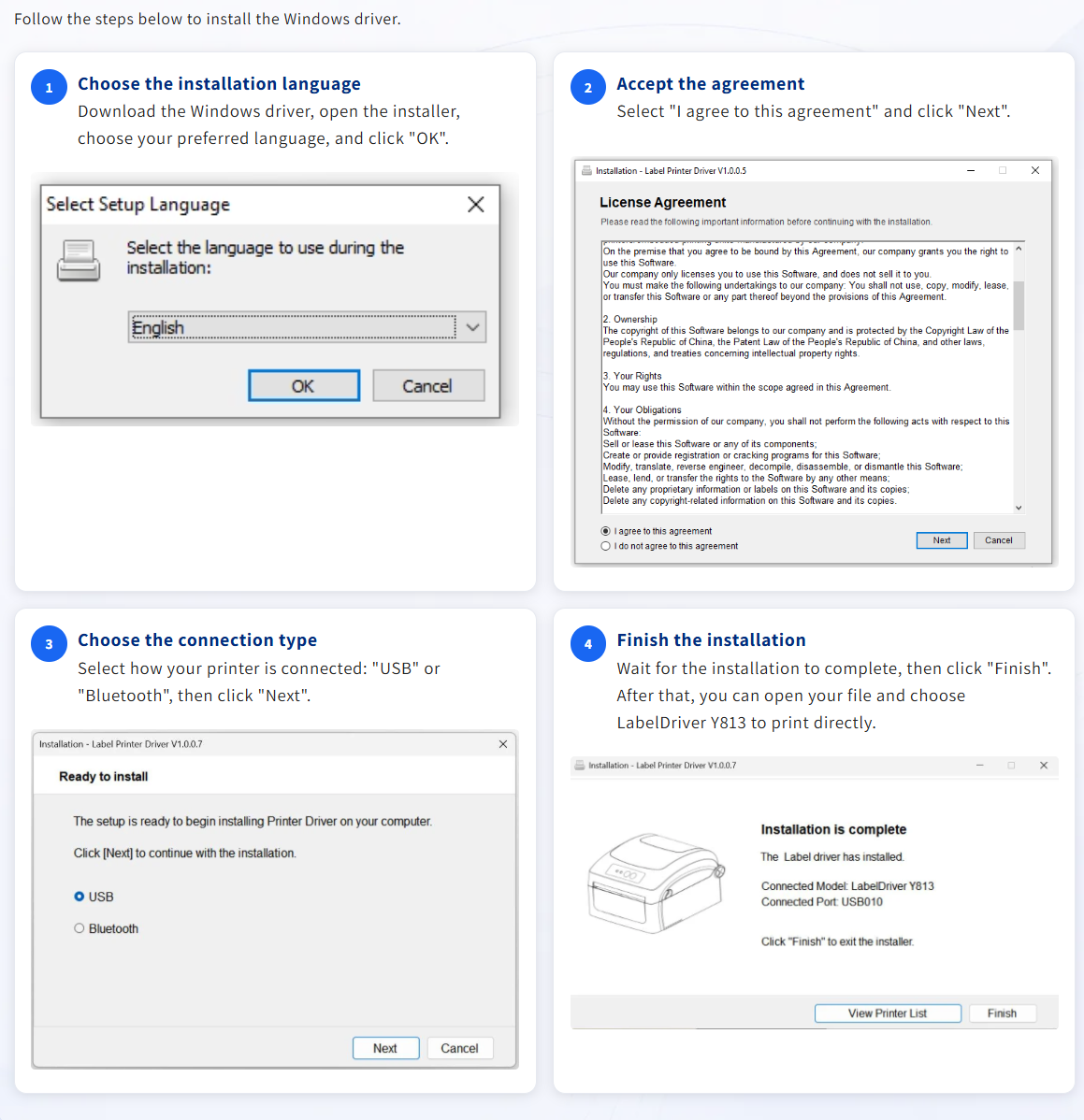
4. Install the Windows Driver
1. Open the downloaded driver installer.
2. Select your preferred installation language and click “OK”.
3. Select “I agree to this agreement” and click “Next”.
4. When asked to select the connection type, choose “USB”.
5. Click “Next” to continue.
6. Wait for the installation to complete.
7. Click “Finish”.
5. Start Printing with Y813
After installation:
1. Open the PDF or image file you want to print.
2. Open the print settings.
3. Select “LabelDriver Y813” as your printer.
4. Set the paper size to 4 × 6 inches (100 × 150 mm) for standard shipping labels.
5. Check the print preview.
6. Click “Print”.
6. Troubleshooting: What If Windows Cannot Detect the Y813 Printer?
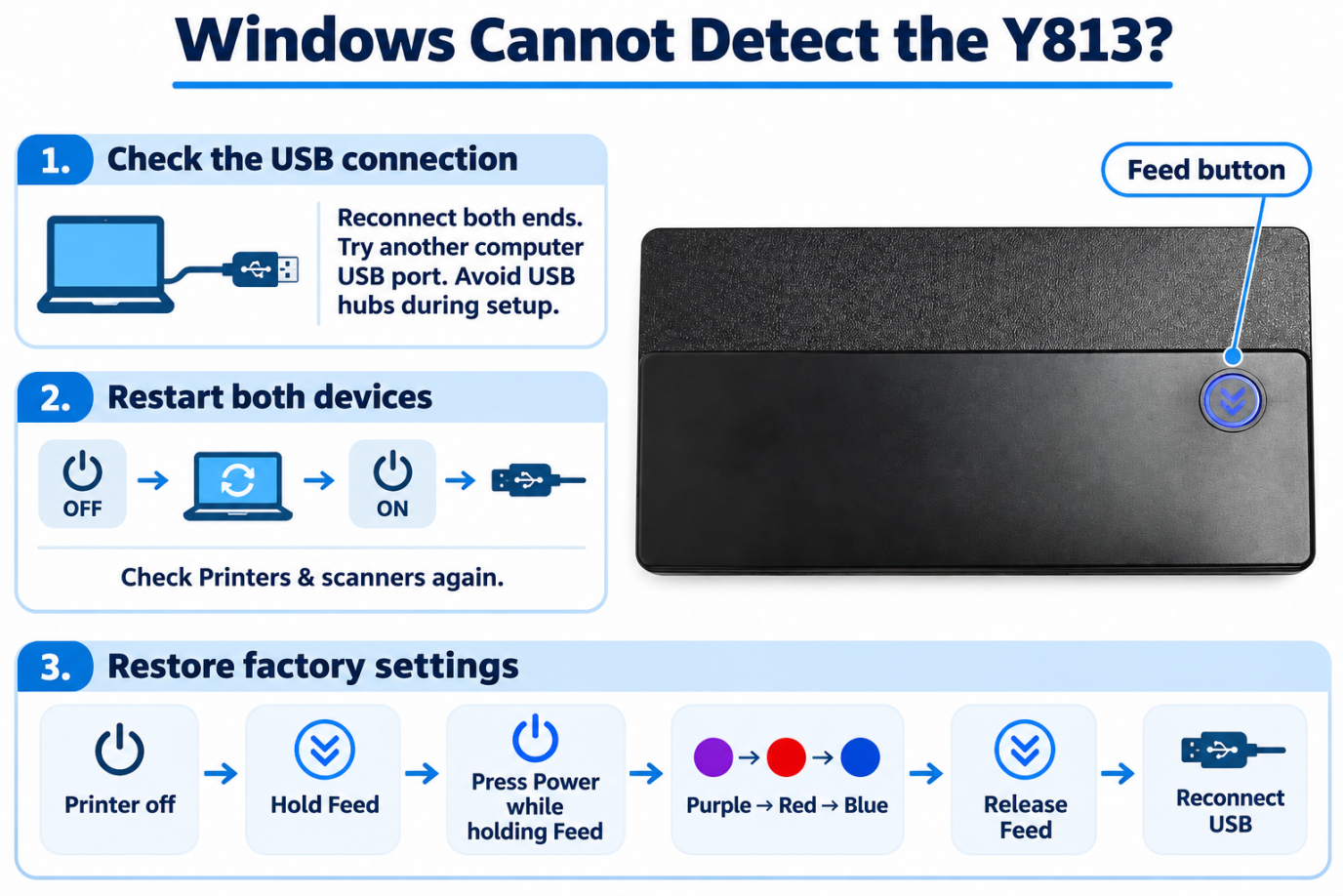
1. Check the USB Connection
1. Make sure the USB cable is securely connected to both devices.
2. Disconnect and reconnect the cable.
3. Try another USB port directly on your computer.
4. Avoid using a USB hub during initial setup.
2. Restart the Devices
1. Turn off the printer.
2. Restart your Windows computer.
3. Turn the printer back on.
4. Reconnect the USB cable and check the printer list again.
3. Restore Factory Settings
With the printer off, press and hold Feed, then press Power; keep holding Feed until the indicator changes from purple to red to blue, then release to restore the Y813 to factory settings.
Still stuck? Send support your Windows version, an error screenshot, and a photo of the Y813 self-test page.



