 English
 Nederlands
 Français
 English (UK)
 Deutsch


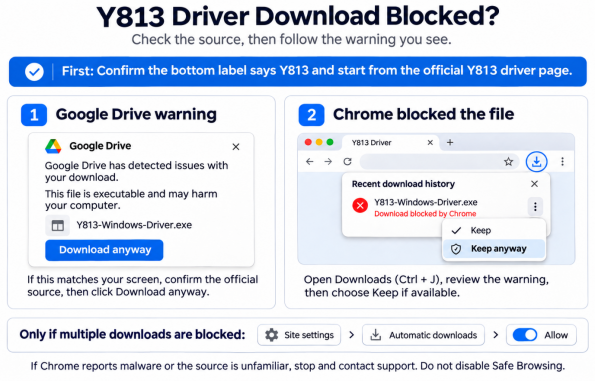
Chrome or Google Drive may show a warning when you download the Y813 driver because the Windows installer is an executable file. A warning alone does not mean the driver is unsafe. If you started from our official Y813 driver page, first confirm the file and the warning shown, then follow the matching steps below. Chrome uses different warnings for unfamiliar files, insecure downloads, and files it identifies as dangerous, so please read the message before continuing.
1. Check That You Have the Correct Driver
Check the model label underneath your printer. It should say Y813. Then open the official Y813 driver page, select Y813 Driver, and choose the Windows installation option you need. Y813 and Y813BT have separate driver pages, so do not download a driver for the other model.
2. If Google Drive Shows a Download Warning
If the official driver link opens Google Drive, you may see a message warning that the file is executable and could affect your computer.
Confirm that you reached the file through our official Y813 driver page and that it is the driver you intended to download. If the message is the general executable-file warning shown in the image above, select Download anyway to continue.
Do not continue if the file came from an unfamiliar link, the filename is unexpected, or the warning specifically says malware was detected. Contact our support team with a screenshot instead. Google advises caution when Drive flags a suspicious download.
3. If Chrome Blocks the Download
1. Click the Downloads icon near the top-right corner of Chrome. You can also press Ctrl + J to open your download history.
2. Find the Y813 driver file and read the reason Chrome gives for blocking it.
3. If you have confirmed the official source and Chrome offers the option, open the three-dot menu beside the file and select Keep or Keep anyway. The wording may vary by Chrome version.
4. Once the download finishes, open the file and follow the Y813 installation instructions.
If Chrome offers an additional file check, complete that check first. Do not turn off Chrome Safe Browsing to download the driver. If Chrome reports that malware was detected, stop and send our support team a screenshot of the warning.
4. If Chrome Blocks Multiple Downloads from the Site
This step applies only if Chrome asks whether the website may download multiple files. It does not resolve a warning that identifies one driver file as dangerous.
Open the website in Chrome, click the site information icon beside its address, and open Site settings. Find Automatic downloads and allow related downloads for that site, then retry the official driver link. Chrome’s Automatic downloads permission controls whether a site can download related files together.
Still Cannot Download the Driver?
Please contact our support team and include a screenshot showing the complete warning message, the page where you started the download, and a photo of the Y813 model label underneath your printer. We can help you confirm the correct download link before you install anything.



