 English
 Nederlands
 Français
 English (UK)
 Deutsch


Follow the steps below to install your Y813 printer on a Chromebook using a USB cable.
1. Prepare Your Printer
Before installation, please make sure your printer model is Y813. You can find the model name on the label at the bottom of the printer.
Complete the following steps:
Connect the USB cable: Connect the USB-A end of the cable to the USB adapter, then plug the USB-C end of the adapter into your Chromebook. Connect the original Y813 power adapter to the printer, then plug it into a wall outlet.
Turn on the printer: Press the Power button to turn on your Y813 printer.
2. Download the Y813 ChromeOS Driver
Download the Y813 ChromeOS driver using the button below.
Download Driver
Backup Google Drive: If the Download Driver button does not work, please use the backup Google Drive link.
Important: Make sure you download the ChromeOS PPD file for Y813, not the Windows or macOS driver.
If the downloaded file is in a ZIP folder, extract it first and locate the Y813 PPD file. You do not need to run a traditional installer on your Chromebook.
3. Add the Y813 Printer to Your Chromebook
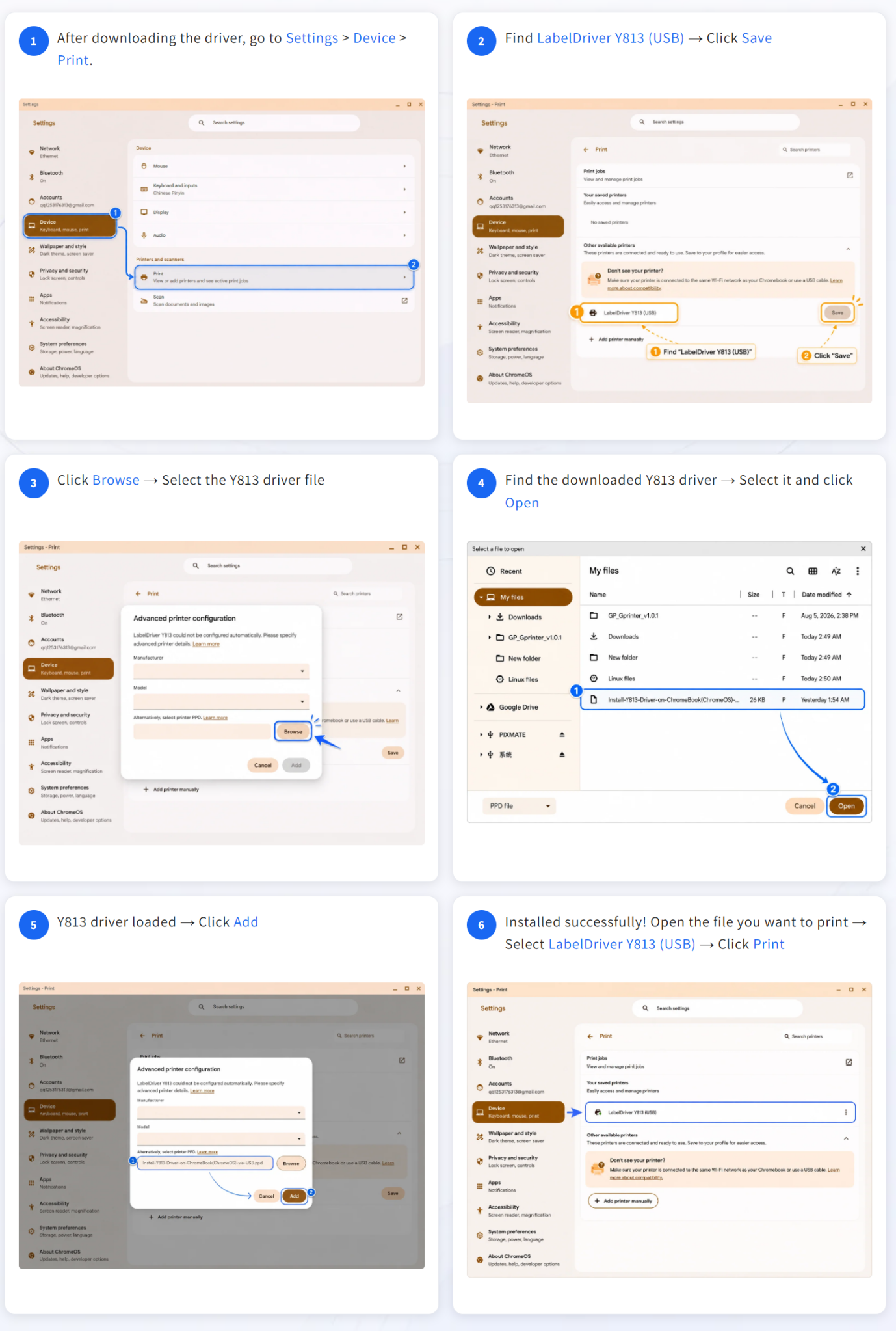
1. Open your Chromebook’s Settings.
2. Go to Device > Print (or Device > Printers and scanners > Print, depending on your ChromeOS version).
3. Open the printer setup window. If necessary, select Add printer to access Advanced printer configuration.
4. Under Or specify your printer PPD, click Browse.
5. Locate and select the downloaded Y813 PPD file, then click Open.
6. Wait for the PPD file to load, then click Add to complete the setup.
4. Confirm the Installation
After successfully adding the printer:
1. Return to Settings > Device > Print.
2. Check that LabelDriver Y813 (USB) appears in your saved printer list.
5. Print a Test Label
1. Open the shipping label or PDF file you want to print.
2. Open the print window.
3. Under Destination, select LabelDriver Y813 (USB).
4. Set the paper size to 4 × 6 inches (100 × 150 mm) if your label uses this format.
5. Check the print preview to make sure the entire label is visible.
6. Click Print.
6. Troubleshooting
If LabelDriver Y813 (USB) does not appear:
1. Check that the USB cable is securely connected.
2. Make sure the printer is powered on.
3. Disconnect and reconnect the USB cable.
4. Restart your Chromebook and printer.
5. Try adding the printer again.
If the PPD file cannot be loaded:
1. Make sure you downloaded the ChromeOS-specific Y813 PPD file.
2. Do not select a Windows (.exe) or macOS installer.
3. Make sure the PPD file is in a supported format.
Need Further Assistance?
Still need help? Send support the error screenshot, Chromebook model, ChromeOS version, and order number.



