 English
 Nederlands
 Français
 English (UK)
 Deutsch


After successfully installing the Y813 printer driver, follow the steps below to check whether your computer recognizes the printer and can print normally.
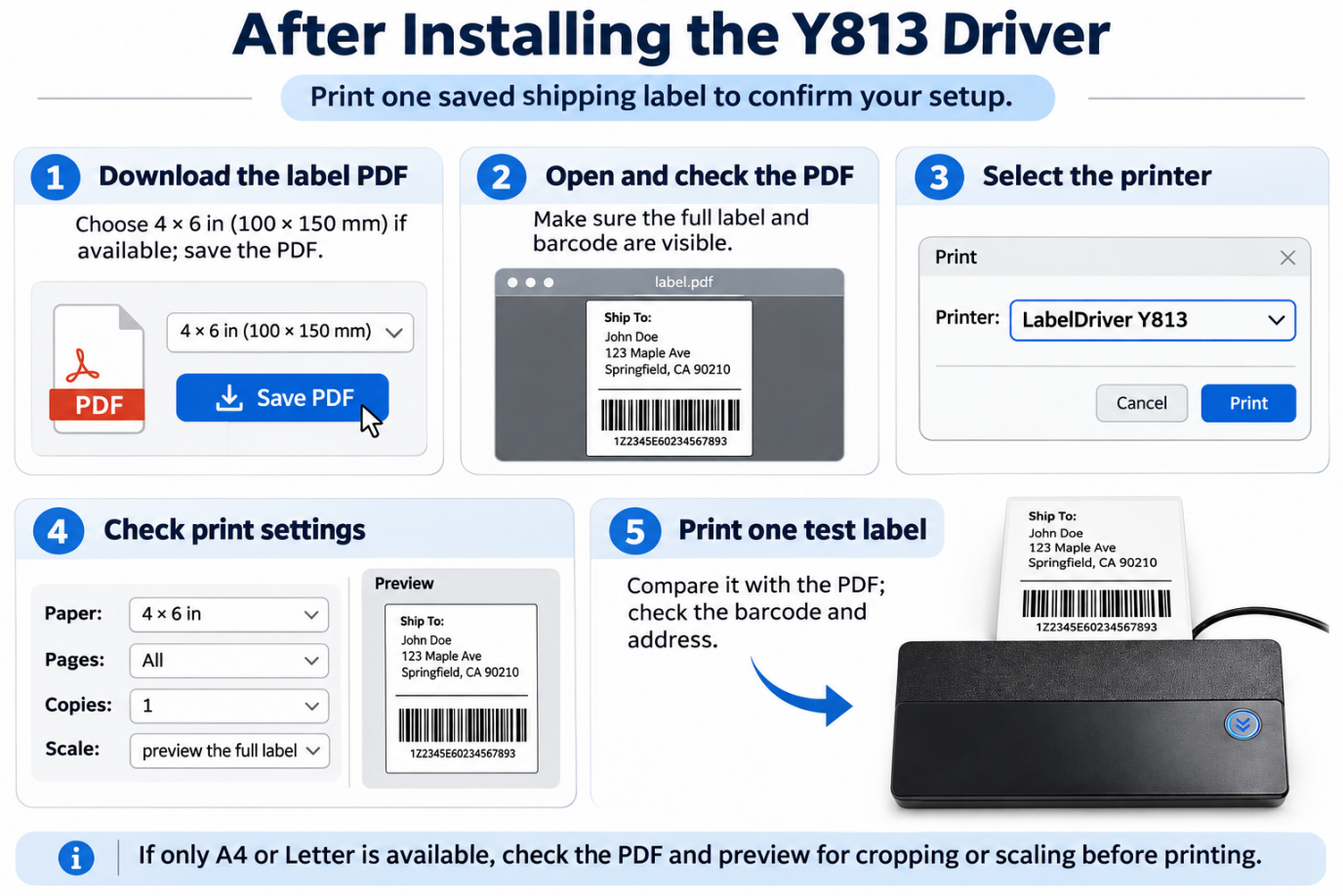
1. Download and Save Your Shipping Label
Important: For the best printing experience, we recommend downloading and saving your shipping label as a PDF file instead of printing directly from third-party shipping websites.
1. Open the third-party shipping or logistics website where your shipping label is available.
2. Find the Download, Download Label, or Save as PDF option.
3. If available, select 4 × 6 inches (100 × 150 mm) or Thermal Label as the label format.
4. Save the PDF file to your computer, such as in the Downloads folder.
If the website only provides a Print option, open the print window and select Save as PDF. On Windows, you can also select Microsoft Print to PDF. On Mac, select Save as PDF from the PDF menu.
Note: For standard 4 × 6-inch shipping labels, choose 4 × 6 inches (100 × 150 mm) whenever available. If the website only provides A4 or US Letter format, check the saved PDF and print preview carefully to ensure the label is not cropped or incorrectly scaled.
2. Open the Saved PDF File
1. Locate the downloaded PDF file on your computer.
2. Open it using Google Chrome, Microsoft Edge, or Adobe Acrobat Reader.
3. Check that the shipping label is displayed correctly.
3. Select the Y813 Printer
1. Open the print window.
2. Check whether LabelDriver Y813 appears in the printer list.
3. Select LabelDriver Y813 as your printer.
4. Adjust the Print Settings
Please check the following settings:
Paper Size: 4 × 6 inches (100 × 150 mm), if your original label is formatted for this size.
Pages: All.
Copies: 1.
Scale: Check the print preview to ensure the entire shipping label is visible without cropping or distortion.
Make sure the barcode, shipping address, and other label information are displayed correctly.
5. Print and Check the Result
1. Click Print.
2. Check whether the Y813 printer feeds the label and prints normally.
3. Compare the printed label with the original PDF.
If the printed content matches the original file and the barcode is clearly visible, your Y813 printer is successfully installed and ready to use.
Need Further Assistance?
If the Y813 is missing or does not respond, send support a screenshot of the issue, your computer model and OS version, and your order number.



