 English
 Nederlands
 Français
 English (UK)
 Deutsch


If your Windows computer displays the Y813 printer status as Error or Offline, it may indicate a communication problem between your computer and printer, an incorrect USB port setting, or a stuck printing task.
Please follow the troubleshooting steps below to restore your Y813 printer connection.
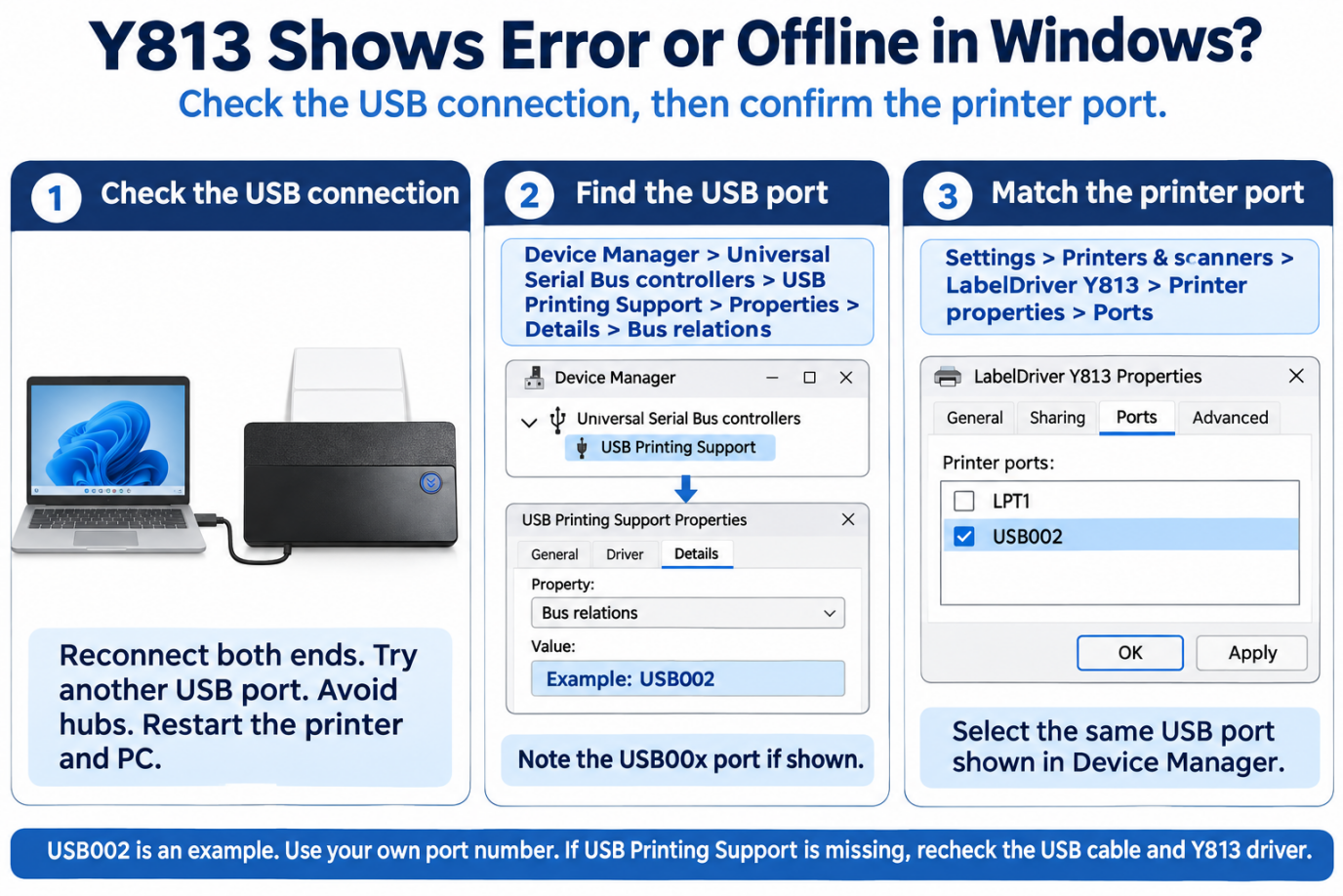
1. Check the USB Connection
First, make sure your Y813 printer is properly connected to your computer.
1. Make sure the Y813 printer is powered on.
2. Unplug the USB cable from both the printer and your computer.
3. Reconnect the USB cable securely.
4. Try connecting the printer to another USB port directly on your computer.
5. Avoid using a USB hub during troubleshooting.
6. Restart your printer and computer.
7. Then go to Settings > Bluetooth & devices > Printers & scanners and check whether LabelDriver Y813 is recognized by Windows.
2. Check the Printer’s USB Port Settings
If the printer still shows an Error status, Windows may have assigned an incorrect USB port.
Please follow these steps to check and correct the port settings.
Step 1. Find the USB Port Assigned to Your Printer
1. Right-click This PC on your desktop or in File Explorer.
2. Select Manage.
3. Open Device Manager.
4. Expand Universal Serial Bus controllers.
5. Find USB Printing Support.
6. Right-click it and select Properties.
7. Open the Details tab.
8. Select Bus relations from the Property dropdown menu.
9. Check the displayed information and identify the USB port assigned to the printer (for example, USB001 or USB002).
Step 2. Assign the Correct Port to the Y813 Printer
1. Open Windows Settings.
2. Go to Bluetooth & devices > Printers & scanners.
3. Select LabelDriver Y813.
4. Click Printer properties.
5. Open the Ports tab.
6. Find and select the USB port identified in Step 1.
7. Click Apply, then OK.
Important: The USB port number may vary depending on your computer. Make sure you select the same port identified in Device Manager rather than choosing a port randomly.
If USB Printing Support does not appear in Device Manager, skip this step and check your USB cable and driver installation.
- 3. Clear Stuck Print Jobs and Restart Print Spooler
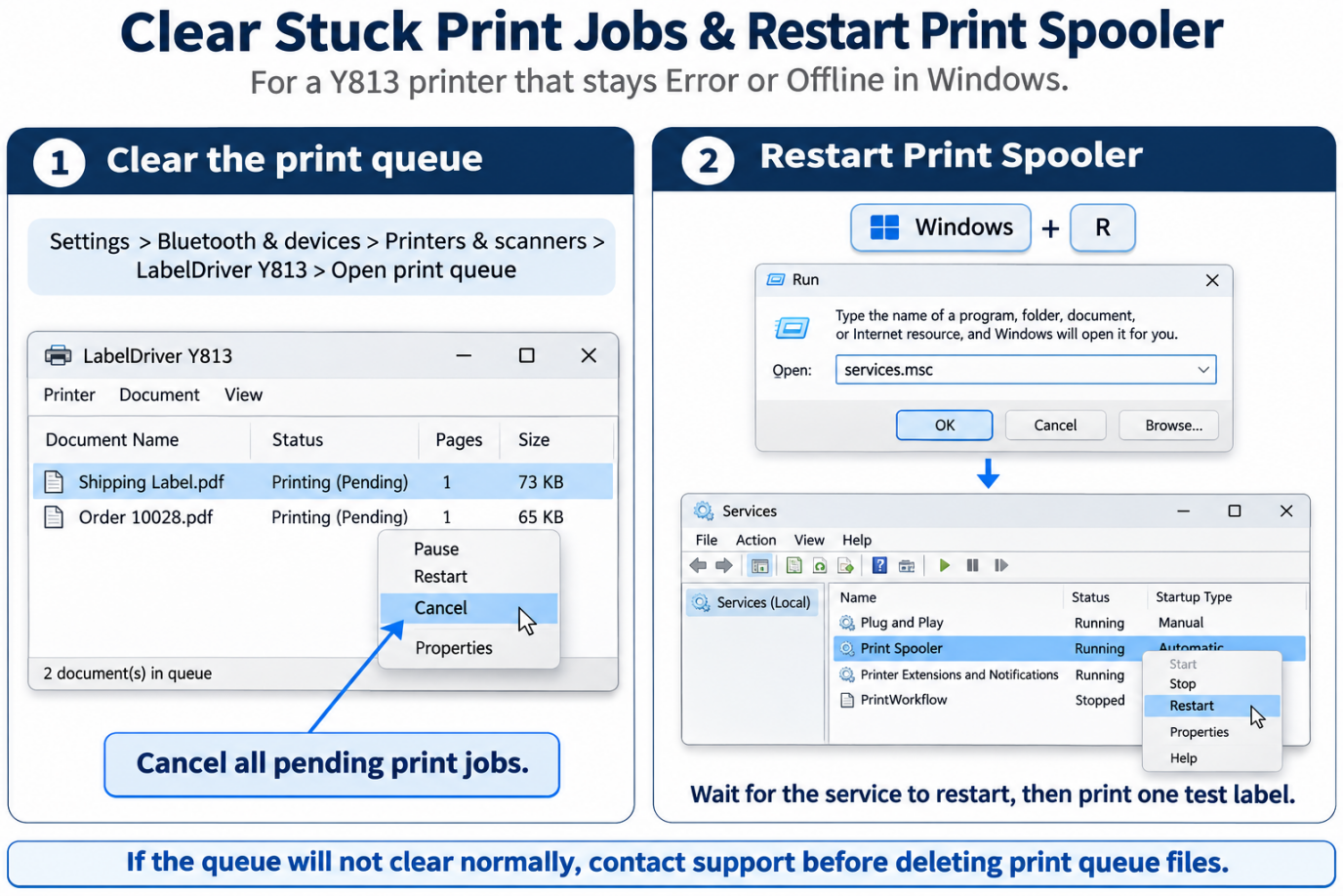
A stuck printing task or an unresponsive Print Spooler service can prevent Windows from communicating with your printer.
Step 1. Clear the Print Queue
1. Go to Settings > Bluetooth & devices > Printers & scanners.
2. Select LabelDriver Y813.
3. Click Open print queue.
4. Cancel all pending print jobs.
Step 2. Restart the Print Spooler Service
1. Press Windows + R on your keyboard.
2. Type services.msc and press Enter.
3. Find Print Spooler in the Services list.
4. Right-click it and select Restart.
5. Wait for the service to restart.
If the print queue cannot be cleared normally, contact our support team before attempting advanced print queue file removal.
4. Reinstall the Y813 Printer Driver
If the printer still displays Error or Offline after completing the steps above, the driver may need to be reinstalled.
1. Open Settings > Bluetooth & devices > Printers & scanners.
2. Select LabelDriver Y813 and click Remove.
3. Restart your computer.
4. Download the latest Windows driver specifically for Y813 from our official website.
5. Run the installer and follow the on-screen instructions.
6. Reconnect your Y813 printer and complete the installation.
7. After installation, check whether LabelDriver Y813 appears in the printer list.
5. Test the Printer Again
1. Open a shipping label PDF saved on your computer.
2. Open the print window.
3. Select LabelDriver Y813.
4. Set the paper size to 4 × 6 inches (100 × 150 mm) if applicable.
5. Click Print.
If the printer prints normally, the connection issue has been resolved.
Need Further Assistance?
If the Y813 remains offline, send support screenshots of the error and the Ports tab (if available), your Windows version, a self-test photo, and your order number.



