 English
 Nederlands
 Français
 English (UK)
 Deutsch


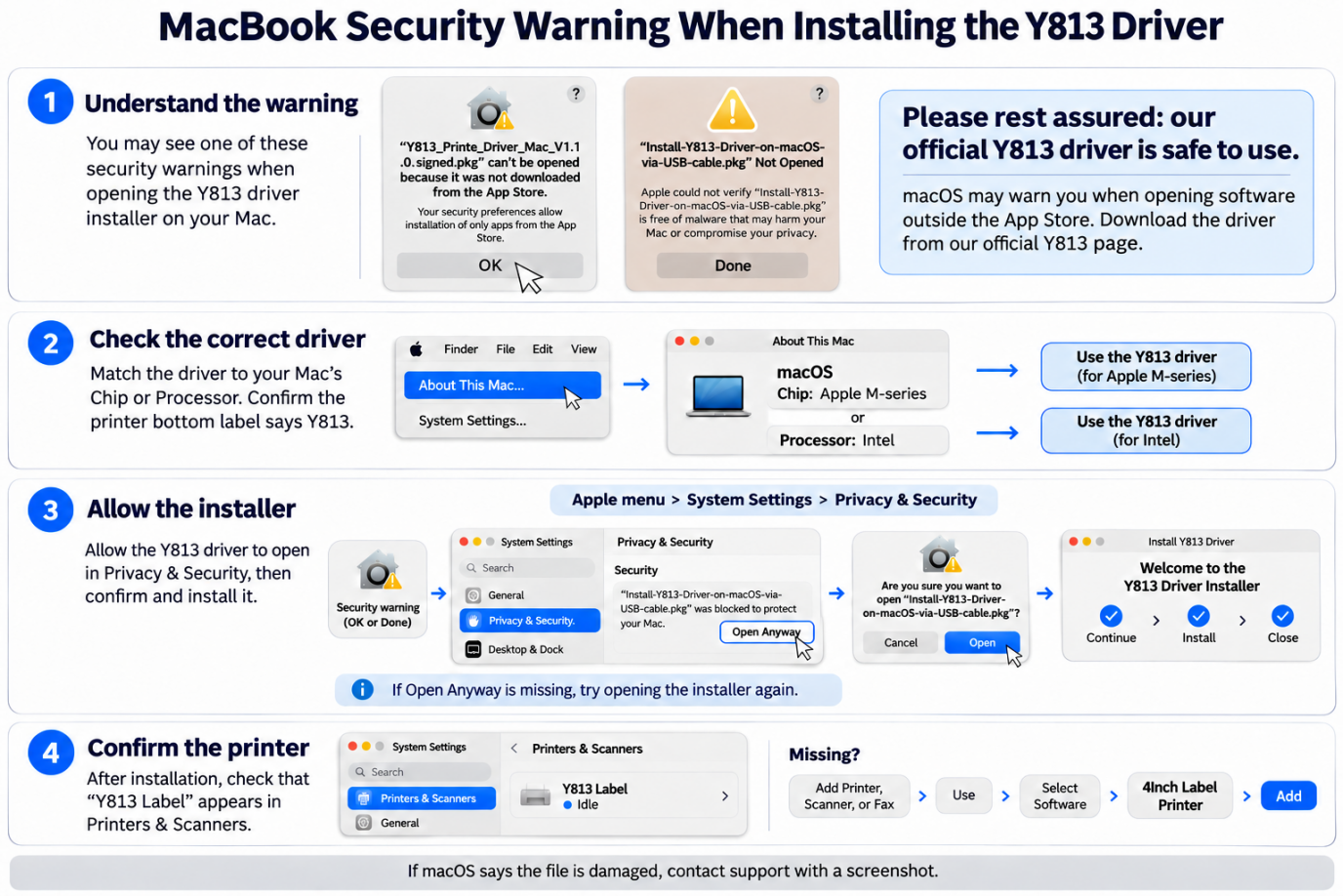
If you see a security warning when opening the Y813 driver installer, please rest assured that our official Y813 driver is safe to use when downloaded from our Y813 installation page. macOS may ask you to approve software downloaded outside the App Store. This warning does not, by itself, mean the driver is infected.
1. Check That You Downloaded the Correct Driver
Check that the model label underneath your printer says Y813. Then open Apple menu > About This Mac and check the Chip or Processor line.
Choose the Y813 M-series driver for an Apple chip, or the Y813 Intel driver for an Intel processor. Download it from the official installation page linked above.
2. Allow the Y813 Installer
1. When the warning appears, click OK or Done.
2. Open Apple menu > System Settings > Privacy & Security.
3. Scroll down to Security and find the message about the installer you just tried to open.
4. Click Open Anyway. If another confirmation appears, click Open and enter your Mac login password if requested.
5. Follow the installer prompts, then click Close when installation finishes.
This allows the selected installer to open; you do not need to turn off your Mac’s security protections for all software. If Open Anyway is missing, try opening the installer again and return to Privacy & Security.
3. Confirm the Printer Was Added
Connect the Y813 to your MacBook by USB and turn it on. Open System Settings > Printers & Scanners and look for Y813 Label.
If it is missing, click Add Printer, Scanner, or Fax, select the USB printer, then choose Use > Select Software > 4Inch Label Printer. Click OK and Add. If your MacBook added the printer automatically, you can skip these steps.
4. If the File Is Reported as Damaged
If macOS says the installer is damaged, download a fresh copy from the official Y813 page. If the same message appears again, contact our support team with a screenshot of the warning and your macOS version. Do not use Open Anyway for a damaged-file warning.



