 English
 Nederlands
 Français
 English (UK)
 Deutsch


If your Windows computer cannot find the Y813, or the printer appears but does not print, check the connection in the following order.
1. Check Your Computer’s Bluetooth
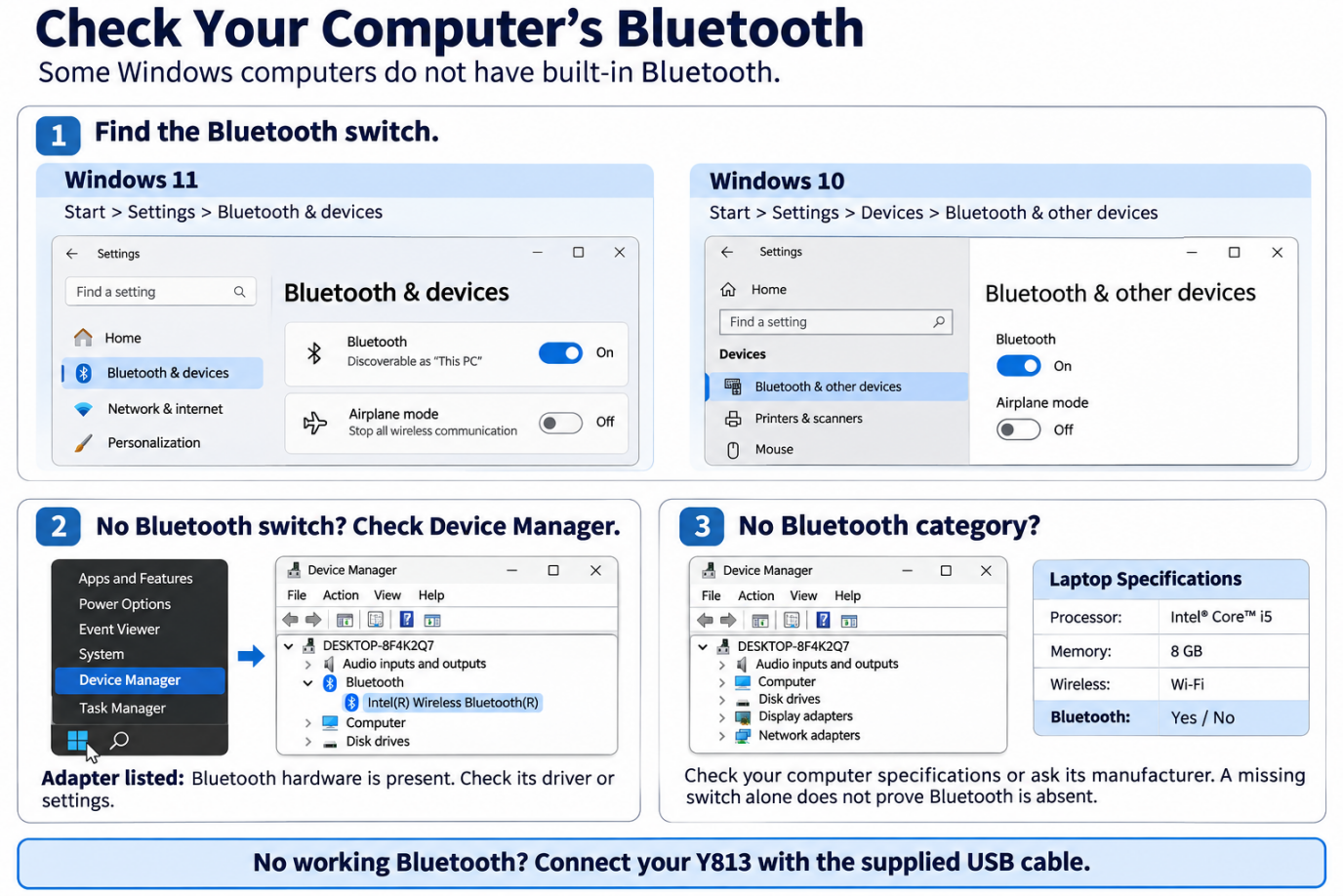
Some Windows computers do not have built-in Bluetooth.
Windows 11: Open Start > Settings > Bluetooth & devices.
Windows 10: Open Start > Settings > Devices > Bluetooth & other devices.
Turn Bluetooth on and make sure Airplane mode is off.
If there is no Bluetooth switch, right-click Start, open Device Manager, and look for Bluetooth. If it appears, your computer has a Bluetooth adapter, but its driver or settings may need attention. If it does not appear, check your computer’s specifications or ask its manufacturer whether Bluetooth is built in. You can use the supplied USB cable if your computer has no working Bluetooth connection.
2. Make Sure the Y813 Is Available
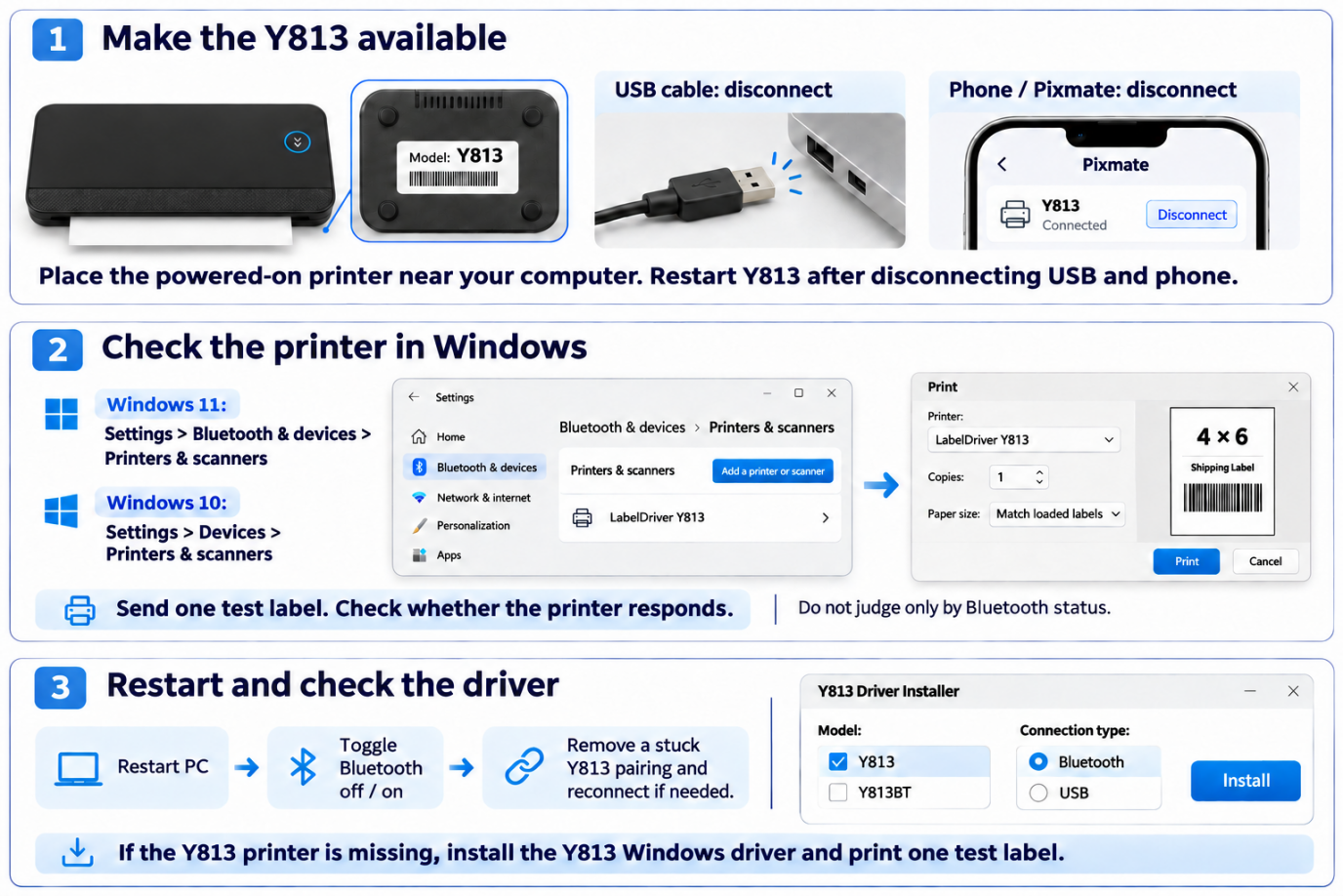
Check that the model label underneath the printer says Y813. Turn on the printer and place it near your computer.
For this Bluetooth test, disconnect any USB cable from the printer. If the Y813 is connected to Pixmate on your phone, disconnect it in the app. You can temporarily turn off the phone’s Bluetooth while testing. Then restart the Y813.
3. Check the Printer in Windows
Open Printers & scanners:
Windows 11: Settings > Bluetooth & devices > Printers & scanners
Windows 10: Settings > Devices > Printers & scanners
If the printer installed by the Y813 driver appears, open a saved label PDF and select that printer in the final Print window. Check the preview and send one test label. Judge the connection by whether the printer responds to the print job, rather than only by the Bluetooth status shown in Windows.
4. Restart and Check the Driver
Restart your computer and turn its Bluetooth off and back on. If an earlier Y813 pairing will not reconnect, remove it from the Windows Bluetooth device list and try again.
If the Y813 printer is missing from Printers & scanners, open the official driver page.
Confirm the model underneath your printer, install the Y813 Windows driver, and select Bluetooth if the installer asks for a connection type. Do not use a Y813BT or another brand’s driver. Try printing again after installation.
5. Restore the Y813 to Factory Settings
If the connection still fails, turn off the printer. Press and hold Feed, then press Power while continuing to hold Feed. Keep holding Feed as the indicator changes from purple to red to blue. Release Feed when it turns blue, let the printer finish starting, and retry the connection.
6. Print a Self-Test Page
A self-test prints directly from the Y813, so you can check the printer without sending a job from Windows.
1. Load direct thermal labels with the printable side facing up. Adjust the width guides so they touch the backing paper without bending it, then close both sides of the cover until they click.
2. Turn on the Y813 and wait until it is ready.
3. Press and hold the Feed button for about 3 seconds. Release it when the blue light flashes once and you hear one beep.
4. Wait for the printer to print the self-test page. Take a clear photo showing the entire printed page.
If no page comes out, tell our support team what the indicator light does when you hold Feed. The Y813 button guide identifies the blue flash and one beep as the self-test signal.
Still Need Help?
Send our support team a photo of the self-test page and a screenshot of your computer specifications from Start > Settings > System > About, showing System type and Windows specifications. If the self-test did not print, tell us what happened instead.



