 English
 Nederlands
 Français
 English (UK)
 Deutsch


If a label gets stuck in the printer, or printing stops before the label is complete, first check whether the paper can move freely. Then use a self-test page to find out whether the problem is with feeding or with the print job.
1. Stop printing and check for a jam
Turn off the Y813 and unplug the power adapter. If you have been printing, let the print head cool before opening the cover.
Look for a folded label, torn backing paper, or a piece of label stuck in the accessible paper path. Gently remove any loose material you can reach. Do not pull a stuck label forcefully, use sharp tools, or disassemble the printer.
If you see adhesive residue on the accessible roller or print-head area, gently wipe it with a lint-free swab lightly moistened with isopropyl alcohol. Let it dry completely before using the printer.
- Reload the labels
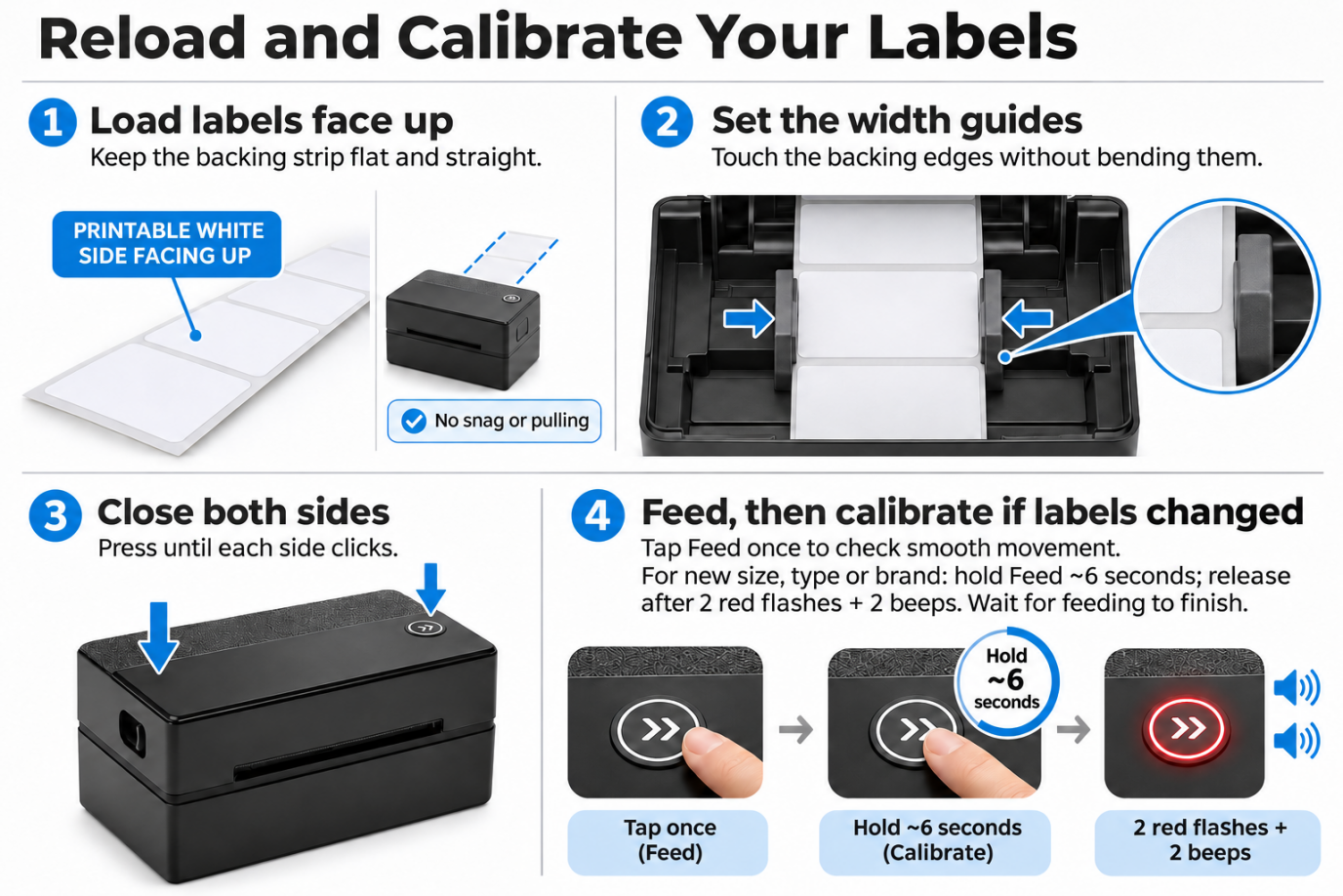
Load flat, undamaged direct thermal labels with the printable side facing up. Keep the backing strip straight, and make sure nothing behind the printer is pulling on it.
Move the width guides until they touch both edges of the backing strip without bending it. Press down on both sides of the cover until they click.
Turn on the printer and press Feed once. Check whether the label moves smoothly. If you changed the label size, type, or brand, calibrate the loaded labels: hold Feed for about 6 seconds, then release it after two red flashes and two beeps. Wait for feeding to finish.
3. Print a self-test page
With labels loaded and the printer on, hold Feed for about 3 seconds to print a self-test page.
If the self-test also jams or stops halfway, check the paper path and loading once more. If the same problem continues, contact our support team.
If the self-test prints completely, the printer can feed and print a label. Continue with the print-job checks below.
- Check for overheating and confirm the power adapter
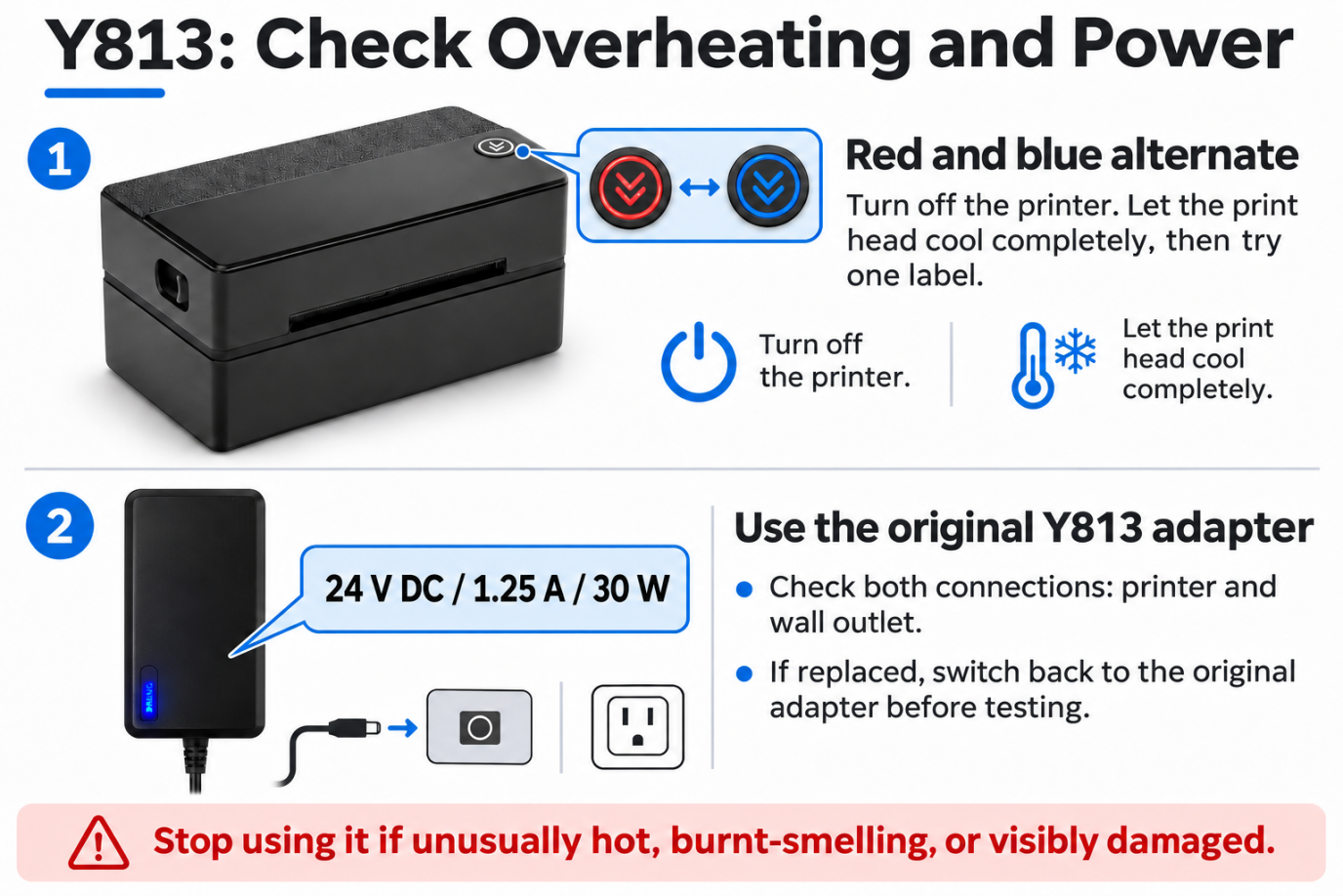
If the indicator alternates red and blue, the print head is overheating. Turn off the printer and let it cool completely before trying one label again.
Check that you are using the original Y813 power adapter, rated 24 V DC / 1.25 A / 30 W, and that its connection to the printer and wall outlet is secure. If you replaced the adapter, switch back to the original one before testing. Stop using the printer if the printer or adapter becomes unusually hot, smells burnt, or shows visible damage.
5. Check the file and connection
Open the original file and wait for the complete print preview. Make sure the full design fits on one page and the selected paper size matches the loaded labels.
If you print from a phone, import the file into Pixmate, reconnect to the Y813 inside the app, and print one test label.



