 English
 Nederlands
 Français
 English (UK)
 Deutsch


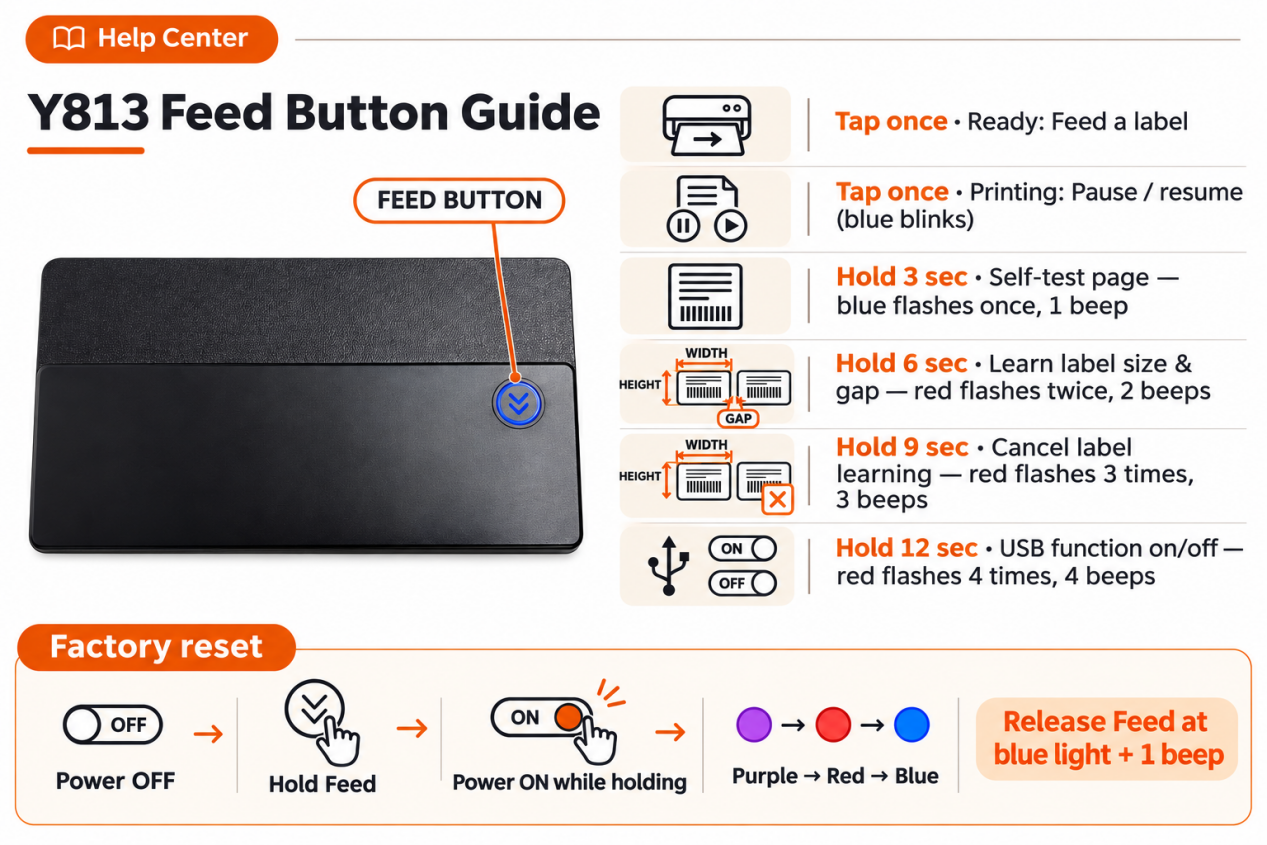
The Feed button does more than advance a label. You can also use it to pause printing, calibrate labels, print a self-test page, and restore factory settings. Check the printer’s light and beeps before releasing the button.
Make sure the Y813 is powered on and the labels are loaded correctly before using the paper feed, calibration, or self-test functions.
Feed a Label
When the printer is ready and not printing, press Feed once. The printer advances the label paper.
Use this to check that the labels move through the printer normally.
Pause or Resume Printing
While the Y813 is printing, press Feed once to pause the job. The blue light blinks repeatedly while printing is paused.
Press Feed once again to resume. If you need to stop unwanted jobs completely, also clear them from your phone or computer’s print queue.
Print a Self-Test Page
With the printer on and labels loaded, press and hold Feed for about 3 seconds. Release it when the blue light flashes once and you hear one beep. The Y813 will print a self-test page.
A clear self-test page helps you check whether the printer can print without relying on the file, app, or computer. If the self-test prints clearly but your own label does not, check the original file, print preview, connection, and driver.
Calibrate the Labels
Calibrate after changing the label size or type, or if the printer skips labels or stops at the wrong position.
Load the labels straight, adjust the width guides so they touch the paper without bending it, and close the cover fully. With the printer on, press and hold Feed for about 6 seconds. Release it when the red light flashes twice and you hear two beeps. Wait until the printer finishes feeding the labels before printing again.
The movement during calibration is normal: the Y813 is identifying where each label begins and ends.
Cancel Paper Calibration
If you need to cancel the paper calibration function, press and hold Feed for about 9 seconds. Release it when the red light flashes three times and you hear three beeps.
If you intended to calibrate the labels, release Feed at the two-beep signal at approximately 6 seconds instead.
Turn the USB Function On or Off
Press and hold Feed for about 12 seconds. Release it when the red light flashes four times and you hear four beeps. This toggles the USB function on or off.
If your computer suddenly cannot connect by USB after using this command, repeat it to change the USB function back, then reconnect the cable and check the printer again.
Restore Factory Settings
Use a factory reset if the printer still behaves unexpectedly after you have checked the labels and tried calibration.
Turn off the Y813. Press and hold Feed, then press Power while continuing to hold Feed. Keep holding Feed until the indicator changes from purple to red to blue, then release Feed to restore the factory settings.
After the reset, reload and calibrate the labels if needed. Check your connection and print settings before trying one test label.
What Do the Indicator Lights Mean?
Solid blue: The printer is ready.
Blinking blue: Printing is paused.
Blinking red: The printer cover is open. Press down on both sides until it is fully closed.
Red light flashing twice repeatedly: Paper is empty or not loaded correctly. Reload the labels.
Alternating red and blue: The print head is overheating. Stop printing and allow the printer to cool.
Still Need Help?
Tell our support team which Feed button operation you tried and what the light and buzzer did. Please include a short video of the printer, a photo of the loaded labels, and a photo of the self-test page if one printed.
ARTICLE | INDICATOR LIGHTS



