 English
 Nederlands
 Français
 English (UK)
 Deutsch


Use this guide if content prints too high or too low on each label, or if the printer feeds unevenly and leaves an unexpected space or blank label between prints.
First, identify what you see:
- The same up-or-down shift on every label: Check the file layout, then adjust the print position if needed.
- The position changes from one label to the next, or extra labels feed out: Check the paper size, label gaps, and calibration first.
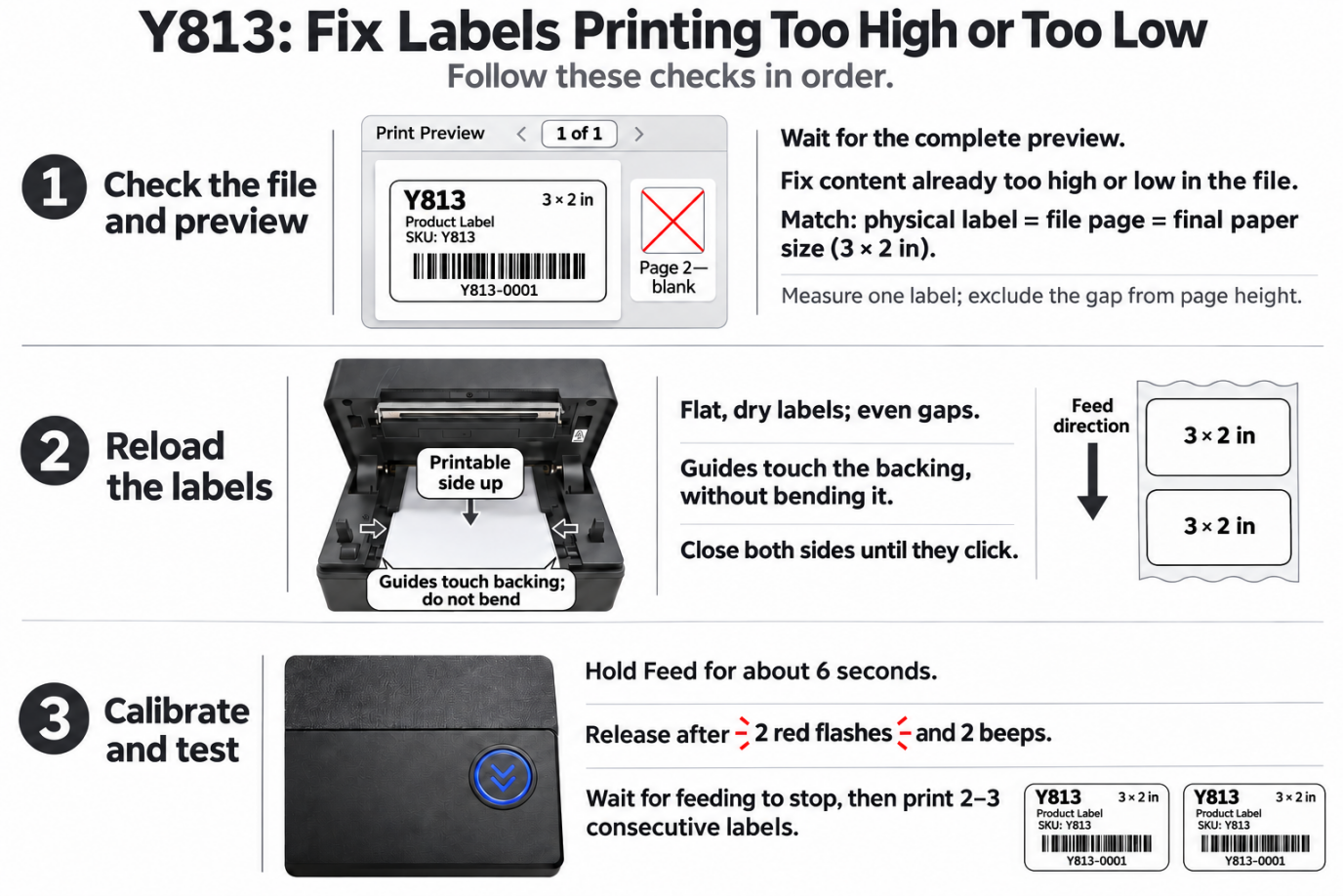
1. Check the File and Print Preview
Open the original file and wait for the complete print preview.
If the content is already too high, too low, or surrounded by extra blank space in the preview, correct the file or design before printing. Also check whether the file contains an unexpected second page.
Confirm that these three sizes match:
- The size of one physical label
- The page or design size of the file
- The paper size selected in the final Print window
For example, if you loaded 3 × 2 in labels, do not leave the file or print window set to 4 × 6 in. Measure only the individual label when entering its height; do not add the physical gap between labels to the page height.
2. Check the Labels and Reload Them
Make sure the labels are flat, dry, and feeding straight. If they are pre-cut labels, check that the gaps between them are visible and reasonably consistent.
- Load the labels with the printable side facing up.
- Adjust the width guides until they touch the edges of the backing strip without bending it.
- Press down on both sides of the cover until it clicks.
If the gaps on the paper itself are irregular, try a fresh pack of compatible direct thermal labels. Printer settings cannot change the physical spacing of pre-cut labels.
3. Calibrate the Y813
Calibrate after changing label size, type, or brand, and when the printer no longer stops at the correct point between labels.
- Turn on the Y813 with labels loaded.
- Press and hold Feed for about 6 seconds.
- Release it when the red light flashes twice and you hear two beeps.
- Wait for the printer to finish feeding, then print two or three consecutive labels to check alignment.
4. If Every Label Prints Too High or Too Low
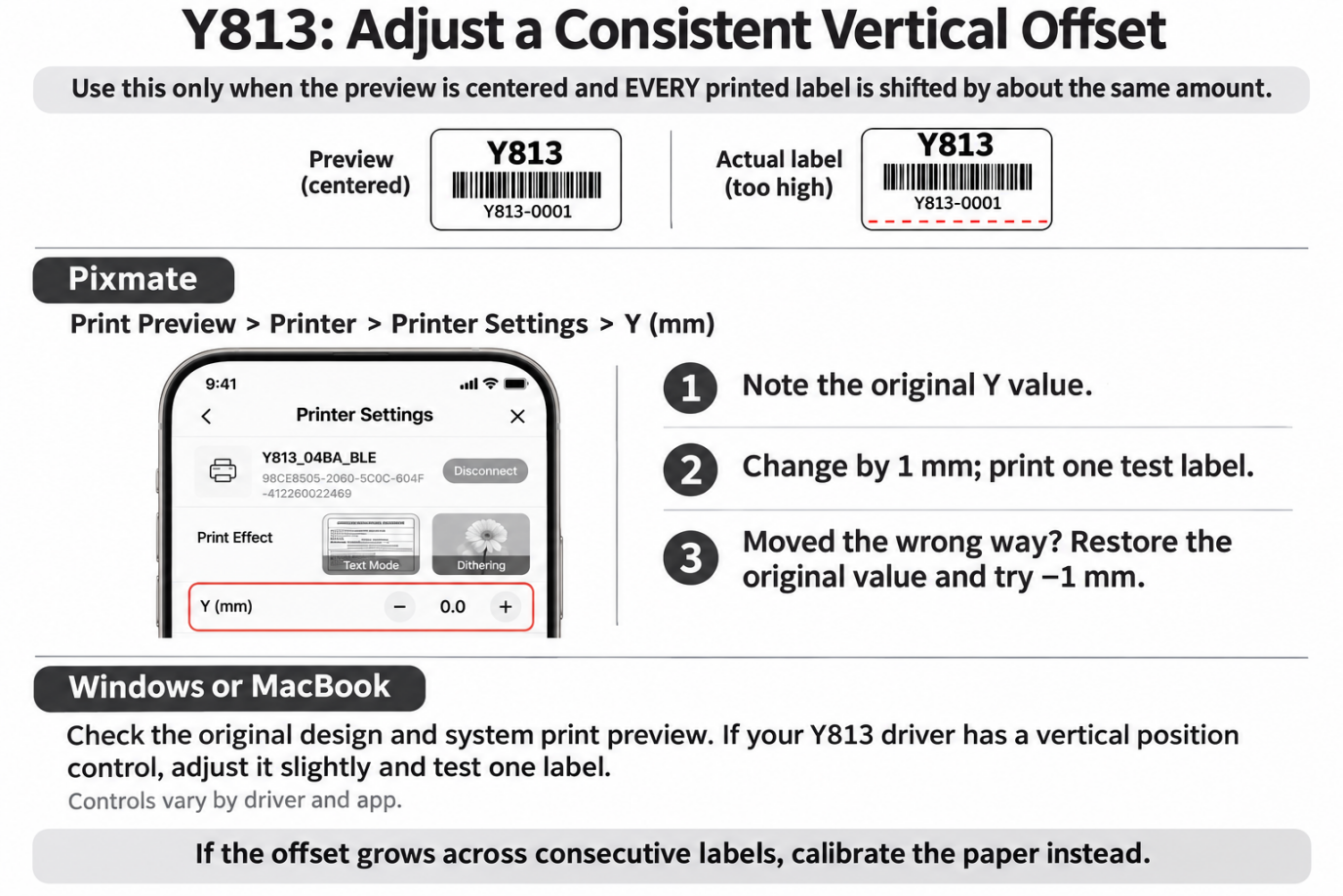
Use a position adjustment only when the preview is correctly centered and every printed label has roughly the same small offset.
In Pixmate: Open Print Preview > Printer > Printer Settings and find Y (mm). Note its original value, change it by a small amount such as 1 mm, and print one label. If the result moves in the wrong direction, restore the original value and try the opposite direction.
On Windows or MacBook: Check the position of the content in the original design and the system print preview. If your installed Y813 driver offers a vertical position adjustment, change it slightly and test one label.
- If Spacing Is Uneven or Extra Labels Feed Out
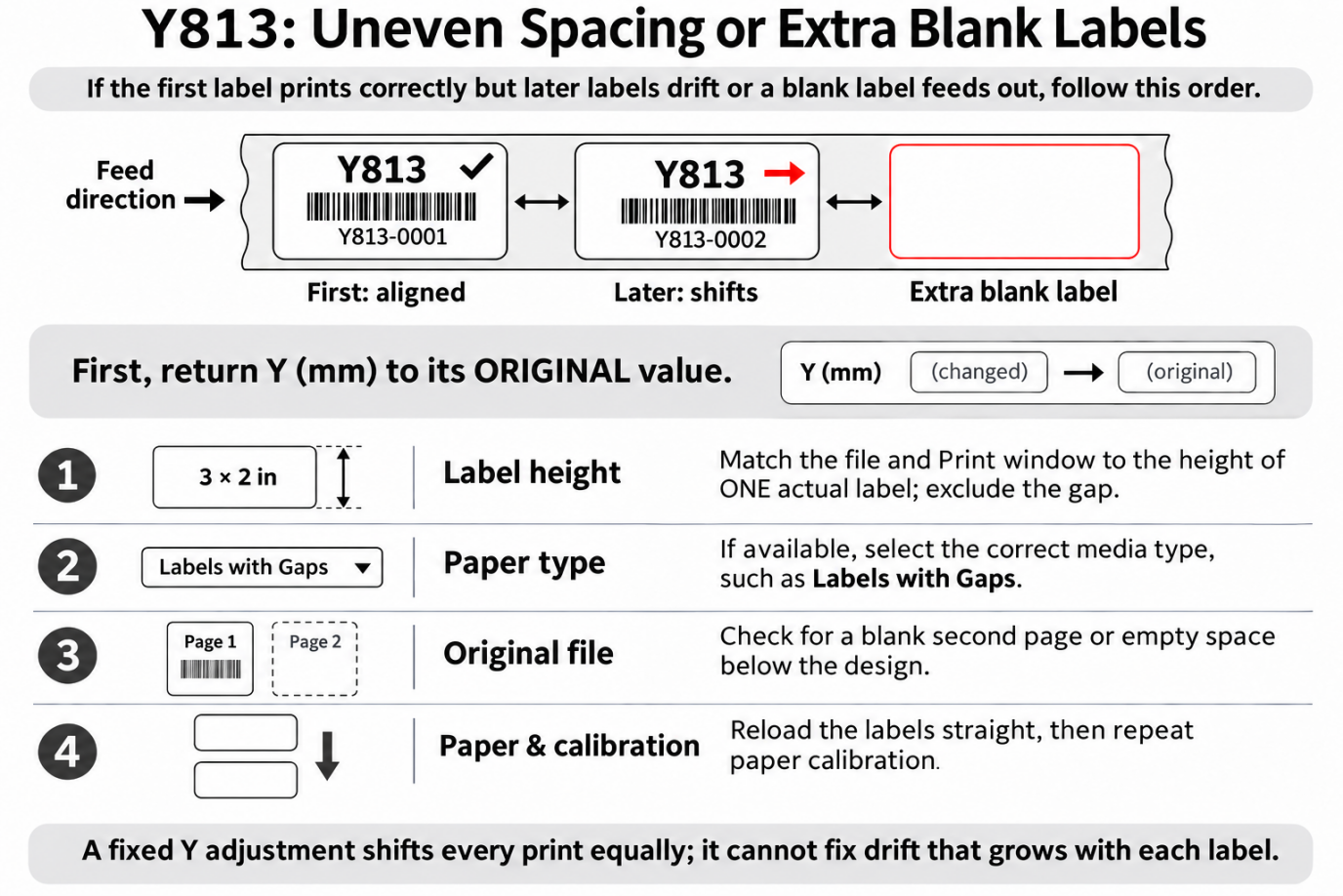
If the first label looks right but later labels shift, or a blank label appears between prints, return any Y adjustment to its original value. Then check:
- Label height: The file and print setting must match the height of one actual label.
- Paper type: If your software or driver offers a media setting, select the type that matches your paper, such as Labels with Gaps for separated labels.
- Original file: Check for an extra blank page or empty space below the design.
- Paper and calibration: Reload the strip straight and repeat Step 3.
A fixed vertical adjustment moves the image by the same amount each time; it will not correct an error that grows with each label.
- Restore Factory Settings if the Problem Continues
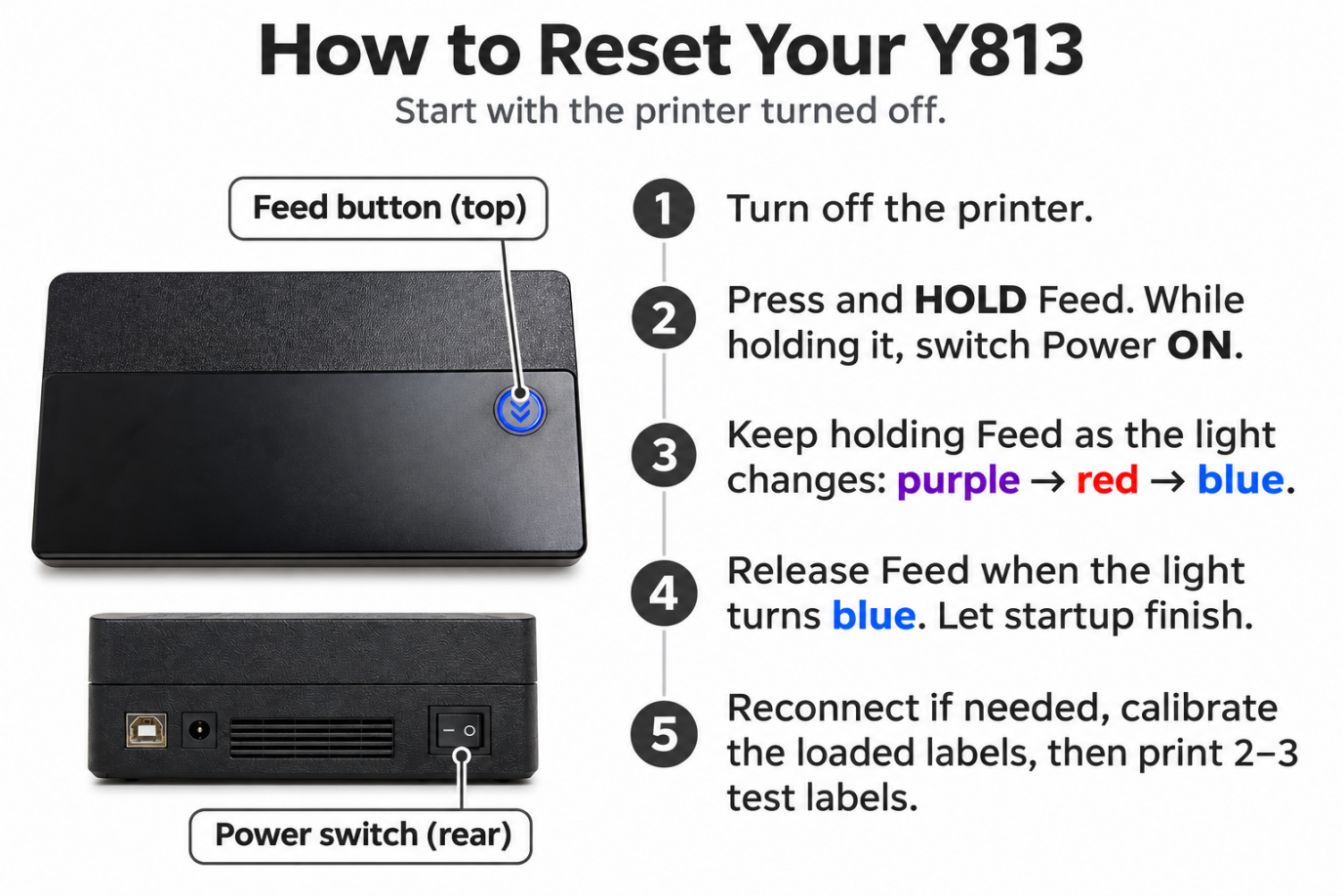
If the file, paper settings, loading, and calibration are correct but the problem remains:
- Turn off the Y813.
- Press and hold Feed, then press Power.
- Keep holding Feed until the indicator changes from purple to red to blue.
- Release Feed and let the printer finish starting.
- Reconnect the printer if needed, calibrate the loaded labels again, and print two or three test labels.
Still Need Help?
Send our support team a photo of three consecutive printed labels, a photo showing the gaps between unused labels, a screenshot of the complete print preview and paper-size setting, and your order number. Tell us whether the issue is a consistent up-or-down shift or spacing that changes between labels.



