 English
 Nederlands
 Français
 English (UK)
 Deutsch


The labels included with your Y813 are 4 × 6 in. If you purchased rectangular labels in another size—such as 3 × 2 in, 1 × 2 in, or a custom size—set up the printer and your design to match the labels you actually have.
The sizes below are examples. Always check your label package or confirm the dimensions with the seller before entering them in Pixmate or your computer.
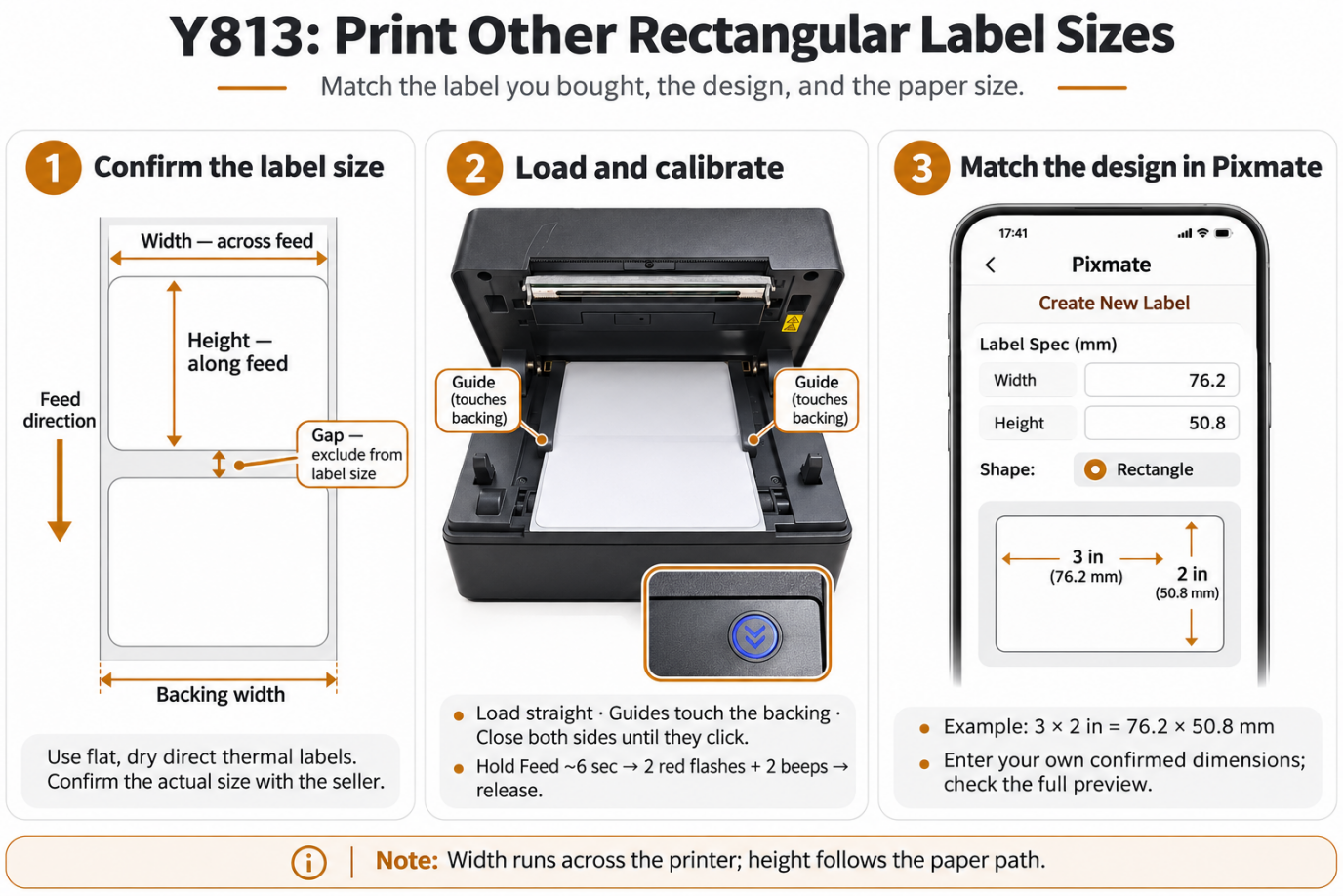
1. Confirm the Label Size and Paper Type
Check the width and height of one label. Do not include the gap between labels in those measurements. Also check how wide the backing strip is where it feeds into the printer.
Use good-quality direct thermal labels that are flat, dry, and separated by consistent gaps. Before using especially narrow labels, confirm that the backing strip fits the Y813’s supported paper width.
Important: The order printed on a package, such as “1 × 2 in,” may not describe how the labels feed through your printer. In print settings, Width is the dimension across the feed path, and Height is the dimension in the direction the paper travels.
2. Load and Calibrate the Labels
- Load the labels with the printable side facing up. Keep the strip straight and flat.
- Move the width guides so they touch the edges of the backing strip without bending it.
- Press down on both sides of the cover until you hear a click.
- Turn on the Y813. After changing label size, type, or brand, press and hold Feed for about 6 seconds.
- Release the button when the red light flashes twice and you hear two beeps. Wait for the printer to finish feeding the labels.
3. Match the Design to Your Labels
Create or export your design at the size of the individual label. For example, a label that feeds with its 3 in edge across the printer and its 2 in edge along the paper path needs a 3 × 2 in design.
In Pixmate, connect your Y813, tap Create New Label, and enter the dimensions under Label Spec. Select Rectangle under Shape if shown. Add your content, keeping text and barcodes away from the edges. Check the complete preview before printing.
If Pixmate uses millimeters, 1 in = 25.4 mm. Enter the dimensions confirmed by your label seller rather than selecting a nearby preset simply because it looks similar.
4. Select the Same Paper Size When Printing
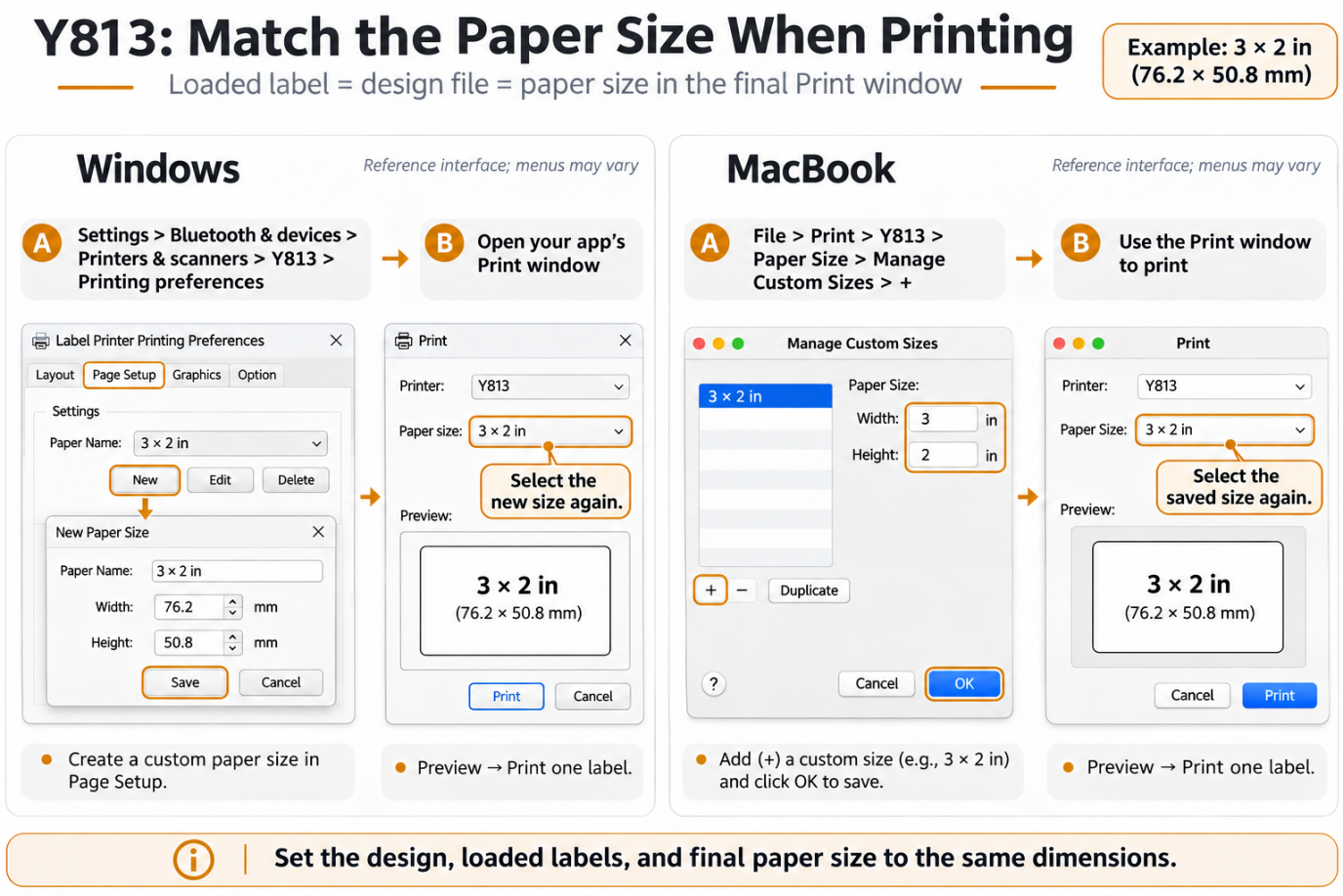
The design file, loaded labels, and paper size in the final Print window should all match.
On Windows
- Open Settings > Bluetooth & devices > Printers & scanners > Y813 > Printing preferences. On Windows 10, the path may begin Settings > Devices > Printers & scanners.
- Open Page Setup and check Paper Name.
- Select the matching size. If it is unavailable, click New, enter the correct Width and Height, and save it.
- Open your design’s Print window. Select Y813 and your new paper size again. Check the preview and print one label.
On MacBook
- Open your design and select File > Print.
- Select Y813, then open Paper Size.
- If your size is unavailable, select Manage Custom Sizes, click +, and enter the correct Width and Height.
- Save and select the new size. Check the preview and print one label.
5. Check One Test Label
Print one label before starting a batch.
- Too small or cut off: Check the design size and the paper size selected in the final Print window.
- Sideways: Check the feed direction, Width and Height, and print orientation.
- Off-center or drifting across several labels: Reload the strip straight, check that its gaps are consistent, and calibrate the Y813 again.
- Skipping labels: Check the gap between labels and select a labels with gaps paper type if your driver offers that setting.
If a particular label stock still does not feed or print correctly, try a fresh pack of compatible direct thermal labels.
Still Need Help?
Send our support team a photo of the label package, several consecutive labels showing their gaps, how the strip is loaded, your design and print settings, and one printed result. Include the backing-strip width if you are using narrow labels.



