 English
 Nederlands
 Français
 English (UK)
 Deutsch


If white lines, white gaps, or white spots appear on your label—especially across text or barcodes—follow these steps.
1. Clean the Print Head
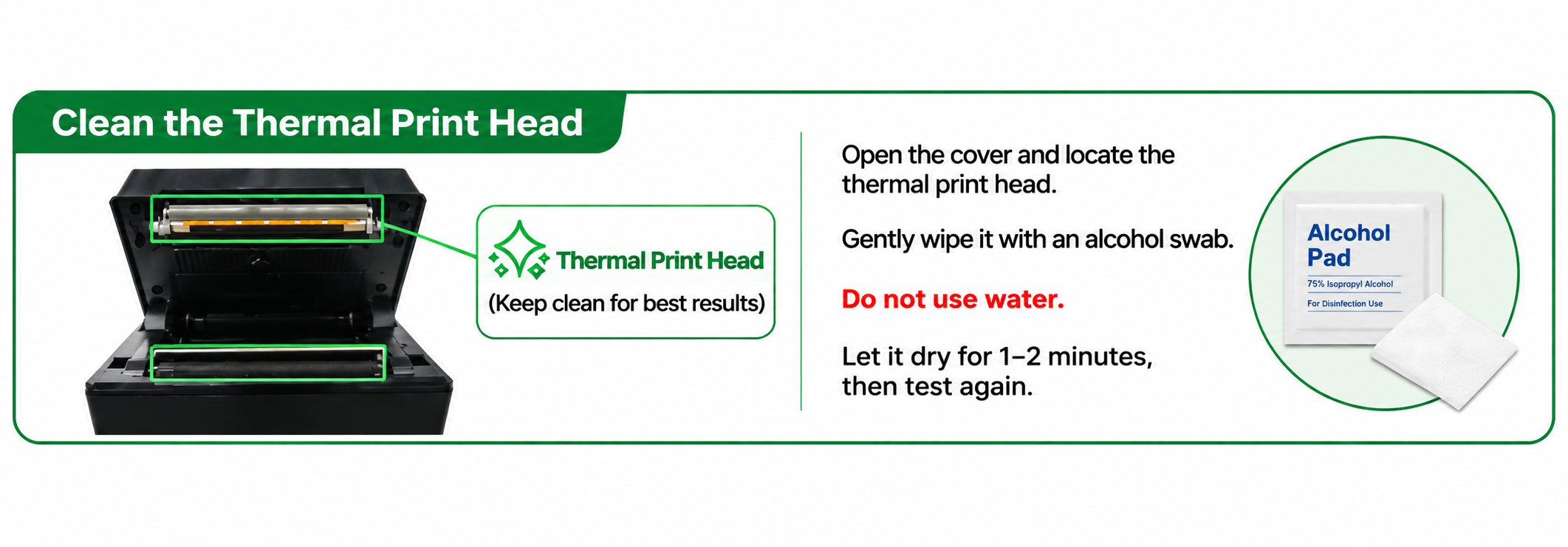
Dust, paper scraps, or adhesive on the print head can prevent parts of the label from printing.
- Turn off the Y813, unplug the power adapter, and let the print head cool.
- Open the cover and remove any visible paper scraps.
- Gently wipe the accessible print head and any visible residue on the roller with a lint-free swab lightly moistened with isopropyl alcohol.
- Let everything dry completely, then close the cover and print again.
Do not spray liquid into the printer, use sharp tools, or disassemble it.
2. Reload the Labels and Secure the Cover
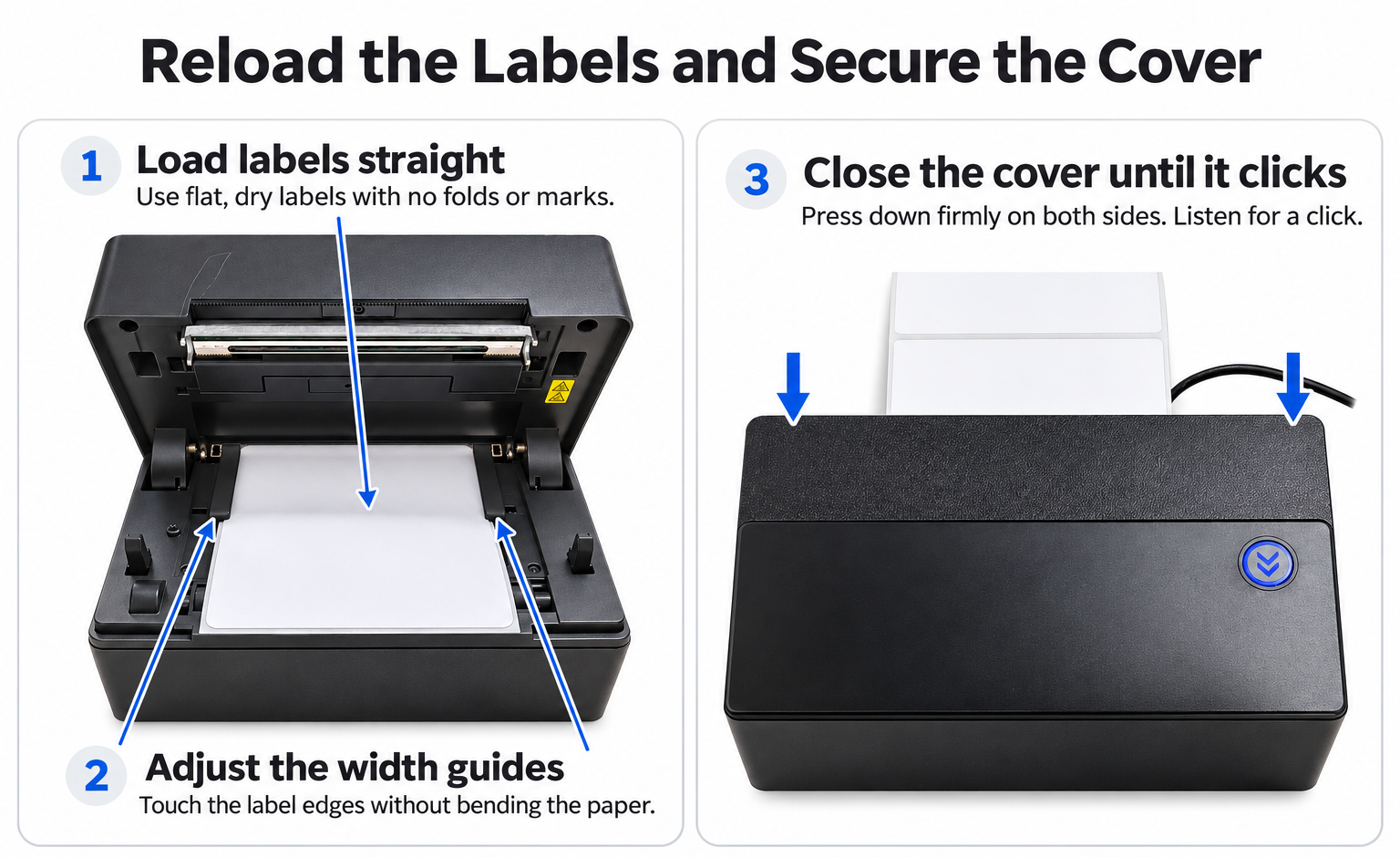
Make sure the labels are flat, dry, and loaded straight, with no folds or visible marks. Adjust the width guides so they touch the label edges without bending the paper.
Press down firmly on both sides of the cover until you hear a click. Check that the cover is fully closed before printing.
If you use another brand of labels, test with the direct thermal labels included with your Y813. If the included labels print clearly, try a fresh pack of compatible labels.
3. Print a Self-Test Page
With the printer on and labels loaded, press and hold Feed for about 3 seconds.
- The self-test is clear: Check the file and print settings
- The self-test has a white line or gap: Print one more self-test page. If the missing area remains in the same position after cleaning, contact our support team.
4. Check the File and Preview
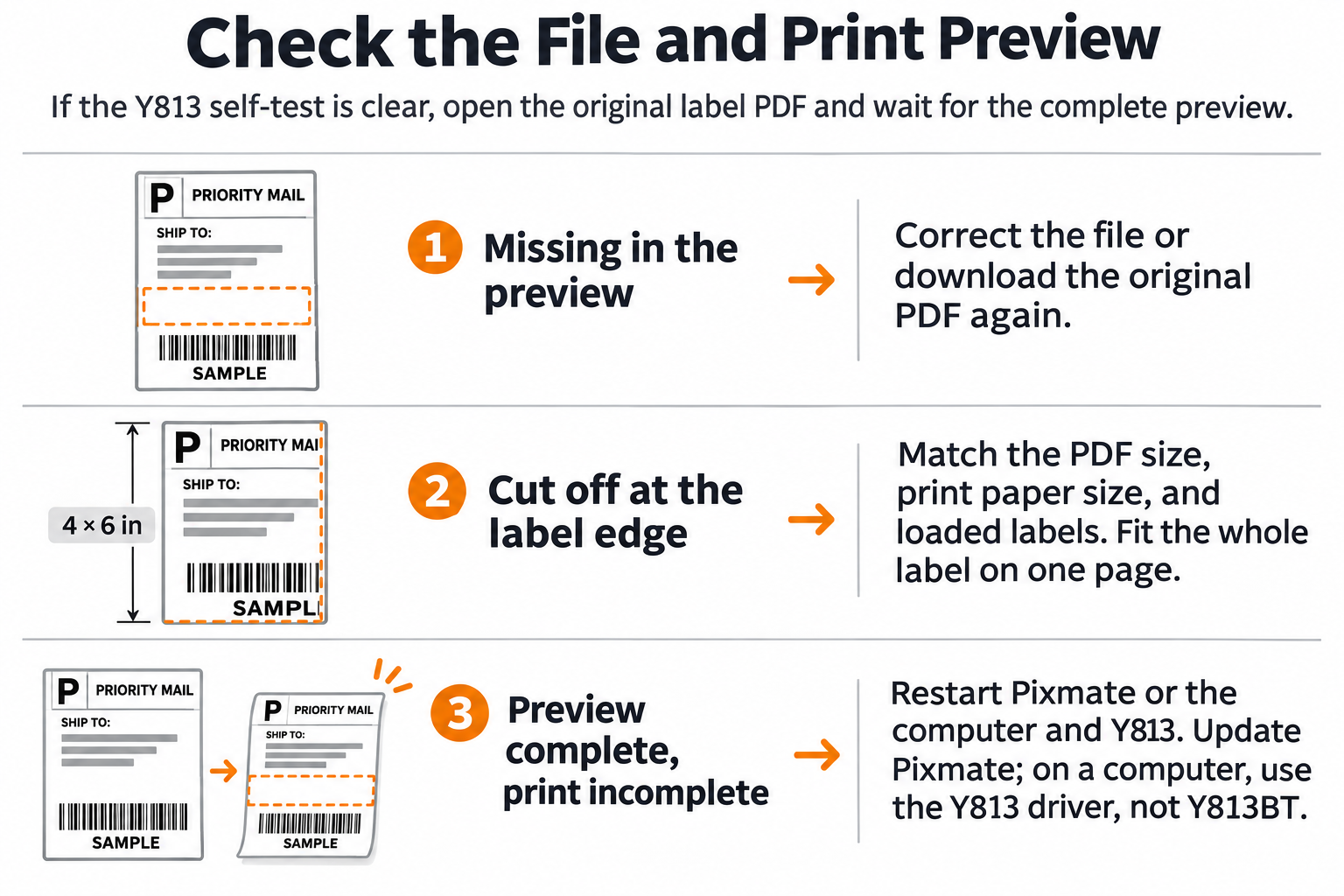
If the self-test is clear, open the original label PDF and wait for the complete print preview.
- The white gap or missing content is visible in the preview: Correct or download the file again.
- Content is cut off at the label’s edge: Make sure the file size, selected paper size, and loaded labels match. Check that the complete label fits on one page.
- The preview is complete, but the print is not: Restart Pixmate or your computer and printer. Update Pixmate if needed. On a computer, confirm that the installed driver is for Y813, not Y813BT.
Still Missing Print?
Send our support team photos of two consecutive printed labels and the self-test page, plus a screenshot of the full preview, your label paper details, and your order number. Please tell us whether the white line, gap, or spot appears in the same position each time.



