 English
 Nederlands
 Français
 English (UK)
 Deutsch


If the Y813 keeps printing labels with content, a pending or duplicate print job may still be in your computer’s print queue. Follow the steps for your computer below.
First, turn off the Y813 to stop the current print run. Do not click Print again until you have cleared the queue.
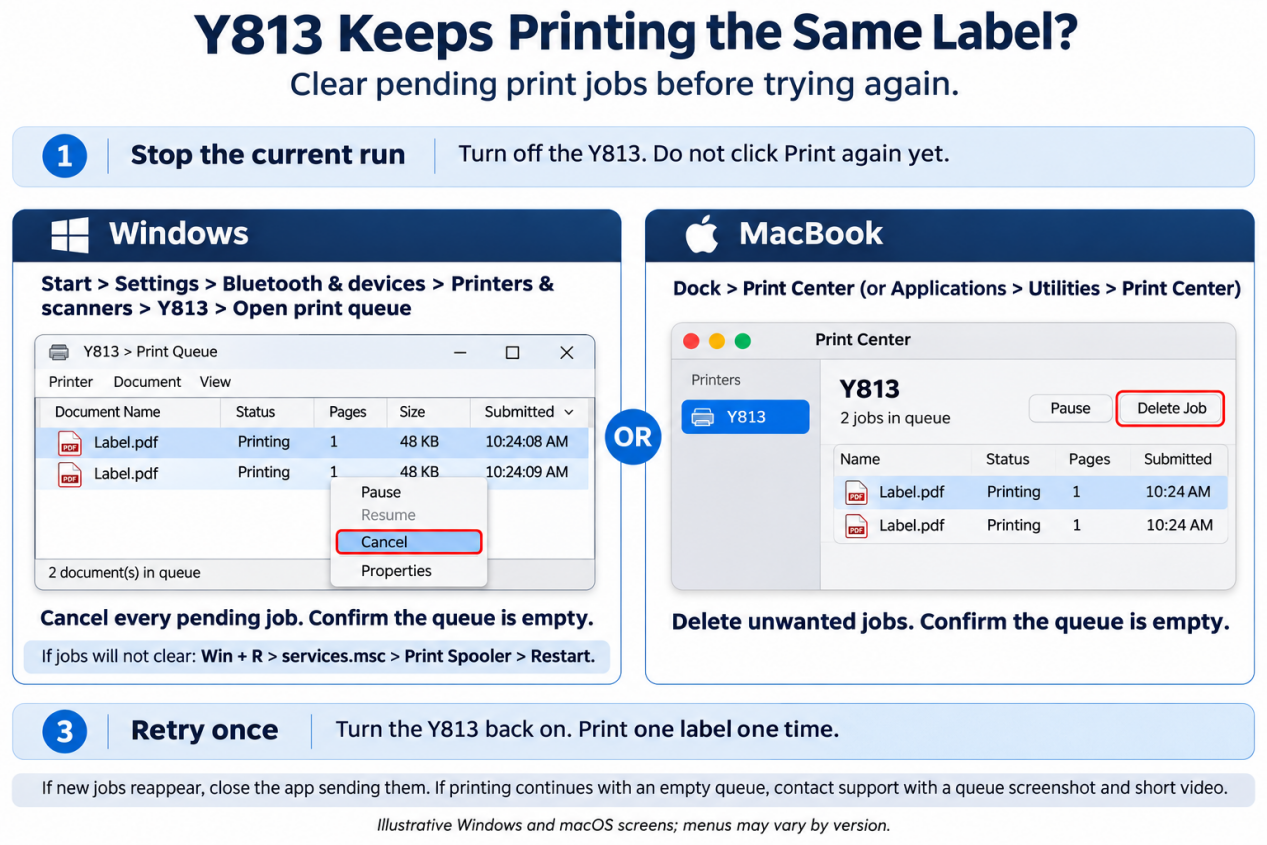
Windows
- Go to Start > Settings > Bluetooth & devices > Printers & scanners.
- Select Y813, then click Open print queue.
- Right-click each pending job and select Cancel. Make sure the queue is empty. Microsoft Support
- Turn the Y813 back on and send one label only once to test.
If a job will not clear: Press Windows + R, enter services.msc, and press Enter. Find Print Spooler, right-click it, and select Restart. Check the Y813 queue again before printing. Microsoft Support
MacBook
- Click the Print Center icon in the Dock. If it is not visible, open Applications > Utilities > Print Center.
- Select the Y813 queue. Select each unwanted or duplicate job and click Delete Job. Make sure no jobs remain in the queue. Apple Support (IE)
- Turn the Y813 back on and send one label only once to test.
If new jobs keep appearing after you clear the queue, close the app you were printing from, reopen the label file, and try once more. If the printer continues printing while the queue is empty, contact our support team and include a screenshot of the queue and a short video of the issue.



