 English
 Nederlands
 Français
 English (UK)
 Deutsch


If a label prints almost entirely black, or a photo comes out as a dark block with very little detail, check how the image is printed, which app sends the job, and which computer driver is selected. Try one test print after each step.
[Image: Show an example of a nearly solid-black printed label beside the three checks below.]
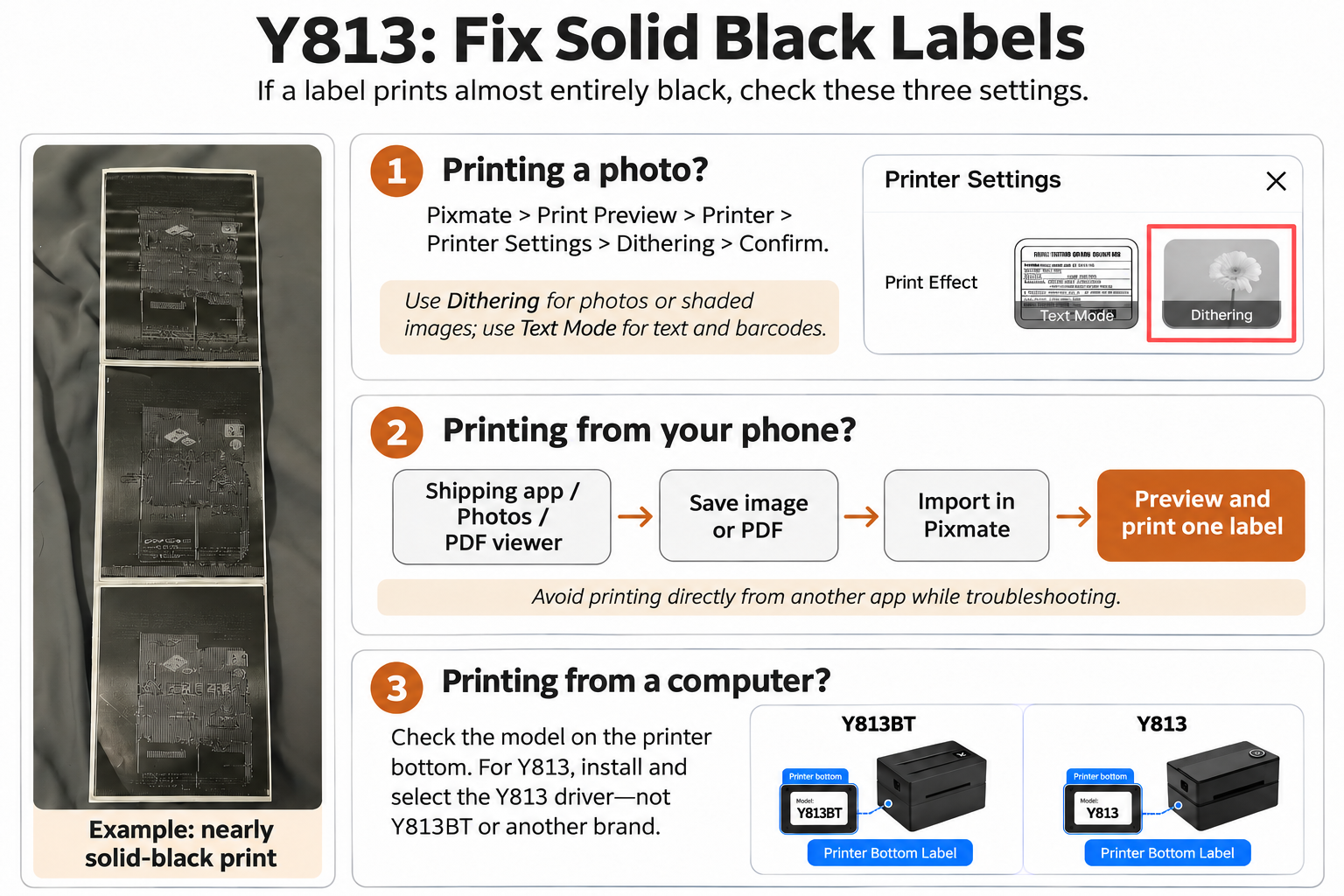
1. Check the Print Effect When Printing a Photo
A photo contains shades and shadows that a thermal printer must convert into black and white dots. If you are printing a photo or shaded image, try an image setting such as Dithering. For ordinary shipping labels with text and barcodes, start with Text Mode.
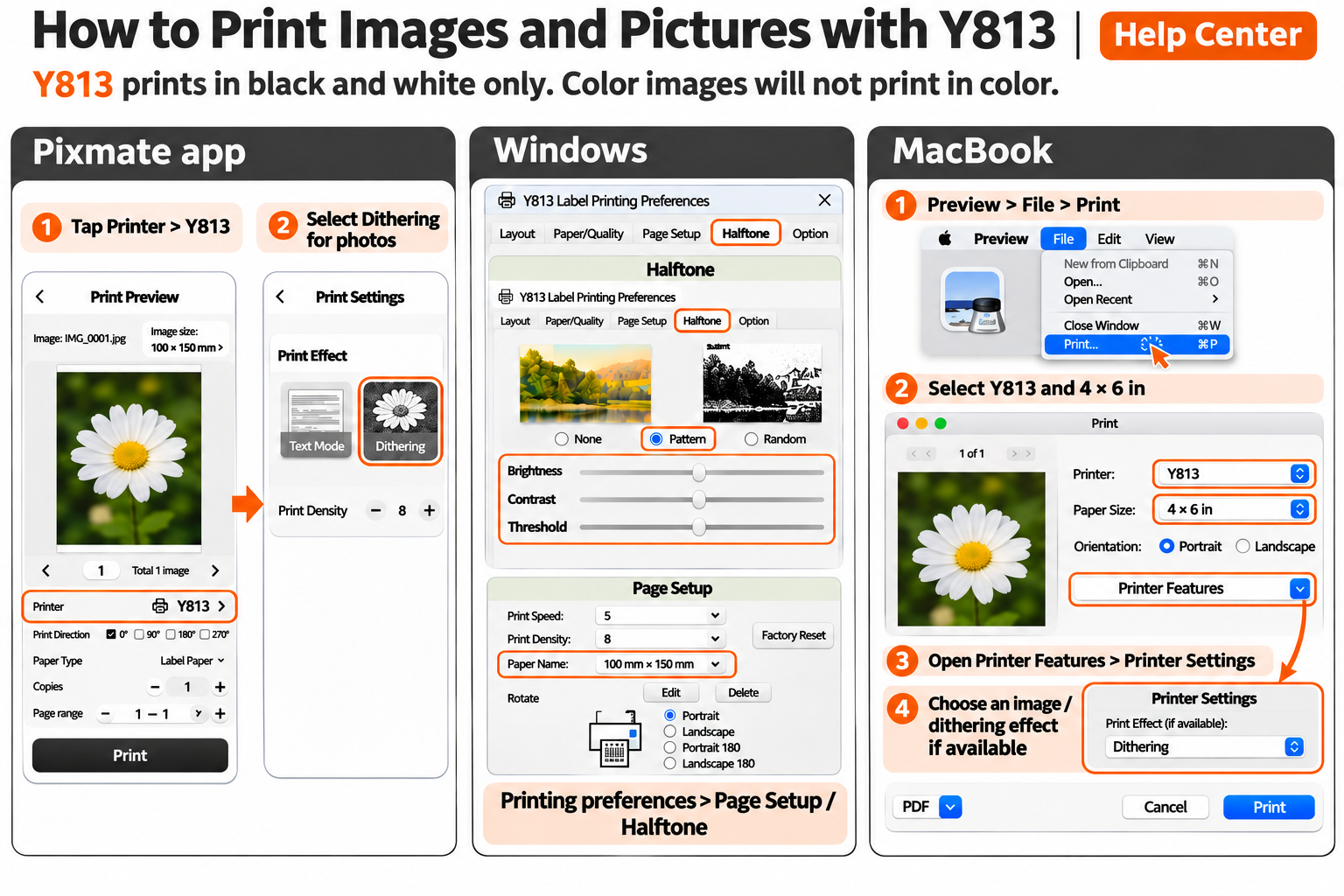
In Pixmate
- Import the image and open Print Preview.
- Tap Printer to open Printer Settings.
- Under Print Effect, select Dithering, then tap Confirm.
- Check the preview and print one label.
On Windows
- Open the image’s Print window and select your Y813.
- Open Printing preferences. You can also find this under Settings > Bluetooth & devices > Printers & scanners > Y813 > Printing preferences.
- Look for Halftone, Graphics, or Dithering settings. If your installed driver offers an image or photo option, select it and apply the change.
- Check the preview and print one image. If it remains too dark, adjust an available brightness or density setting gradually, testing one change at a time.
On MacBook
- Open the image and select File > Print.
- Select Y813 and expand the print settings if needed.
- Check Printer Features, Printer Settings, or Page Options for an image, print effect, or halftone option, if your driver provides one.
- Check the preview and print one image. If an image setting is unavailable, try importing and printing the image through Pixmate on your phone.
Computer menu names and available image controls can vary by app, operating system, and driver.
2. Print Through Pixmate on Your Phone
Did you tap Print directly inside another app, such as a shipping platform app, your phone’s Photos app, or a PDF viewer? Save the file to your phone and test it through Pixmate. This checks whether the app used to send the print job is affecting the result; you can still use a label file downloaded from a third-party platform. Mobile printing routes can handle PDFs and images differently.
- Open Pixmate and connect your Y813.
- Import the saved image or PDF.
- Wait until the complete print preview appears.
- If the file is a photo or shaded image, select Dithering in Printer Settings > Print Effect.
- Print one label and compare it with the previous result.
If the file already looks mostly black in the preview, check the original image or download the file again before printing.
3. Check the Computer Driver
Y813 and Y813BT are different models. Turn your printer over and read the model number on its bottom label before checking the driver on your computer.
If the bottom label says Y813:
- Open the print window and check which printer is selected.
- If your computer is using a Y813BT, another brand’s, or an incorrect printer driver, remove that printer entry.
- Download and install the driver for Y813 from the Y813 driver page.
- Restart your computer and printer. Select the installed Y813 printer, check the preview, and print one test label.
A printer appearing in the computer’s list does not by itself confirm that the correct model driver is selected. The Y813 setup instructions specifically distinguish its driver from the older Y813BT driver.
4. Print a Self-Test Page
If the label is still black, check whether the same problem occurs without sending a file from your phone or computer.
- Turn on the Y813 and load labels.
- Press and hold Feed for about 3 seconds.
- Check the self-test page.
①The self-test is clear: Recheck the original file, print effect, app, and computer driver.
②The self-test is also nearly solid black: Continue to the factory reset below.
5. Restore Factory Settings
If the checks above have not resolved the problem, try restoring your Y813 to factory settings:
- Turn off the printer.
- Press and hold Feed, then press Power.
- Keep holding Feed until the indicator changes from purple to red to blue.
- Release Feed and let the printer finish starting.
- Reconnect it in Pixmate or select the correct Y813 printer on your computer. Check your settings, then print one test label.
A factory reset will not replace an incorrect computer driver or change how another phone app processes an image, so retest using Pixmate or the correct Y813 driver.
Still Printing Black?
Please contact our support team and include:
- A photo of the black printed label and the self-test page
- A screenshot of the original file and full print preview
- A photo of the model number on the printer’s bottom label
- Whether you printed through Pixmate, another phone app, Windows, or MacBook
- Your order number



