 English
 Nederlands
 Français
 English (UK)
 Deutsch


The Y813 prints in black and white only. If a photo loses detail or prints as a dark block, try Dithering to show light and dark areas as black-and-white dots.
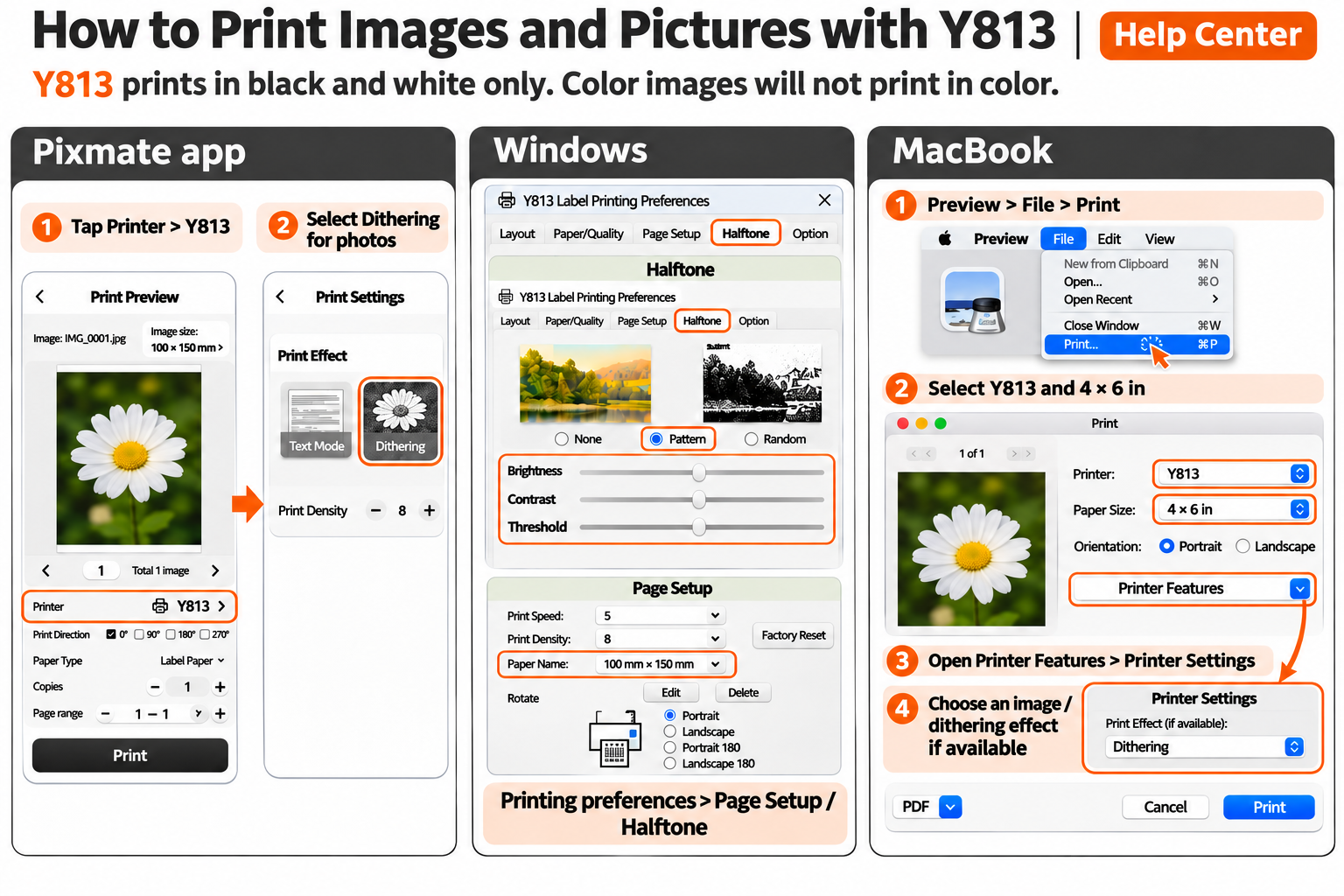
Before printing, select the paper size that matches your loaded labels and check that the entire image fits in the preview.
Pixmate App
- Import your image and open Print Preview.
- Tap Printer > Y813.
- Under Print Effect, select Dithering for a photo or shaded image.
- Print one image. For a simple black-and-white graphic, compare the result with Text Mode.
Windows
- Open the image, select Print > Y813, then open Printing preferences.
- Under Page Setup, match the loaded label size and check the orientation.
- Under Halftone, try Pattern for a photo or shaded image.
- Print one image. If needed, adjust Brightness, Contrast, or Threshold one setting at a time.
MacBook
- Open the image in Preview > File > Print.
- Select Y813, match Paper Size, and check the image preview.
- Open Printer Features > Printer Settings. If your driver offers an image or dithering effect, try it and compare one print.



