 English
 Nederlands
 Français
 English (UK)
 Deutsch


If unwanted black lines, dark streaks, or black blocks appear on your labels, follow these steps in order.
- Clean the Print Head
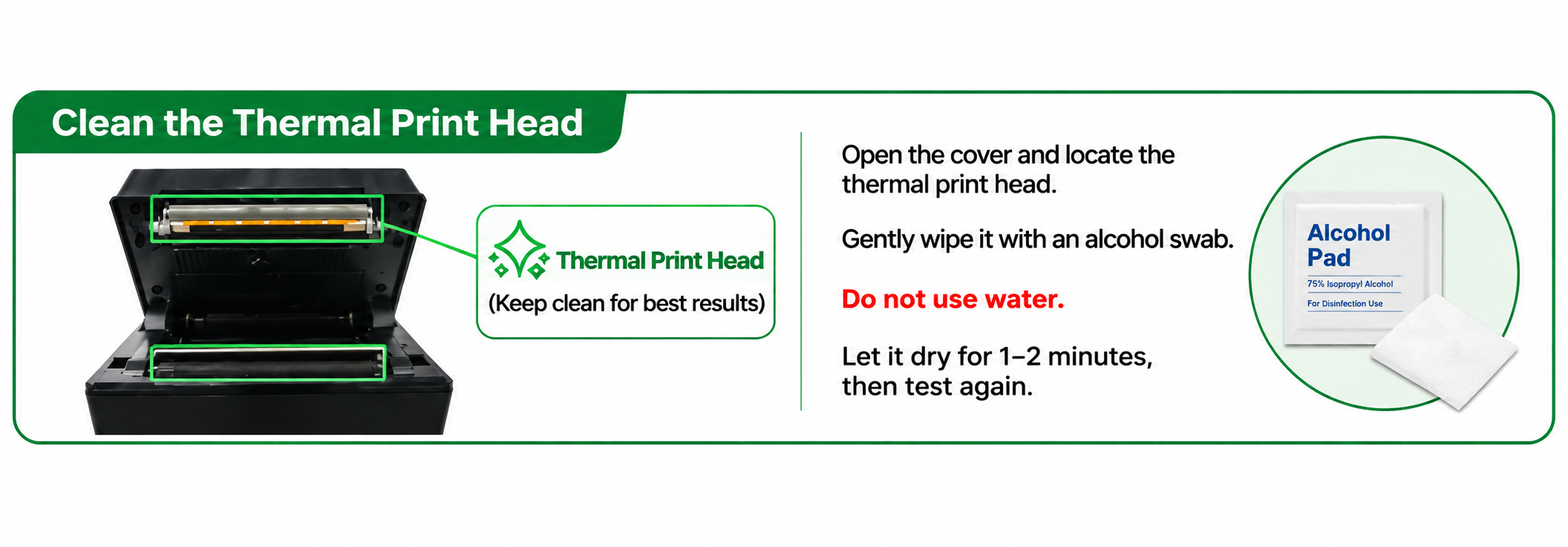
- Turn off the Y813, unplug the power adapter, and let the print head cool.
- Open the cover and remove any visible paper scraps or adhesive.
- Gently wipe the accessible print head with a lint-free swab lightly moistened with isopropyl alcohol. Clean any visible residue on the accessible roller.
- Let everything dry completely, then reload the labels and close the cover.
Do not spray liquid into the printer, use sharp tools, or disassemble it.
2. Print a Self-Test Page
Turn on the printer. With labels loaded, press and hold Feed for about 3 seconds.
- The self-test is clear: Check the print settings and original file.
- A black line appears on the self-test: Print one more self-test page. If the line remains in the same position after cleaning, contact our support team.
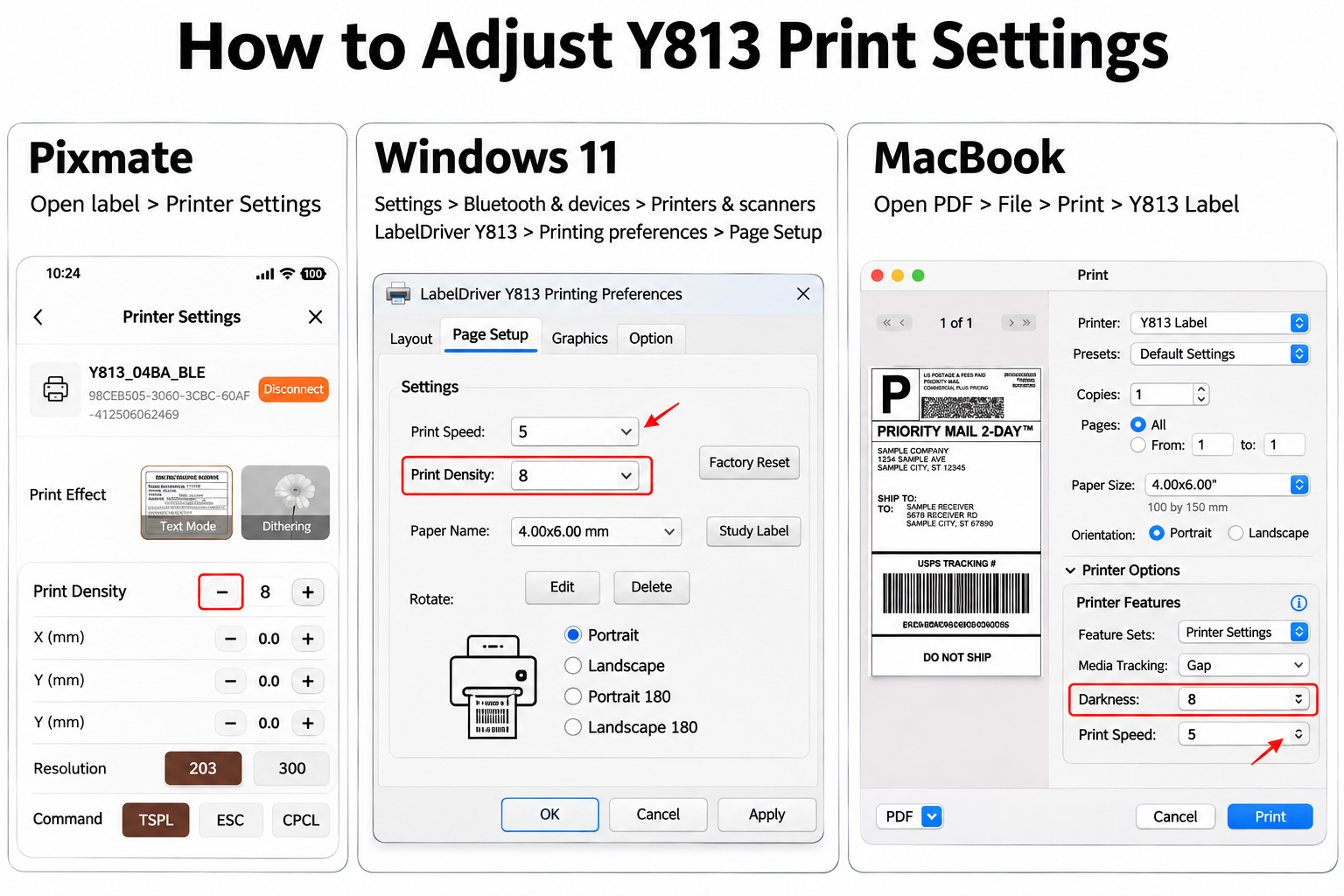
3. Adjust Print Density and Speed
If text looks too thick, barcode lines merge, or black blocks appear, lower Print Density one step at a time. Print one test label after each change.
If a Print Speed setting is available, return it to the default setting first. If dark marks remain, try a slightly faster speed and compare the result. Change only one setting at a time so you can tell which adjustment helps.
- Pixmate: Check Print Density and Print Speed in the print settings, if available.
- Windows: Select Y813 > Printing preferences and look for density and speed settings.
- MacBook: Select Y813 in File > Print, then check Printer Features or Printer Settings.
Keep the settings that produce clear text and a scannable barcode. Menu names and available controls may vary by software version.
4. Check the File and Preview
Open the original label file and wait for the full print preview.
- The black mark is visible in the preview: Correct or download the file again before printing.
- Only one file prints with marks: Try the original PDF instead of a screenshot or compressed image.
Still Seeing Black Lines?
Please send our support team photos of printed labels and the self-test page, along with your print settings and order number. Let us know whether the line appears in the same position each time.



