 English
 Nederlands
 Français
 English (UK)
 Deutsch


If your Y813 printer skips labels, feeds multiple labels at once, or does not stop at the correct position, it may not be detecting the label spacing correctly. Try the following solutions.
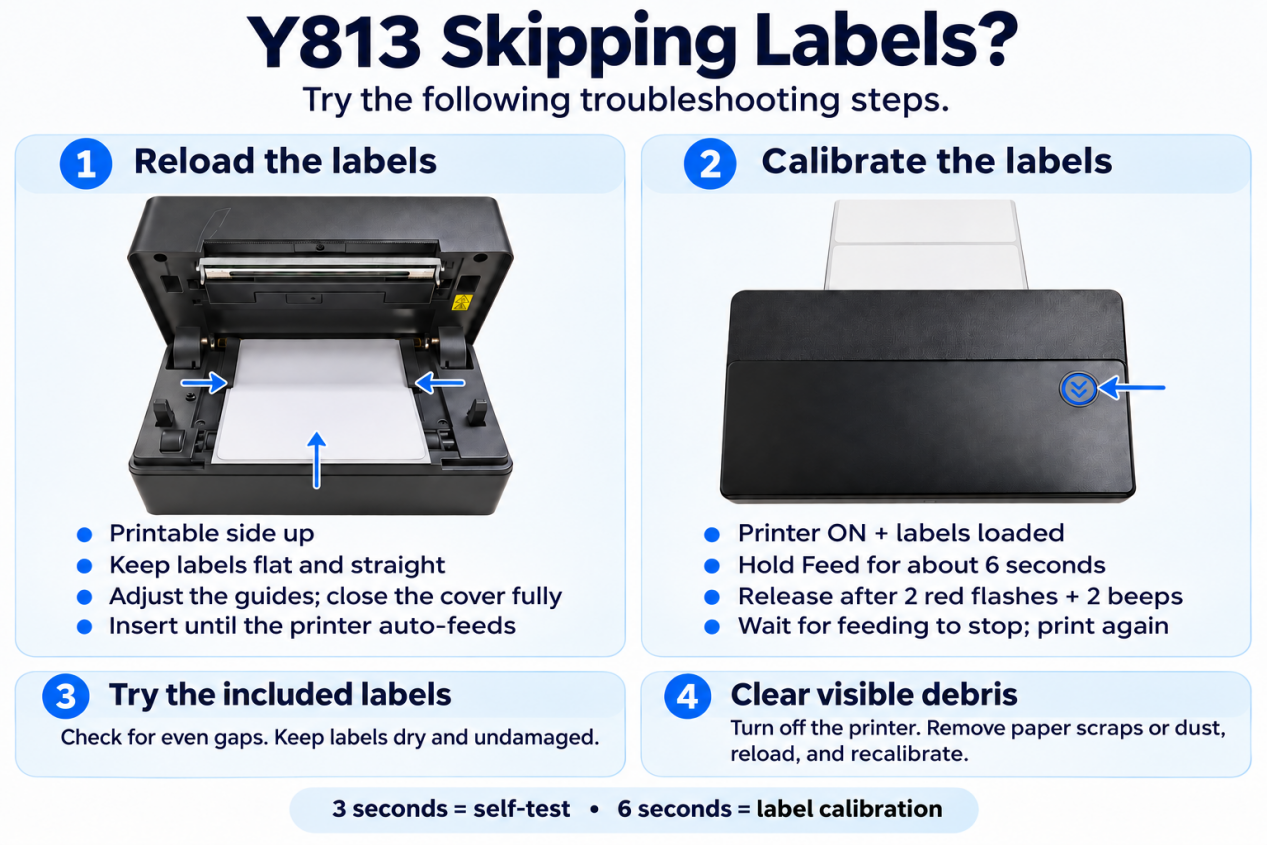
1. Reload the labels
Open the printer cover and check that the labels are flat, straight, and free of folds. Load them with the printable side facing up. Adjust the width guides to fit the labels without bending them, then close the cover fully.
Insert the labels until the printer automatically feeds them. If you recently changed to a different label size or brand, continue to Step 2 so the printer can learn the new labels.
2. Calibrate the Y813
Calibration helps the printer locate the gap between labels. Do this after changing the label size or type, or whenever the printer begins skipping labels.
- Turn on the printer and load the labels.
- Press and hold the Feed button for about 6 seconds.
- Release the button when the red light flashes twice and you hear two beeps.
- Wait for the printer to finish feeding and stop before printing again.
Important: Holding Feed for about 3 seconds prints a self-test page. For label calibration, continue holding until the two red flashes and two beeps.
3. Test with a different set of labels
If the Y813 still skips after calibration and size checks, try the labels included with your printer. Check that the current labels are dry, undamaged, and separated by consistent gaps.
Label materials, backing paper, manufacturing processes, and sizes can vary between brands. These differences may affect how reliably the printer detects each label.
4. Check for visible dust or label scraps
Turn off the printer and open the cover. Look for loose paper scraps or dust along the label path. Gently remove any visible debris, reload the labels, and run calibration again.
5. Make sure all three label sizes match
Check these three places:
- The physical labels loaded in the printer
- The original label file downloaded from the shipping platform
- The paper size selected in Pixmate or your computer’s print window
For example, if you loaded 4 × 6 in (100 × 150 mm) labels, the file and print setting should also be 4 × 6 in. When possible, download the shipping label directly in 4 × 6 format. A Letter-size or A4 PDF can cause positioning problems if printed directly onto 4 × 6 labels.
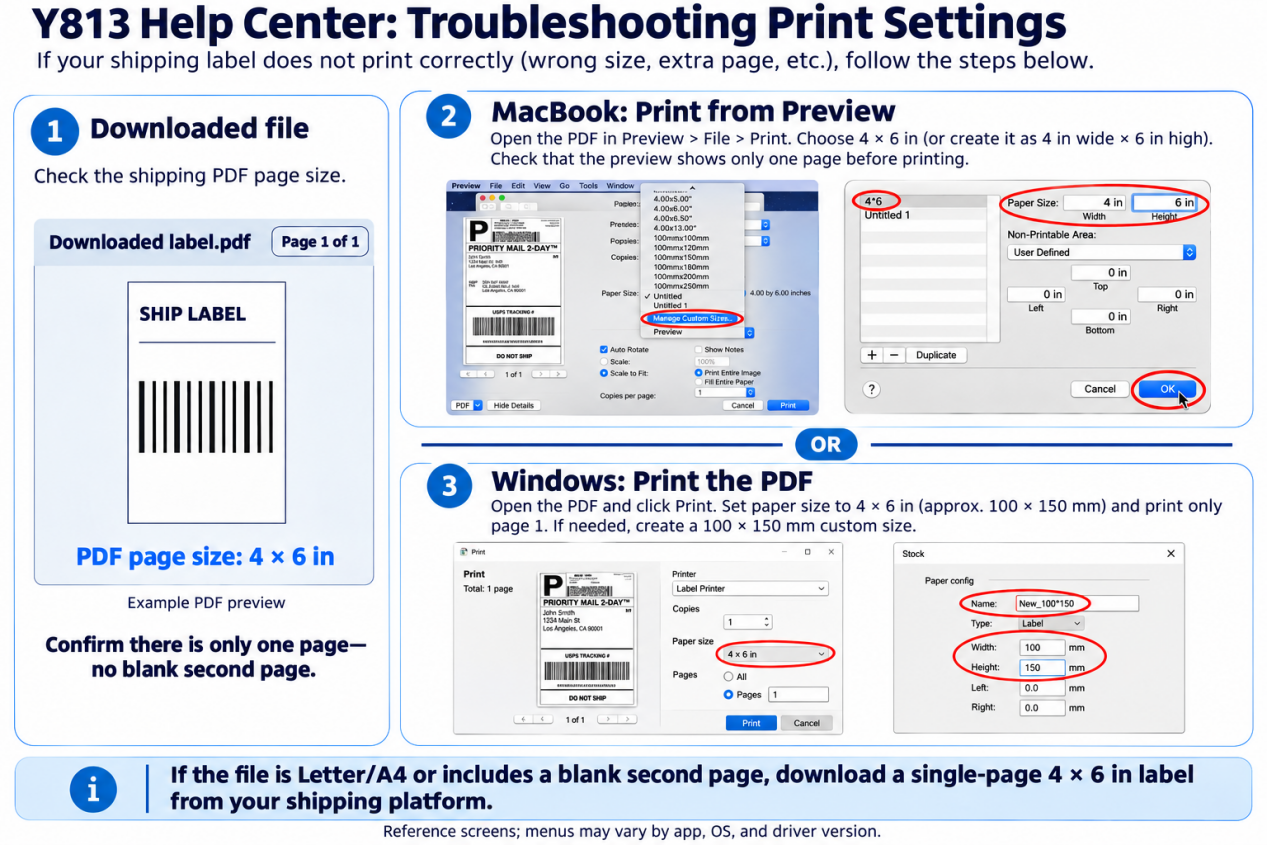
6. Check the size in your app or computer print window
In Pixmate: Open the label preview and confirm that the selected label size matches the paper loaded in the Y813. Make sure the full label appears in the preview before printing.
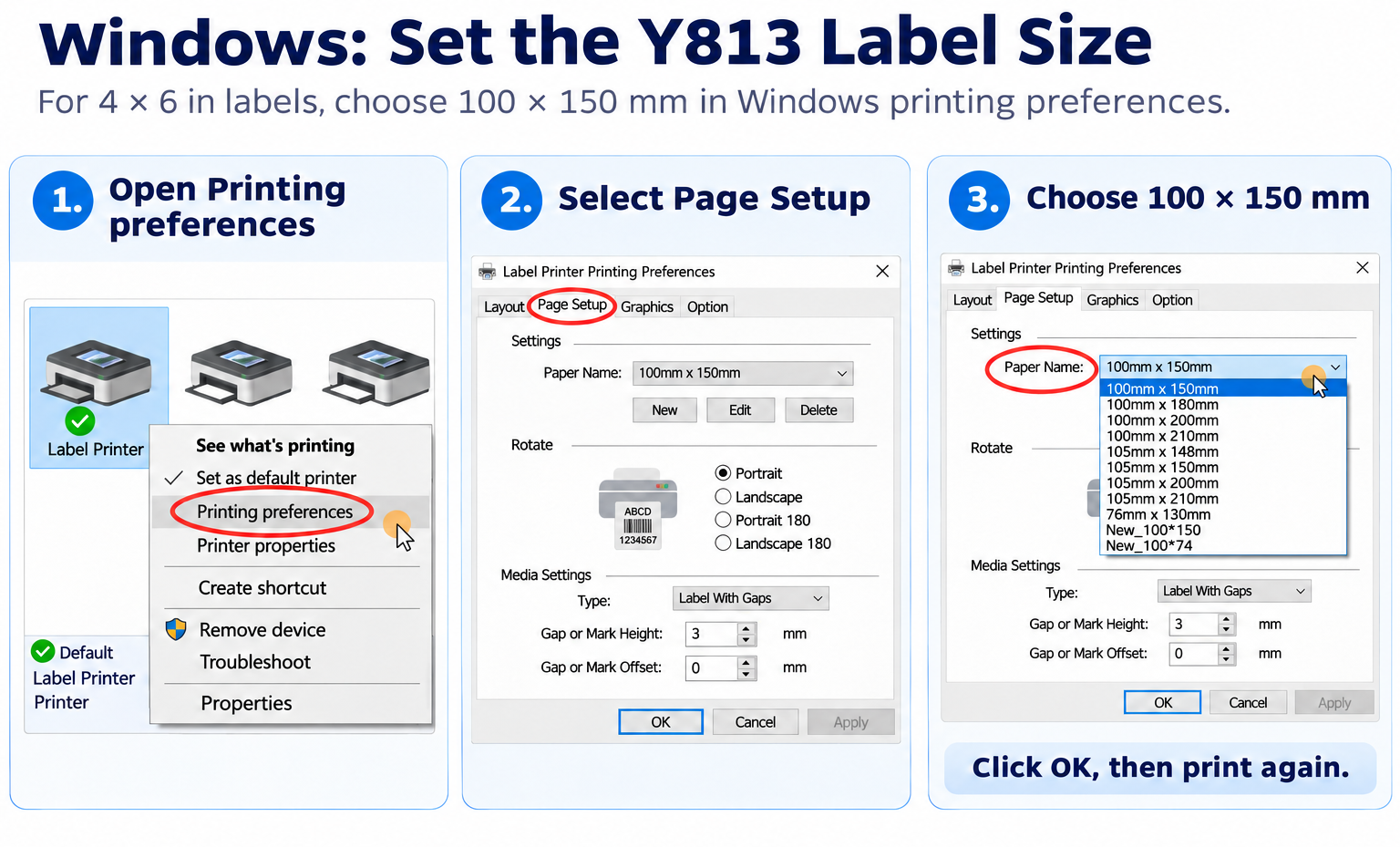
On Windows: Open Settings > Printers & scanners, select your Y813 printer, and open Printing preferences. Check the paper size. Then check it again in the app or PDF print window, which may use a different size from the printer’s default setting.
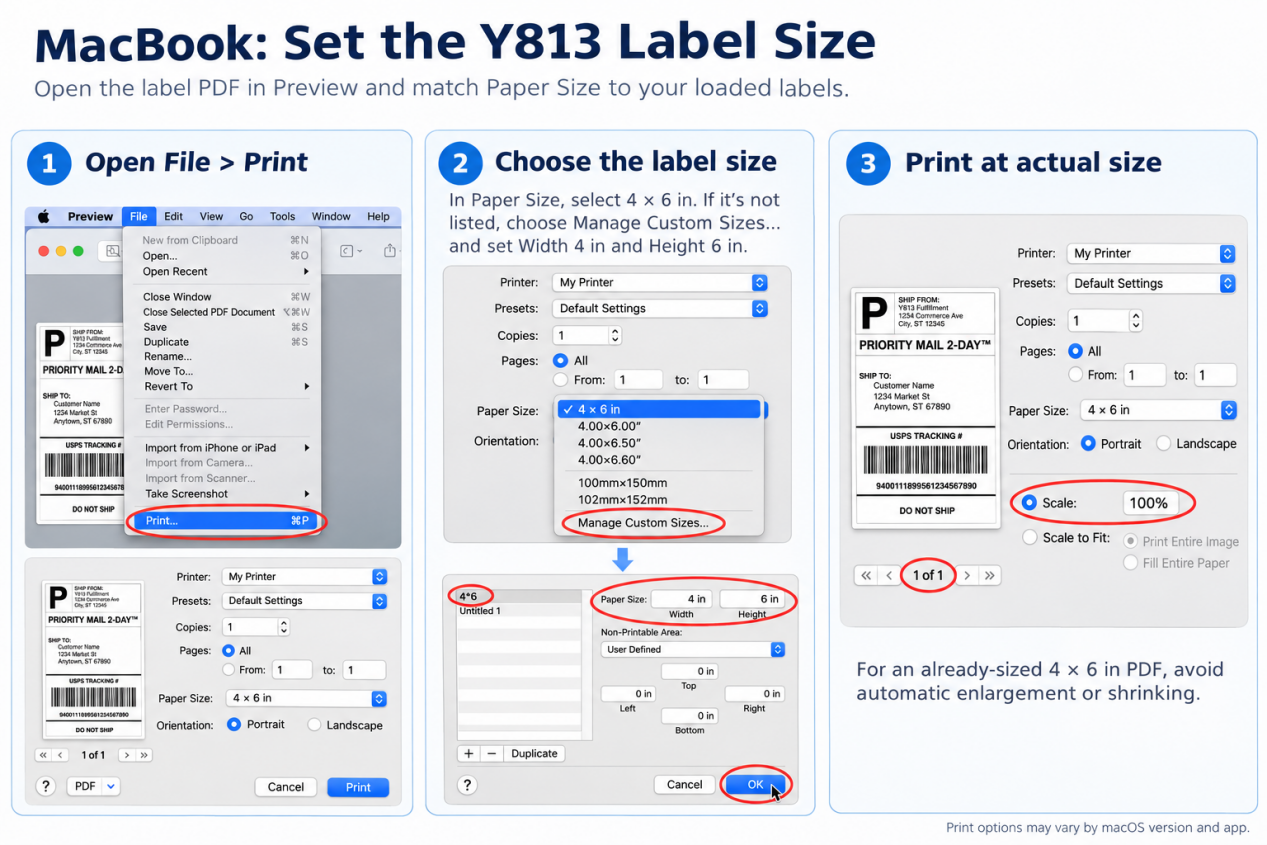
On MacBook: Open the label file, select File > Print, and check Paper Size in the print window. Select the size that matches the loaded labels. If your PDF already contains a correctly sized 4 × 6 label, avoid options that automatically enlarge or shrink the page.
Still skipping labels?
Please contact our support team and provide:
- A short video showing the labels feeding or skipping
- A photo of the loaded labels and their backing
- The label size selected in Pixmate or your computer
- Whether calibration stops at a label edge or continues feeding
This helps us determine whether the issue comes from the labels, print settings, or label detection.



