 English
 Nederlands
 Français
 English (UK)
 Deutsch


If your printer feeds a blank label when you insert the paper, or continues feeding labels without printing anything, check the following items.
If your Y813 prints blank, try these steps in order:
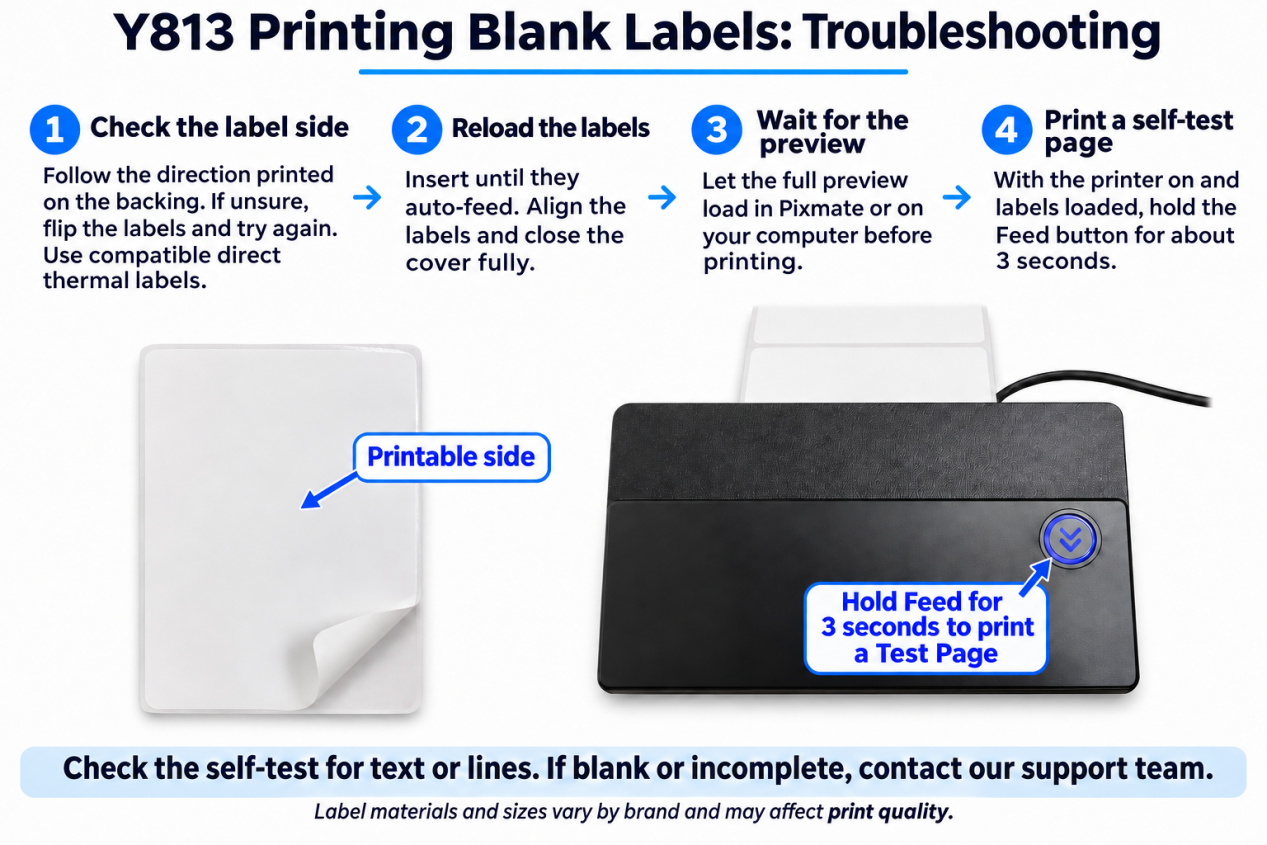
1. Check the label side and type
Loading labels the wrong way is the most common cause of blank prints. The printable side should face up toward the printhead. Check the backing for a printed loading direction. If you’re unsure, flip the labels over and try again.
We recommend testing with the direct thermal labels included with your printer. If you use another brand, make sure they are compatible direct thermal labels. Regular paper will not print.
Note: Label materials, manufacturing processes, and sizes vary between brands and may affect print quality and compatibility.
2. Reload the labels
Insert the labels until the printer feeds them automatically. Make sure they are aligned and the cover is fully closed.
3. Wait for the preview
Before printing, wait for the full label preview to load in Pixmate or on your computer. An incomplete preview may result in a blank or incomplete print.
4. Print a self-test page
With the printer on and labels loaded, press and hold the Feed button for about 3 seconds. Check whether the self-test page contains clear text or lines.
- If the self-test page is blank or incomplete: Contact our support team and include a photo of the page.
- If the self-test page prints normally: The printer can print. Continue with the steps below for the device you are using. The problem may be related to the app, connection, driver, label file, or print settings.
Printing from the Pixmate app
- Check whether the app gets stuck on the Printing screen or shows a blank label preview.
- If it is stuck, tap Cancel Print, close and reopen Pixmate, then import the label again. Wait until the full preview appears before printing.
- Check your app store for a Pixmate update. If the issue continues, uninstall and reinstall the app.
- Reconnect to Y813 inside the Pixmate app, then restart your phone and printer and try again.
Printing from a Windows computer
- Open Settings > Printers & scanners and remove any existing Y813 printer entries.
- Check the model label underneath your printer. Visit the Y813 driver page and choose the driver for Y813, not Y813BT. Follow the Windows USB installation guide and select USB during installation.
- Restart both your computer and printer. In the print window, select LabelDriver Y813 and confirm that the label preview contains your content.
- If the issue continues, reconnect the USB cable. Try the USB port used during installation or another cable. If you change USB ports and a second printer entry appears, select the correct Y813 printer.
Printing from a MacBook
- Open System Settings > Printers & Scanners and remove the existing Y813 printer.
- Visit the Y813 driver page. Choose Y813, not Y813BT, then follow the macOS USB installation guide. Download the driver that matches your MacBook’s Apple M-series or Intel processor.
- Connect the printer by USB and add it again in Printers & Scanners if it does not appear automatically. If you need to select printer software manually, choose 4Inch Label Printer. Confirm that Y813 Label appears in the printer list.
- Restart your MacBook and printer. Select Y813 Label, check that the preview contains your label content, and try printing again. If needed, reconnect the USB cable or try another cable or adapter.
Still need help? Please contact our support team with a photo of the self-test page, a screenshot of the print preview, and your phone or computer model.



