 English
 Nederlands
 Français
 English (UK)
 Deutsch


Some shipping platforms provide a Letter (8.5 × 11 in) or A4 PDF with the shipping label on one part of the page and a receipt or packing slip on the other. Printing the whole page on a 4 × 6 label may make the shipping information too small or print unwanted content.
First, check whether your shipping platform offers a 4 × 6 shipping label PDF. If it does, download that version. If you only have a full-page PDF, follow the steps below to print just the label using Adobe Acrobat Reader.
Print Only the Label with Take a Snapshot
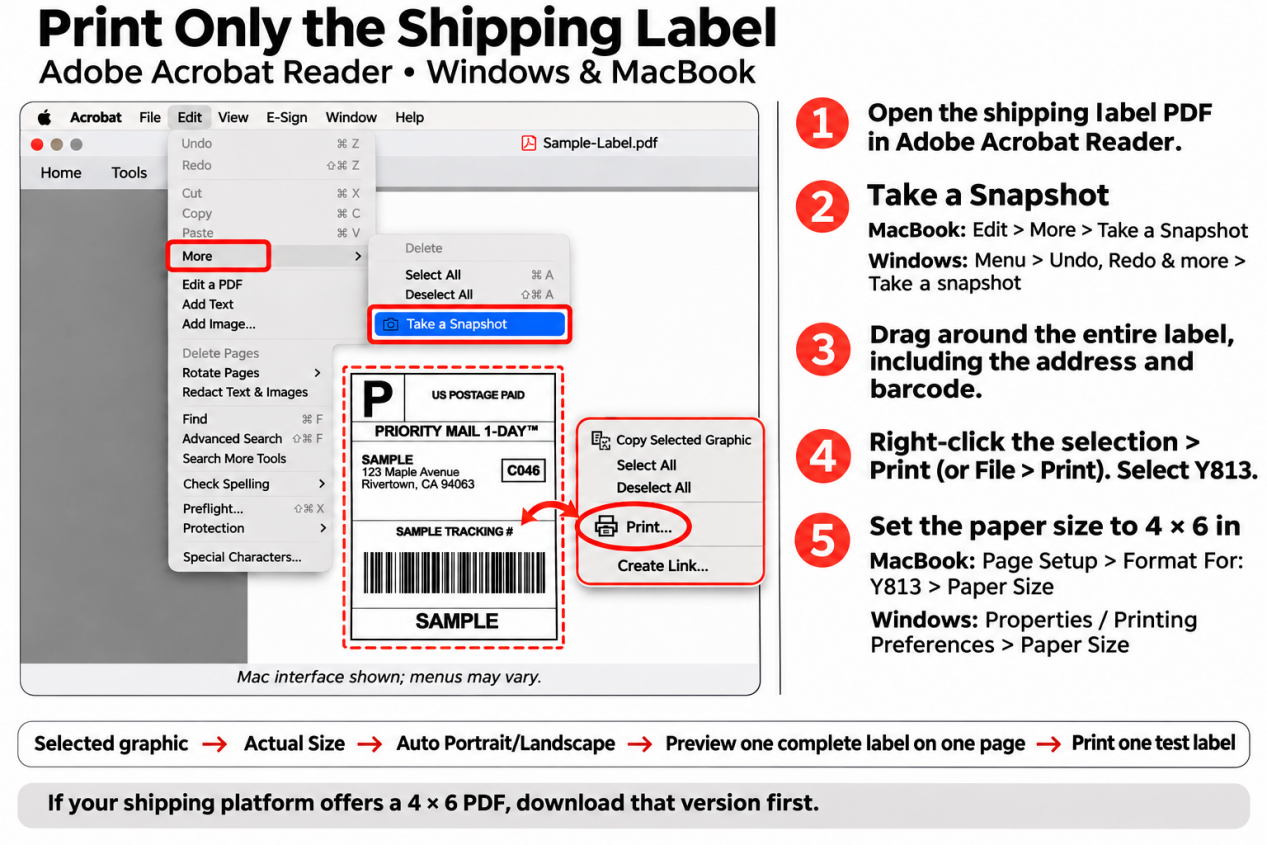
1. Open the PDF in Adobe Acrobat Reader
Save the shipping label PDF to your computer and open it in the Adobe Acrobat Reader desktop app. If you do not have Reader, download it from the Adobe website.
If the label appears sideways, you can use View > Rotate View to make it easier to select. You will still need to check its orientation in the print preview.
2. Select Take a Snapshot
The menu location depends on your computer and Adobe version:
· MacBook: Select Edit > More > Take a Snapshot.
·Windows: Select Menu (☰) > Undo, Redo & more > Take a snapshot.
In some versions, Take a Snapshot appears directly under Edit. helpx.adobe.com
3. Select the complete shipping label
Click and drag a box around only the shipping label. Include the entire address, barcode, and clear space around the barcode. Leave out the receipt, packing slip, and large blank margins.
4. Open the print window
Right-click the selected area and choose Print. If that option is not shown, select File > Print.
Choose Y813 as your printer. Under Pages to Print > More Options, select Selected graphic so Adobe prints your selection rather than the whole Letter or A4 page. helpx.adobe.com
5. Match the paper size and check the preview
Set the paper size to match the labels loaded in your Y813:
- MacBook: Open Page Setup, select Y813 under Format For, then choose the matching Paper Size.
- Windows: Open the printer’s Properties or Printing Preferences and choose the matching paper size.
For a 4 × 6 label, select the corresponding 4 × 6 in option. If your selected label area is already the correct size, start with Actual Size and Auto Portrait/Landscape. If the preview is cut off or the selection does not fit, try Fit and check it again. Actual Size does not scale the selection, so content outside the printable area can be cropped. helpx.adobe.com
Before printing, confirm that the preview shows:
- One complete shipping label on one page
- The full address and barcode
- The correct upright orientation
- No receipt, packing slip, or unexpected second page
Print one test label before printing the rest.
Note: Take a Snapshot changes what you print from this PDF. It does not crop or save the original PDF as a new 4 × 6 file.
What If I Have Multiple Full-Page Labels?Take a Snapshot is best for selecting and printing a label from a page. If you need to save a PDF with the same area cropped across multiple pages, check whether your Adobe Acrobat version includes Crop page. In Acrobat, you can draw a crop area and apply it to a selected Page Range or All pages. Review the result before printing, especially if the labels are positioned differently from page to page. Adobe notes that PDF cropping hides content outside the crop area; it does not remove that content from the file.



