 English
 Nederlands
 Français
 English (UK)
 Deutsch


If your label prints sideways, too small, too large, cut off, or with excessive blank space, check the label file, loaded paper, and print settings before printing again.
Three Sizes Should Match
| Item | What to check |
| Loaded labels | The actual size of the labels in your Y813 |
| Original file | The page size of the PDF or the print size assigned to your image |
| Print settings | The paper size selected in the print window |
For example, if you loaded 4 × 6 in labels, use a 4 × 6 in label file and select 4 × 6 in as the paper size.
Note: Check the size on your label packaging. 100 × 150 mm is close to, but not exactly the same as, 4 × 6 in. Select the setting that matches your labels.
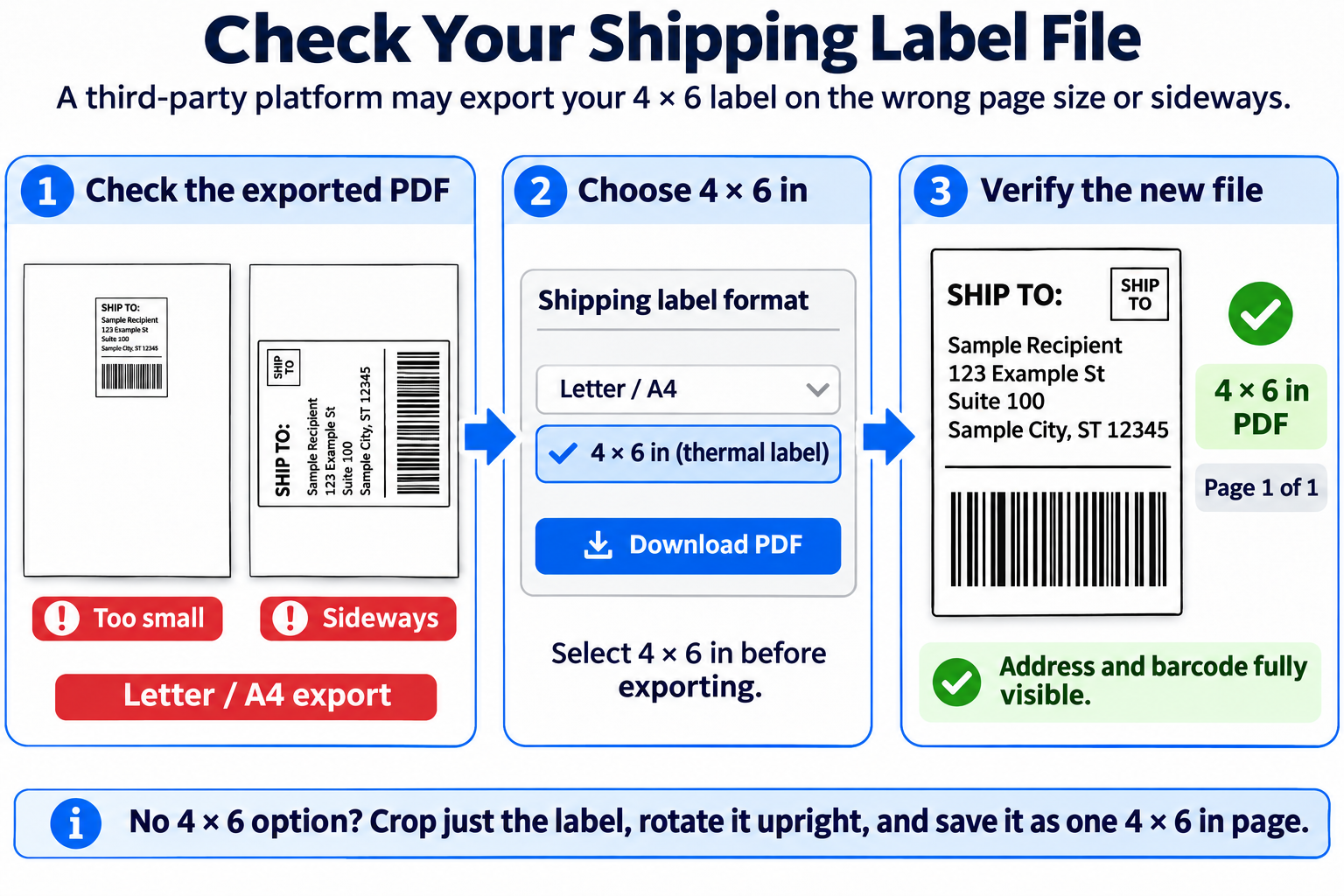
1. Check the Original Label File
Open the file and check its page size, not just the size of the shipping label shown on the page.
Some shipping platforms place a label on a full Letter (8.5 × 11 in) or A4 page. Printing that entire page on a 4 × 6 in label can make the content very small or leave large blank areas.
If your shipping platform offers a 4 × 6 in label format, select it and download the file again. If it does not, crop or export only the shipping label as a correctly sized page. Make sure the full address and barcode remain visible and clear.
If you are printing an image rather than a PDF, check the print size assigned to the image. Its pixel dimensions alone do not determine its printed size.
2. Confirm the Size of Your Labels
The labels included with your Y813 are 100 × 150 mm, commonly sold as 4 × 6 in shipping labels.
If you use labels from another brand or labels of a different size or shape, check their actual dimensions before printing. Then select the matching paper size in your print settings to help prevent shifted or cut-off prints.
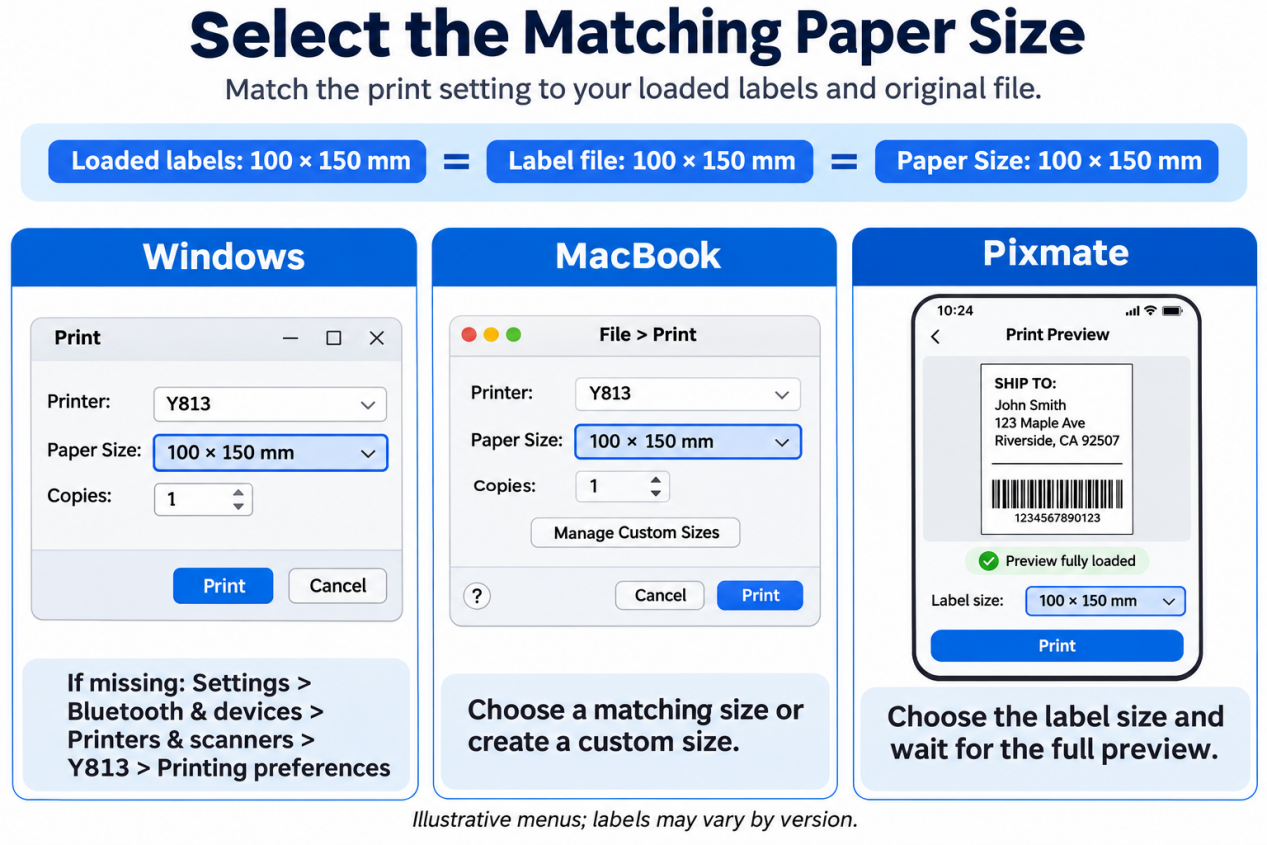
3. Select the Matching Paper Size
Open the file’s Print window, select your Y813, and choose a Paper Size that matches the loaded labels and original file.
On Windows: Check the paper size in the print window. If the correct size is not shown, go to Settings > Bluetooth & devices > Printers & scanners > Y813 > Printing preferences and look for the paper or page size setting. Menu names may vary by Windows version and driver.
On MacBook: Open the file and select File > Print. Check Paper Size in the print window. If the size you need is unavailable, look for an option to create a custom paper size.
In Pixmate: Select the size that matches your loaded labels and wait for the complete print preview to appear.
When printing from a computer, make sure the selected printer and installed driver are for Y813, rather than Y813BT.
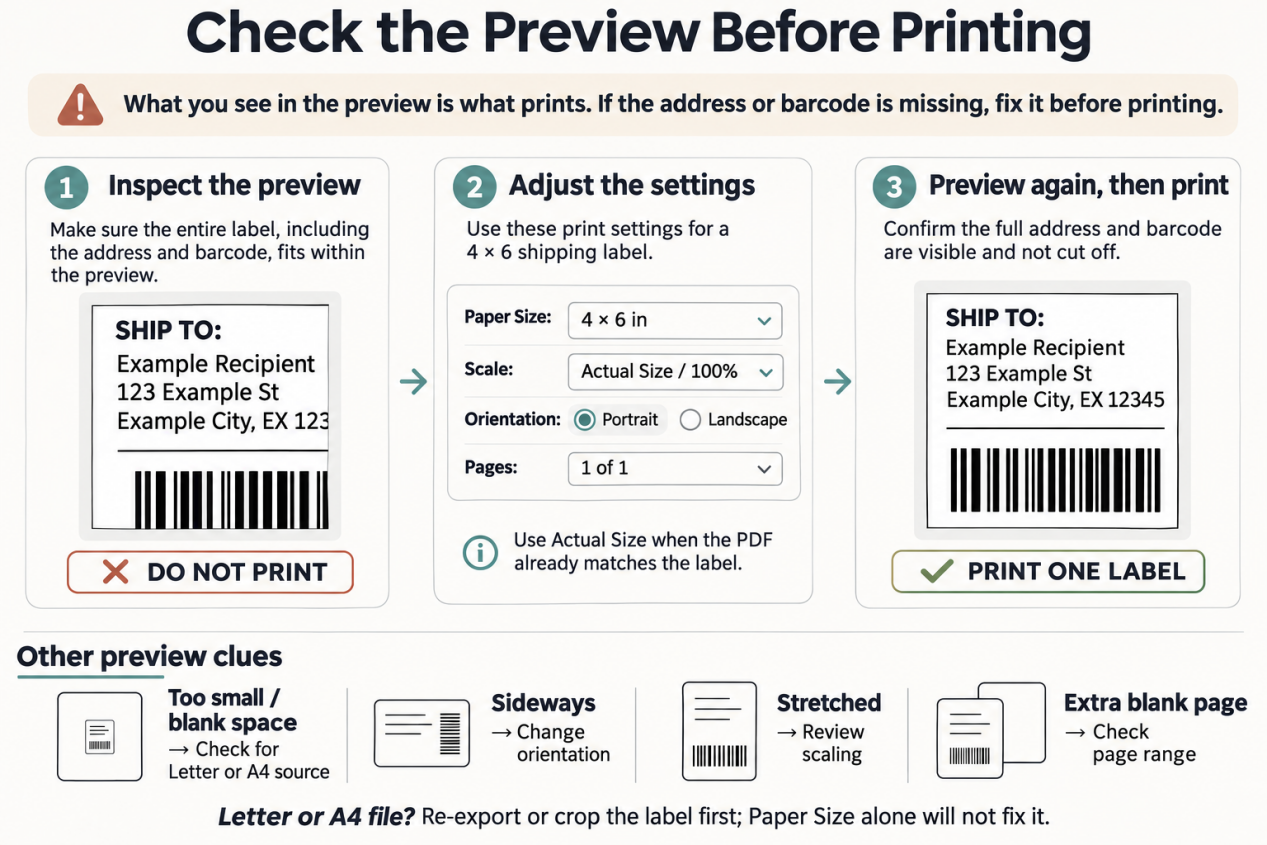
4. Check Scaling, Orientation, and the Preview
Review the preview before pressing Print. The complete label should fit on one page, with the address and barcode visible.
· Too small or surrounded by blank space: Check whether the original file is a Letter or A4 page containing a smaller label.
· Sideways: Change Portrait or Landscape orientation and check the preview again.
· Stretched or compressed: Check whether a scaling setting is changing the label’s proportions.
·Cut off: Recheck the page size, scaling, and position in the preview.
·Unexpected second page: Check the original file and selected page range.
If your PDF page already matches the loaded label size, start with Actual Size or 100% scale, where available, and confirm that the full label fits in the preview. Changing the paper size alone will not turn a full Letter or A4 page into a properly formatted 4 × 6 in label.
5. Print One Test Label
Print one label and compare it with the preview before sending a batch.
If it still prints incorrectly, try a different, correctly formatted 4 × 6 in PDF:
· The test PDF prints correctly: Check the original shipping file and its print settings.
· The test PDF has the same problem: Recheck the selected printer, driver, paper size, and settings.
If the size is correct but printing starts in the wrong position or skips labels, calibrate the Y813. With the printer on and labels loaded, hold the Feed button for approximately 6 seconds. Release it after the red light flashes twice and you hear two beeps. Wait for the printer to finish feeding, then print one label again.
Still Having Trouble?
Please send our support team the original label file, a screenshot of the print preview and settings, the size of your loaded labels, and a photo of the printed result.



