English
 Nederlands
 Français
 English (UK)
 Deutsch

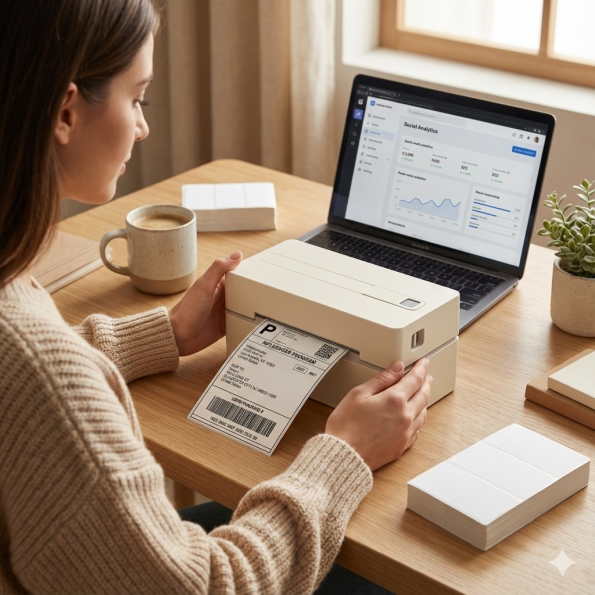
The Y813 label printer connects to your iPhone or Android phone through Bluetooth using the Pixmate Printer app. Follow the steps below to connect your printer and start printing.
Before You Begin
- Make sure your printer is powered on.
- Turn on Bluetooth on your phone.
- Keep your phone close to the printer.
- Make sure the printer is not connected to another device.
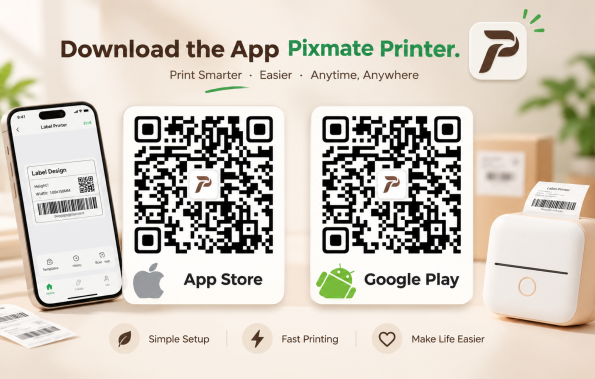
Download the Pixmate Printer App
Download and install Pixmate Printer from the Apple App Store or Google Play Store.
2. Enable Bluetooth and App Permissions
- Turn on Bluetooth on your phone.
- Open Pixmate Printer.
- Allow the Bluetooth permission when prompted.
- On Android, allow Nearby Devices or Location permissions if requested by your phone.
Note: These permissions are required for the app to discover and connect to your printer.
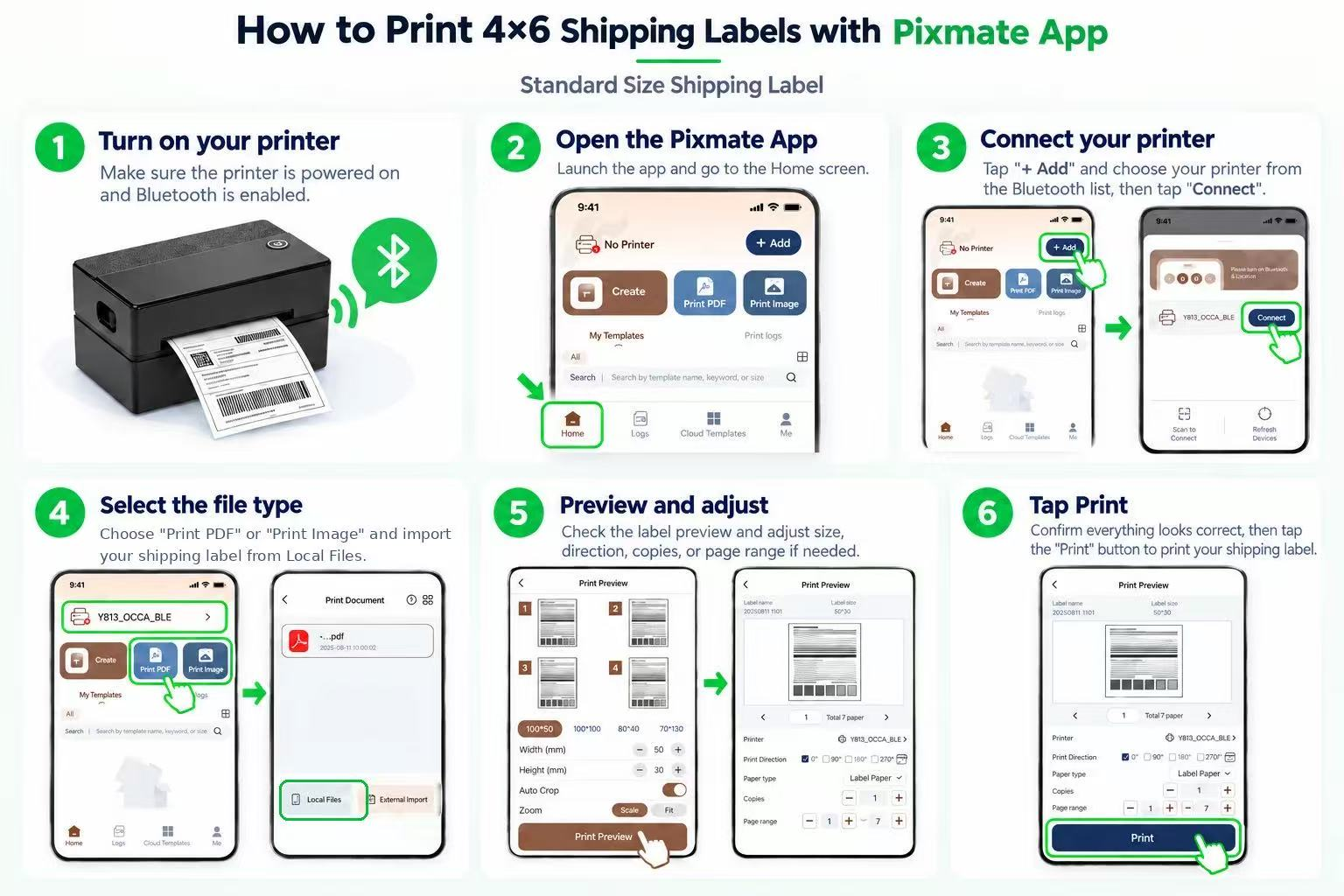
3. Pixmate App Guide
Follow the steps below to connect your printer and start printing labels.
Once connected:
- Return to the Pixmate home page.
- Select Print PDF, Print Image, or Create New Label.
- Import your file or create your own label.
- Check the print preview and label size.
- Tap Print.
If the Connection Still Fails
- Uninstall Pixmate from your phone.
- Download and install the latest version from the official app store.
- Turn on Bluetooth and try connecting again.
- Try connecting the device from another phone or iPad.
- If the problem persists, please contact our support team and include your phone model, app version, and a short description of what happens when you try to connect. We will get back to you as soon as possible.
Special Instructions for Samsung Phones
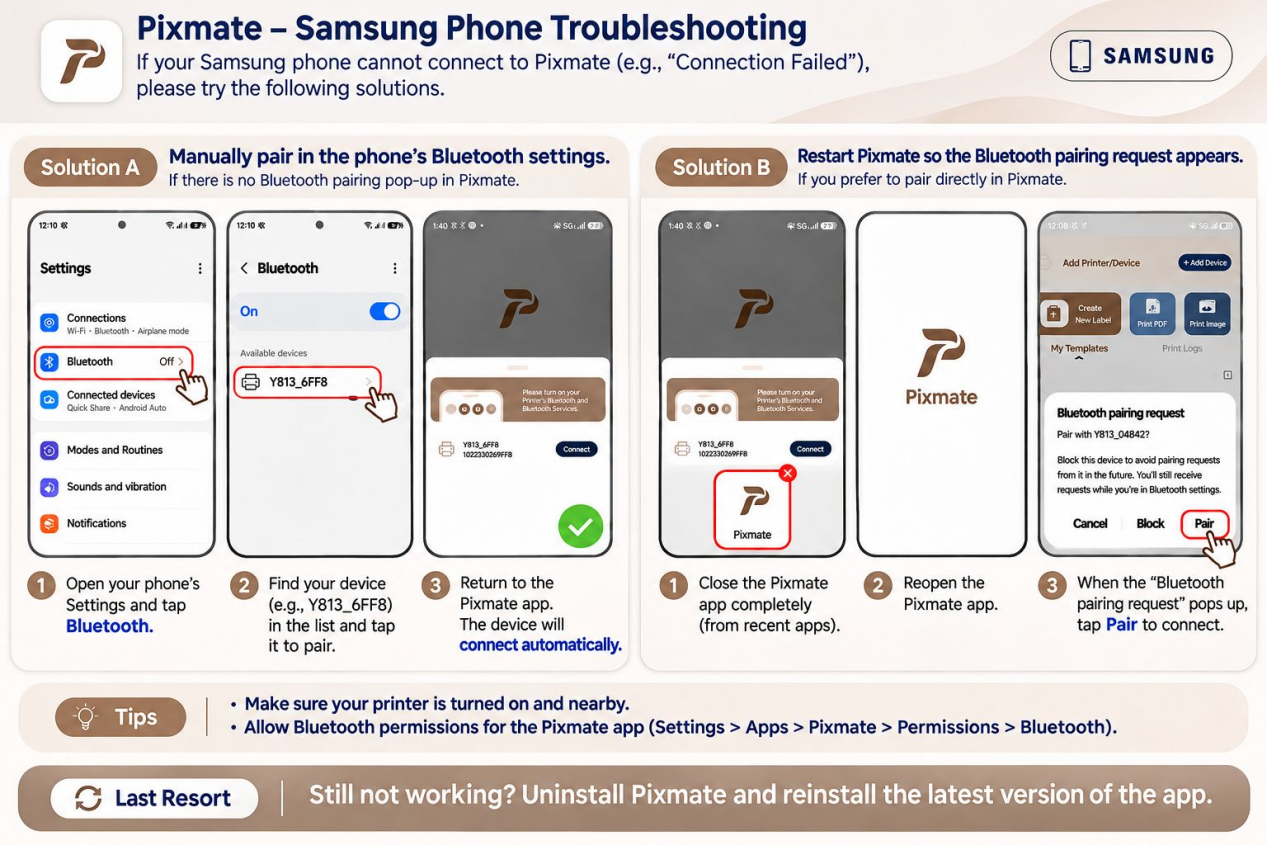
Some Samsung phones may not display the Bluetooth pairing pop-up during the first connection attempt.
Please try either of the following methods:
Option 1: Pair the Printer Manually
- Open your Samsung phone’s Settings.
- Go to Connections > Bluetooth.
- Turn on Bluetooth.
- Find your Y813 printer in the available device list (the name may look like Y813_XXXX).
- Tap the printer name to pair.
- Return to Pixmate. The app should connect automatically.
Option 2: Restart Pixmate
- Fully close the Pixmate app.
- Open Pixmate again.
- Try adding your Y813 printer.
- When the Bluetooth pairing request appears, tap “Pair”.