4 × 6 in · Thermal shipping labels

Every platform, one setup guide.

Platform Setup Guide
01

Marketplaces

01

Amazon

1

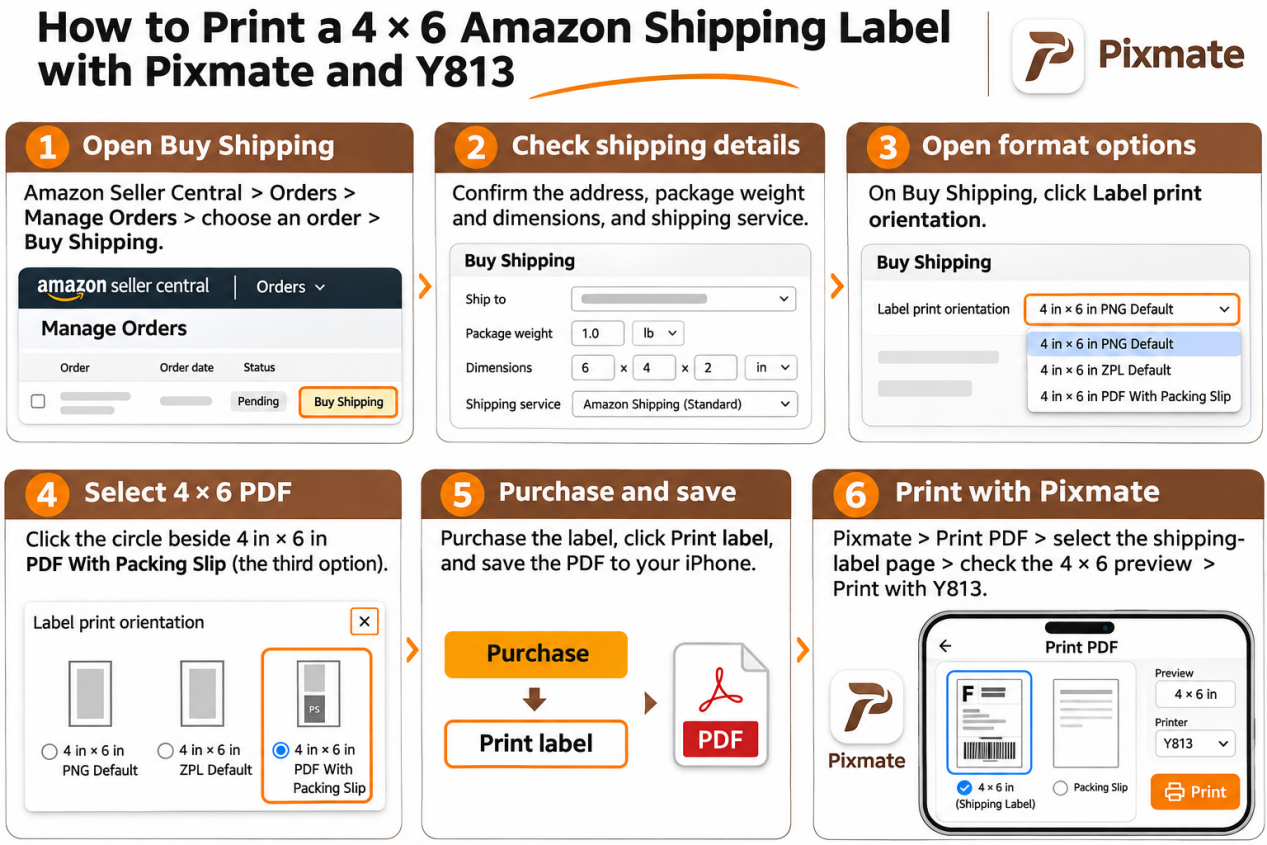
Sign in to Amazon Seller Central. Go to Orders > Manage Orders, find your order, and click Buy Shipping.

2

Check the address, package weight and dimensions, and shipping service.

3

On the Buy Shipping page, click Label print orientation.

4

Click the circle beside 4 in × 6 in PDF With Packing Slip (the third option shown). Make sure this option is selected before purchasing.

5

Purchase the label and click Print label. Save the PDF to your iPhone.

6

Open Pixmate > Print PDF and import the saved PDF. Select the shipping-label page, check the 4 × 6 in preview, then tap Print to print with your Y813.

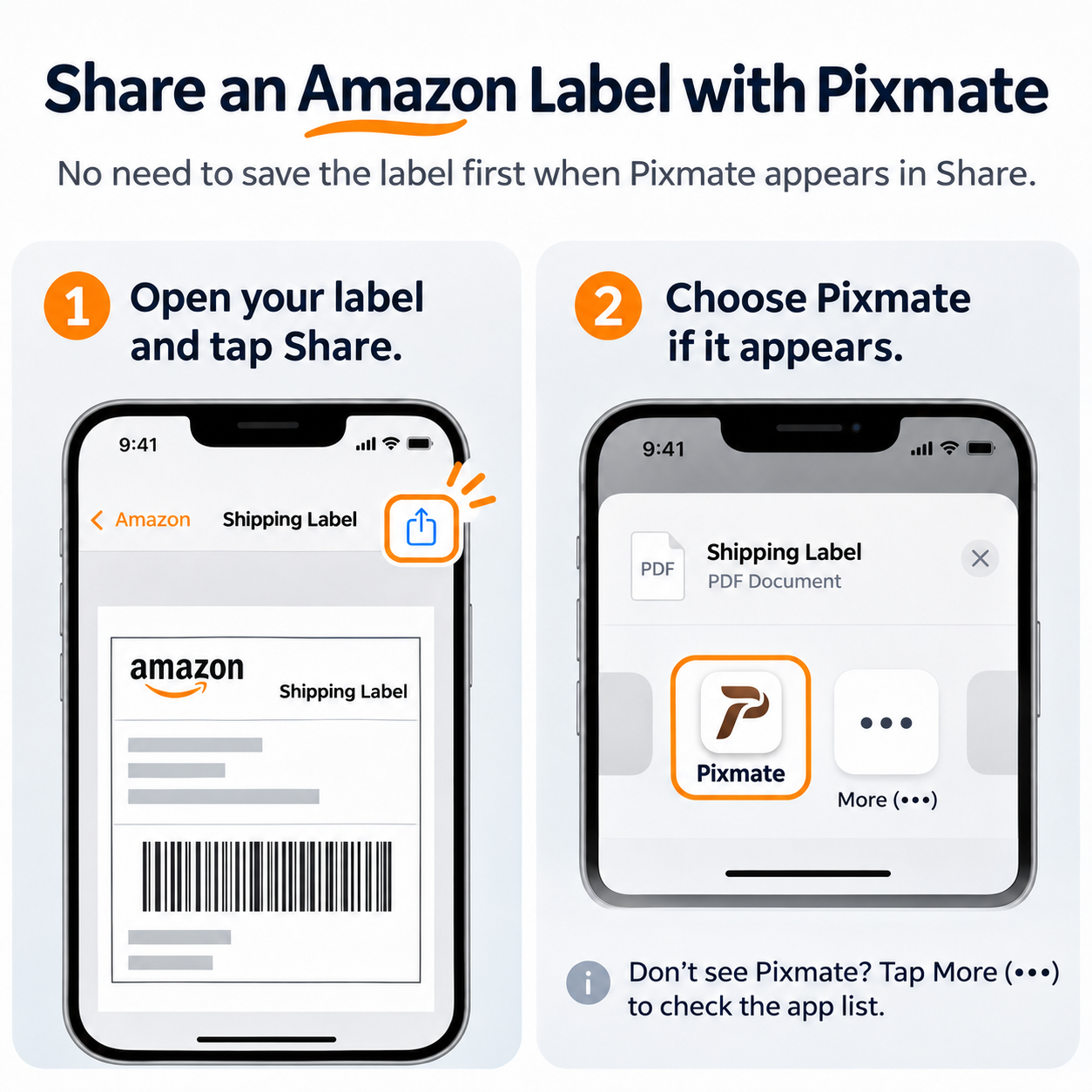
Tip: After opening your Amazon shipping label, tap Share. If Pixmate appears in the options, select it to print without saving the label first. If you don’t see it, tap More (•••) to check the app list.
02

eBay

1

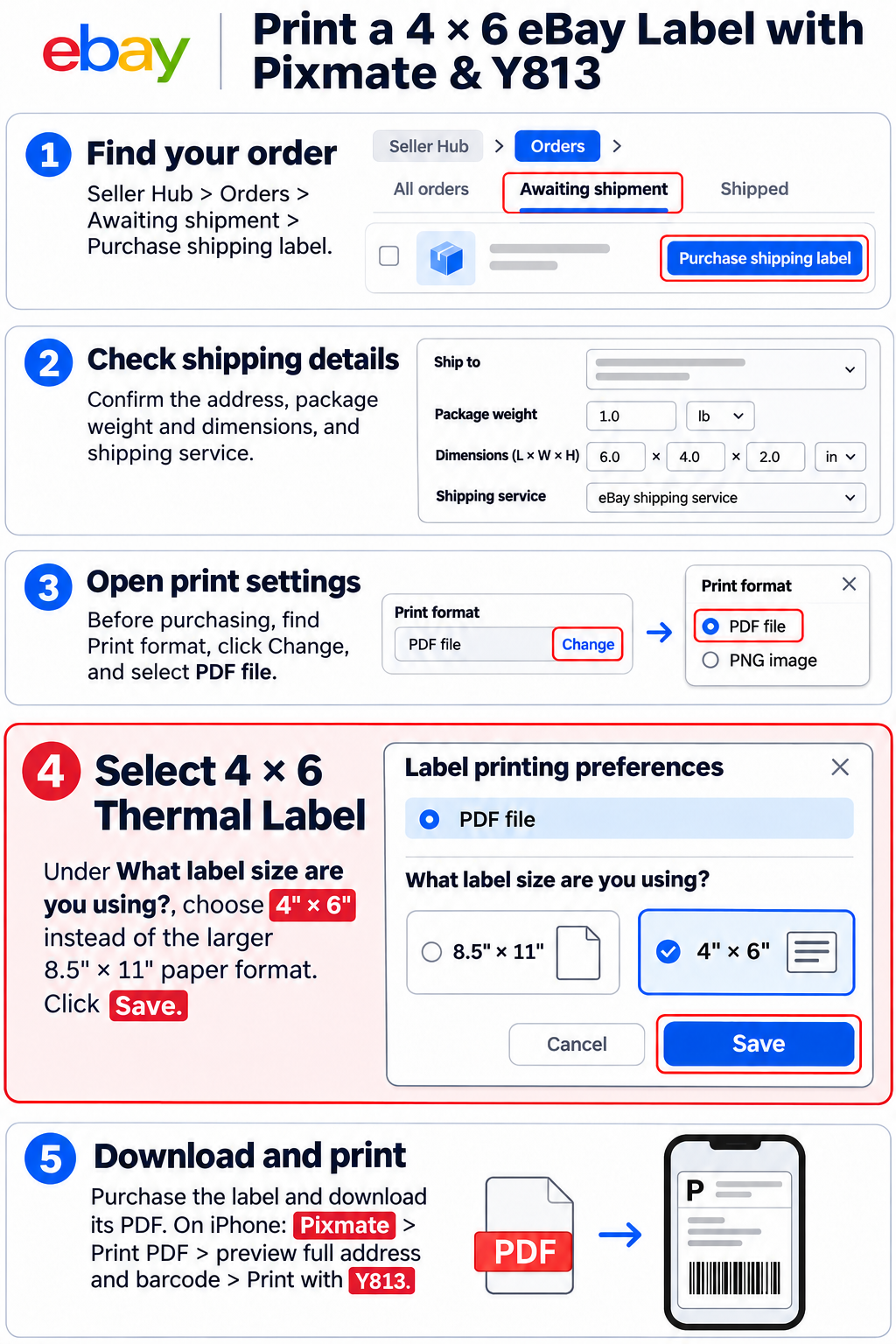
Go to Seller Hub > Orders > Awaiting shipment. Find your order and click Purchase shipping label.

2

Check the address, package weight and dimensions, and shipping service.

3

Before purchasing, find Print format and click Change. Select PDF file.

4

Under What label size are you using?, select 4" × 6" Thermal Label instead of the larger 8.5" × 11" paper format, then click Save. Make sure 4" × 6" is selected before continuing.

5

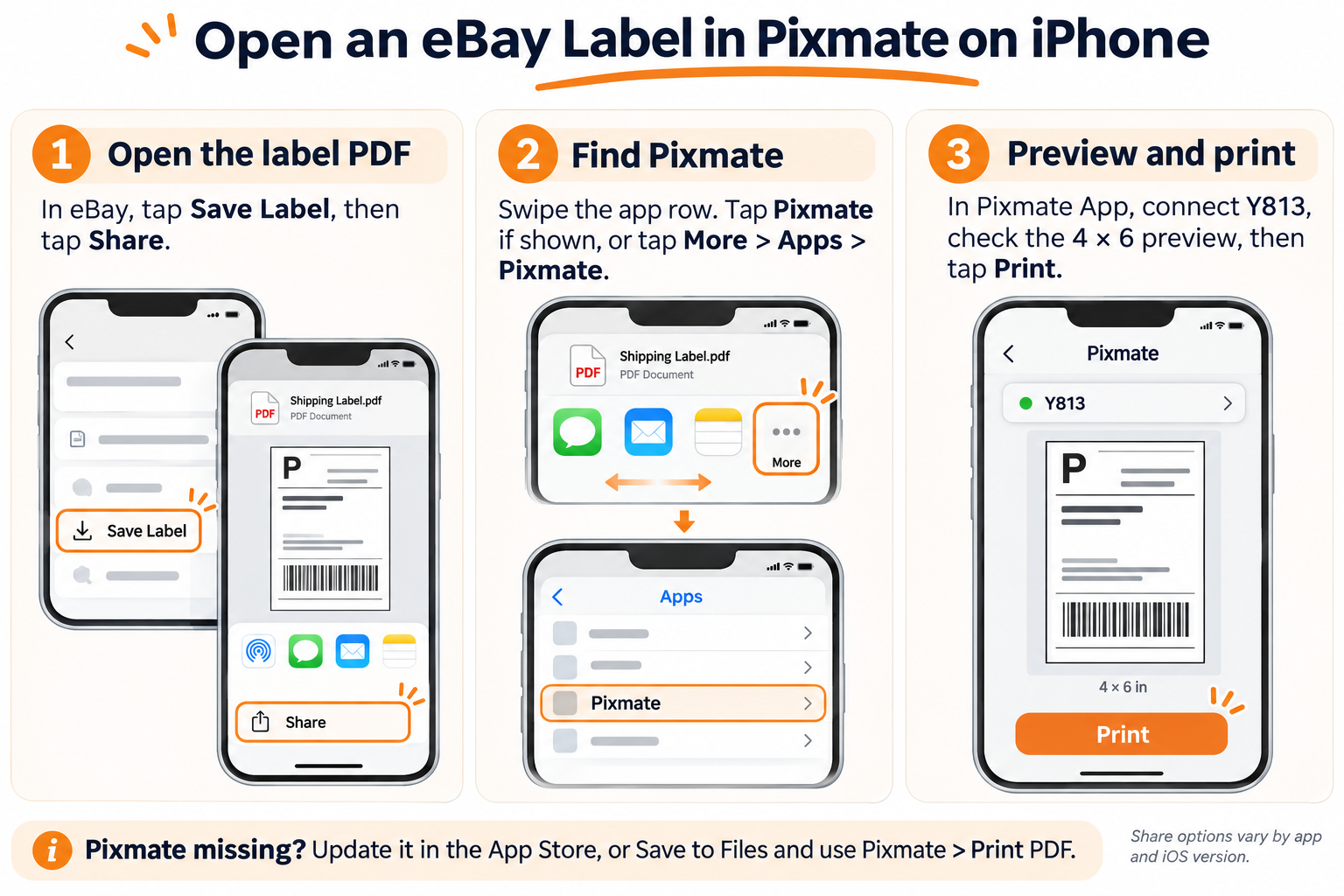
Purchase the label and download its PDF. On your iPhone, open Pixmate > Print PDF, check that the full label and barcode appear in the preview, and print with Y813.


If Pixmate appears in the iPhone share sheet, you can tap it to open the label. If it is missing, tap More to check the app list.

03

Etsy

1

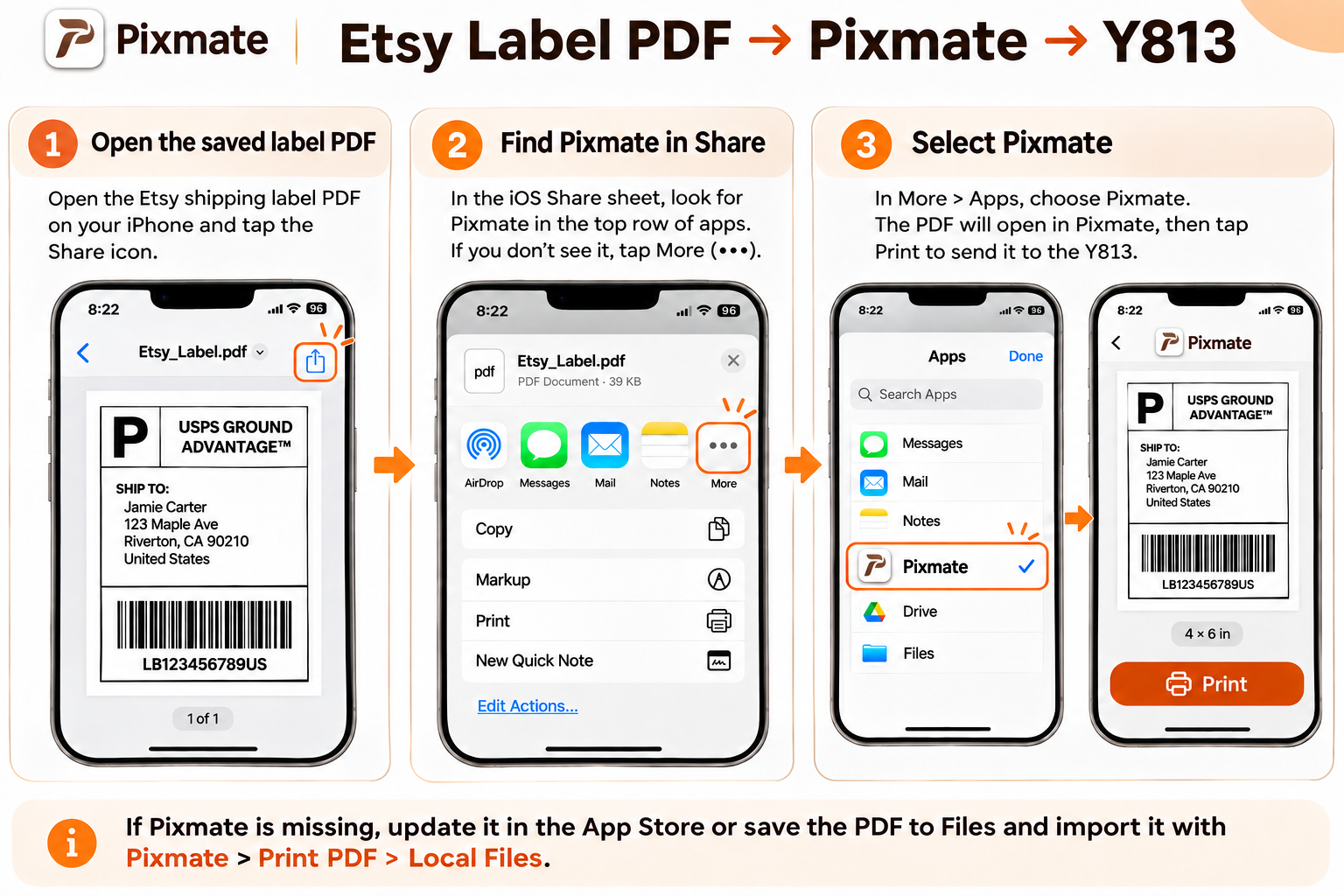
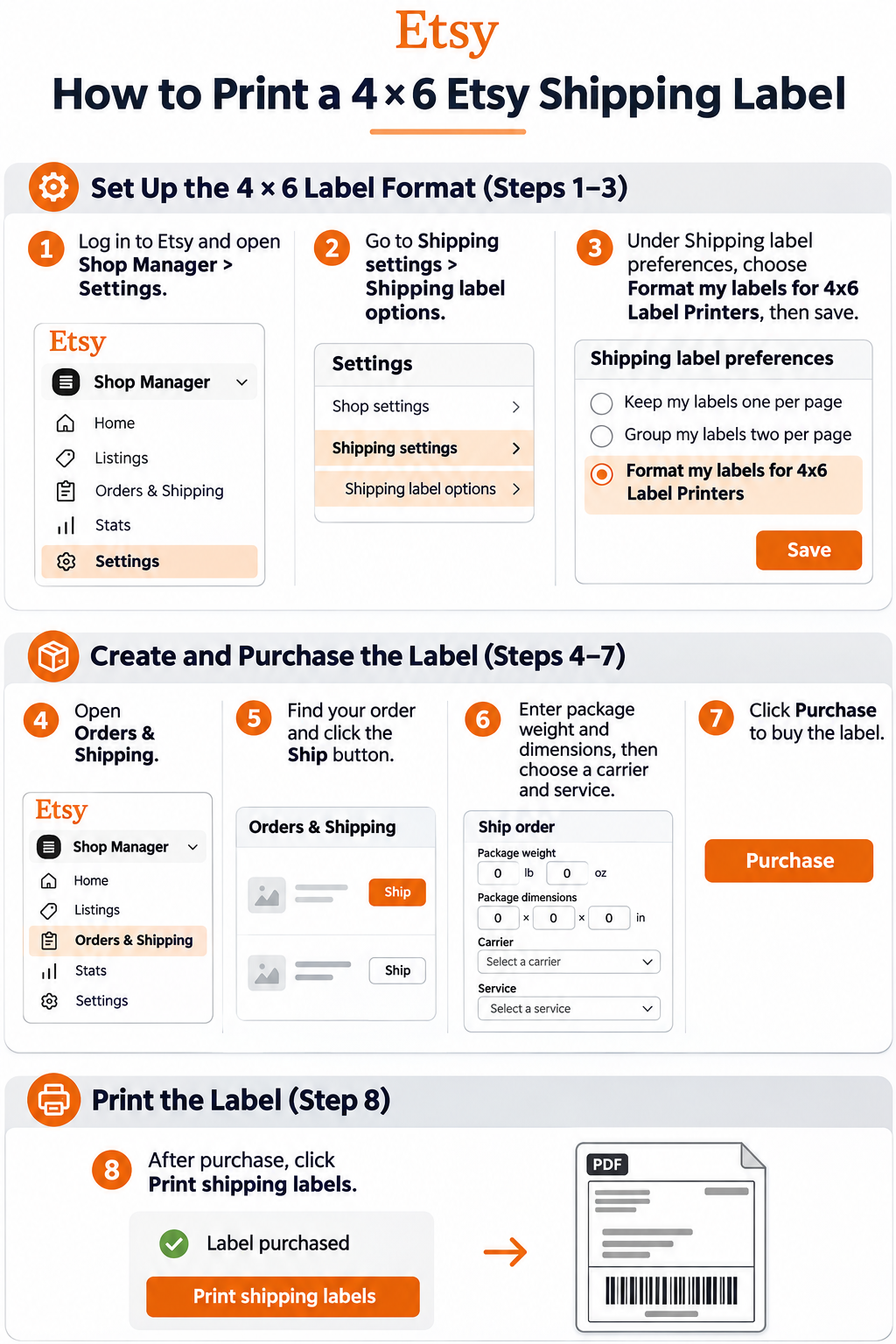
Log in to Etsy "Shop Manager" → Click "Settings".

2

Go to "Shipping Settings" → Select "Shipping Label Options".

3

Scroll down to find "Shipping label preferences", confirm that the print format is 4x6 inches, and save.

4

Go to "Orders & Shipping".

5

Find your order → Click the Ship button.

6

Fill in shipping details: package weight/dimensions, and shipping carrier/service.

7

Click "Purchase" Button.

8

Click "Print Shipping Label" (the button appears post-purchase).


If Pixmate does not appear in the Share menu: Check the App Store for a Pixmate update. You can also save the PDF to Files, then open Pixmate > Print PDF > Local Files and select it.

Before printing: Check the downloaded PDF and Pixmate preview. If Etsy supplied a Letter or A4 page with a small label on it, go back to Etsy’s label format options when available. Do not enlarge a cropped label or barcode.

4

Shopify

1

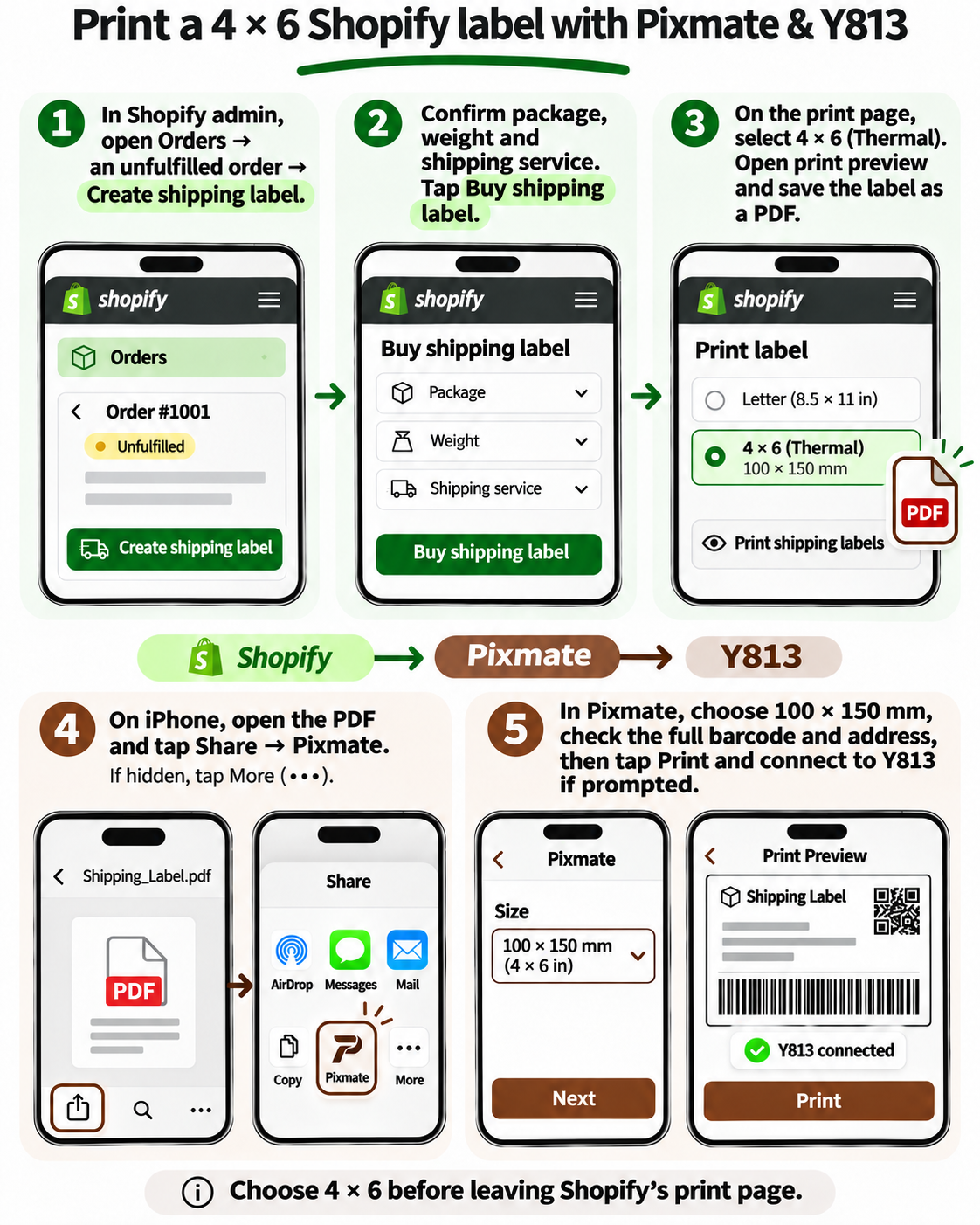
In Shopify admin, go to Orders, open an unfulfilled order, and select Create shipping label.

2

Confirm the package, weight, and shipping service. Review the details and click Buy shipping label.

3

On the print page, choose 4 × 6 (Thermal) for the shipping label. Open the print preview and save the label as a PDF to your iPhone. If you’re using a computer, transfer the PDF to your iPhone first.

4

On your iPhone, open the PDF and tap Share → Pixmate. If Pixmate isn’t shown, tap More (•••), or import the file through Pixmate > Print PDF.

5

In Pixmate, select 100 × 150 mm (about 4 × 6 in). Check the full address and barcode in Print Preview, then tap Print and connect to Y813 if prompted.

Tip: Choose the 4 × 6 format while you’re still on Shopify’s print page; Shopify says changing the purchased label’s format after leaving that page can require voiding and repurchasing it.

05

Poshmark

1

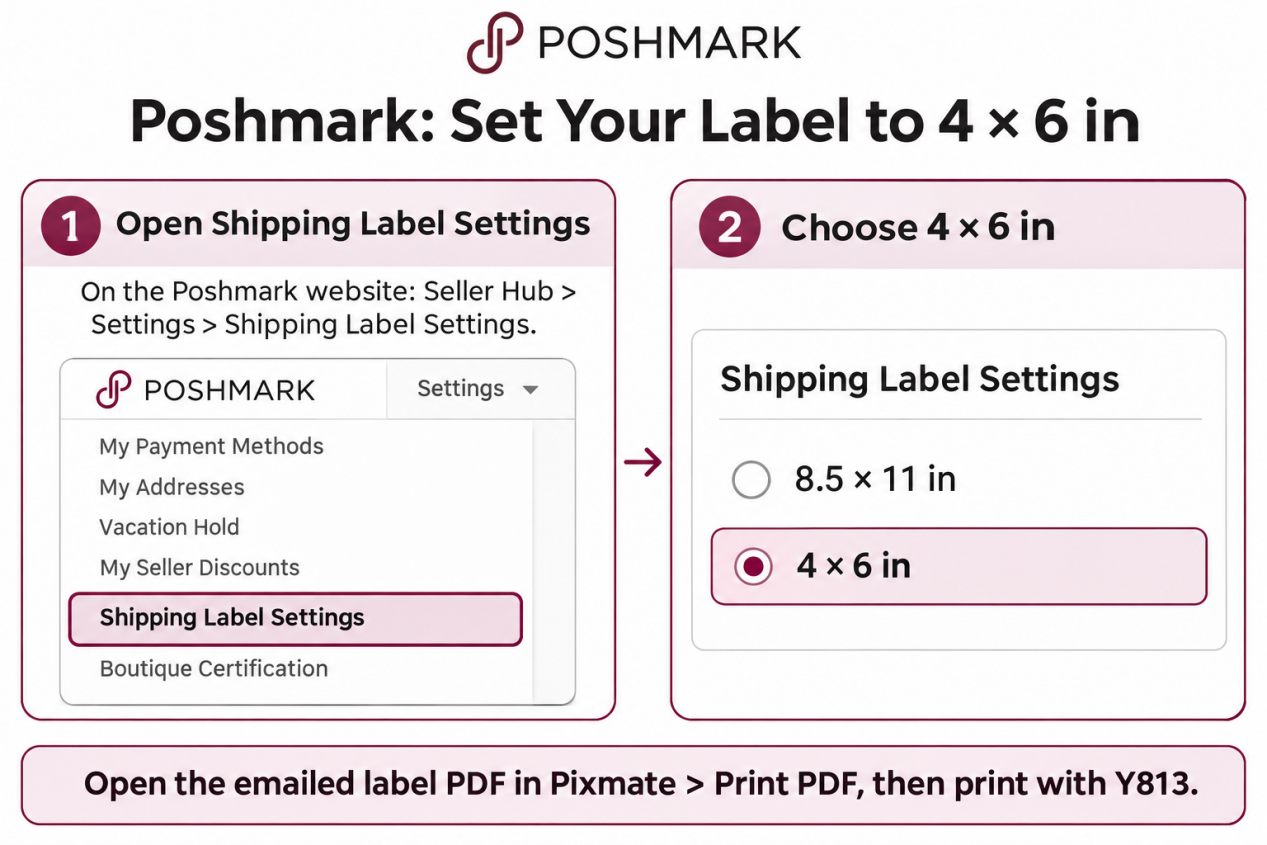
In the Poshmark App ,1.tap Me (bottom right) → Seller Tools → Shipping Label Settings.

2

Select 4 × 6 in as your label size.

3

Open the shipping-label email from Poshmark and save the attached PDF to your iPhone.

4

Open Pixmate > Print PDF, select the label, check the 4 × 6 preview, and print with your Y813.

Tip: If Pixmate appears when you share the PDF, tap it to open the label. If you don’t see it, tap More (•••) and look for Pixmate in the app list.

6

BigCommerce

1

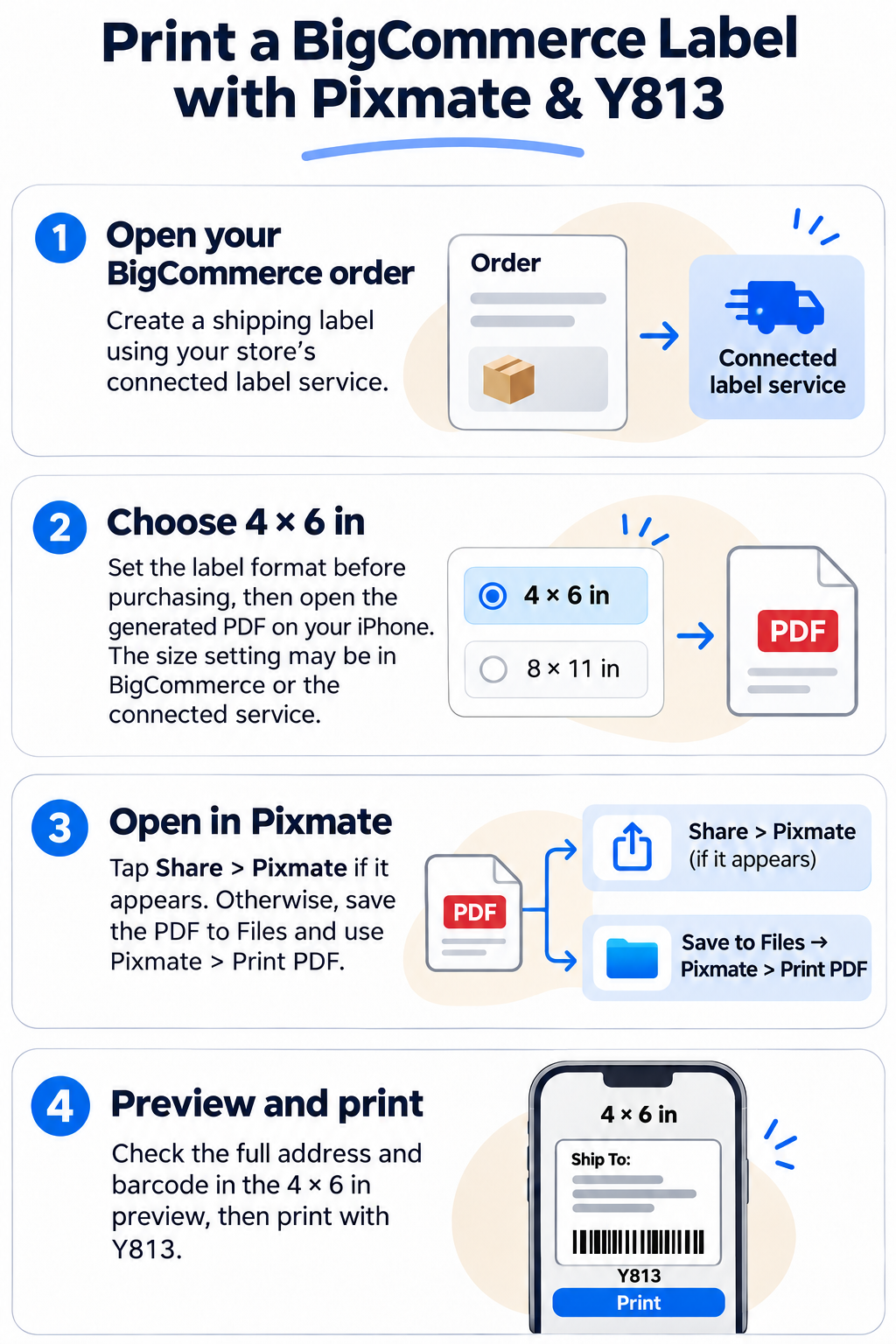
Open the order in BigCommerce and create its shipping label through your store’s connected label service.

2

2.Select a 4 × 6 in label format before purchasing, then open the generated label PDF on your iPhone. The size setting may appear in BigCommerce or in the connected shipping service, depending on your setup.

3

Tap Share > Pixmate if Pixmate appears. Otherwise, save the PDF to Files and open it through Pixmate > Print PDF.

4

4.Check that the full address and barcode appear in the 4 × 6 in preview, then print with Y813.

07

Mercari

1

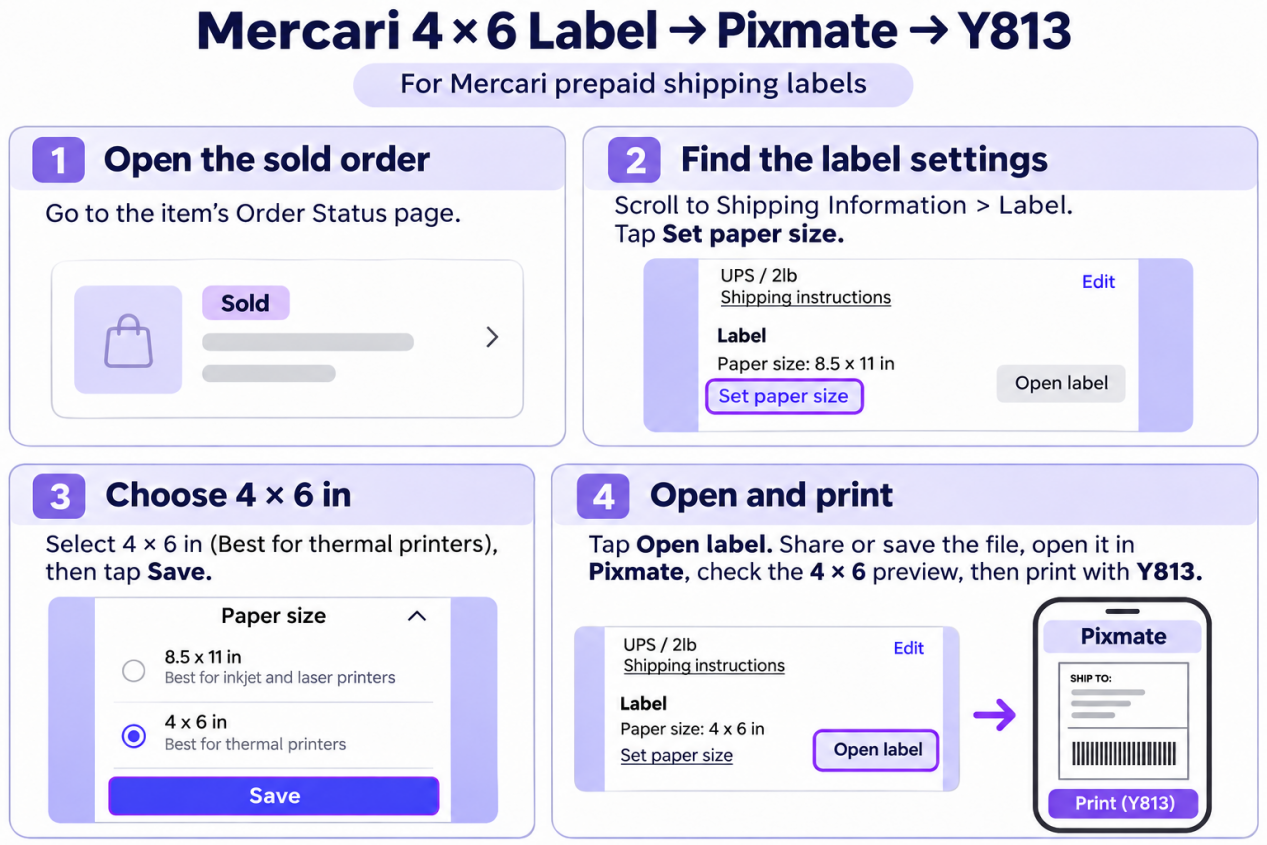
Open the sold item’s Order Status page in Mercari.

2

Scroll to Shipping Information > Label and tap Set paper size.

3

Select 4 × 6 in, then tap Save.

4

Back on the Order Status page, tap Open label. Share the label with Pixmate if it appears in your iPhone’s Share menu, or save the file and import it from Pixmate.

5

In Pixmate, connect your Y813, check that the full label fits the 4 × 6 in preview, then tap Print.

8

Shopee

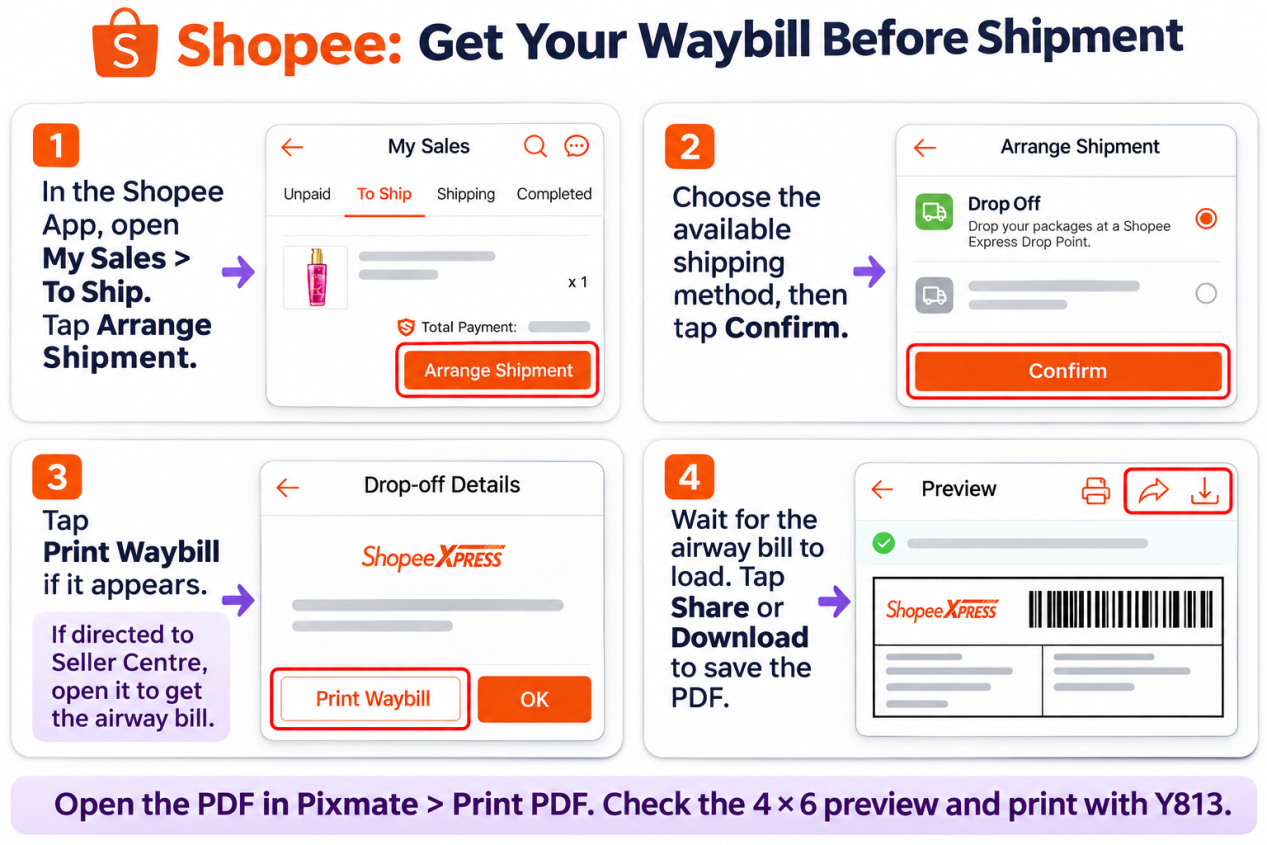
A) BEFORE the order is arranged for shipment:

1

Tap on “My Sales” → “To Ship” > “Arrange Shipment” on Shopee App.

2

Choose the shipment type for the order and tap “Confirm”.

3

Select “Print Waybill” to generate a PDF file.

4

Wait for the PDF file to be generated. Once ready, you can download it to your device.

5

Tap on the following icons to print, share or download the AWB file.

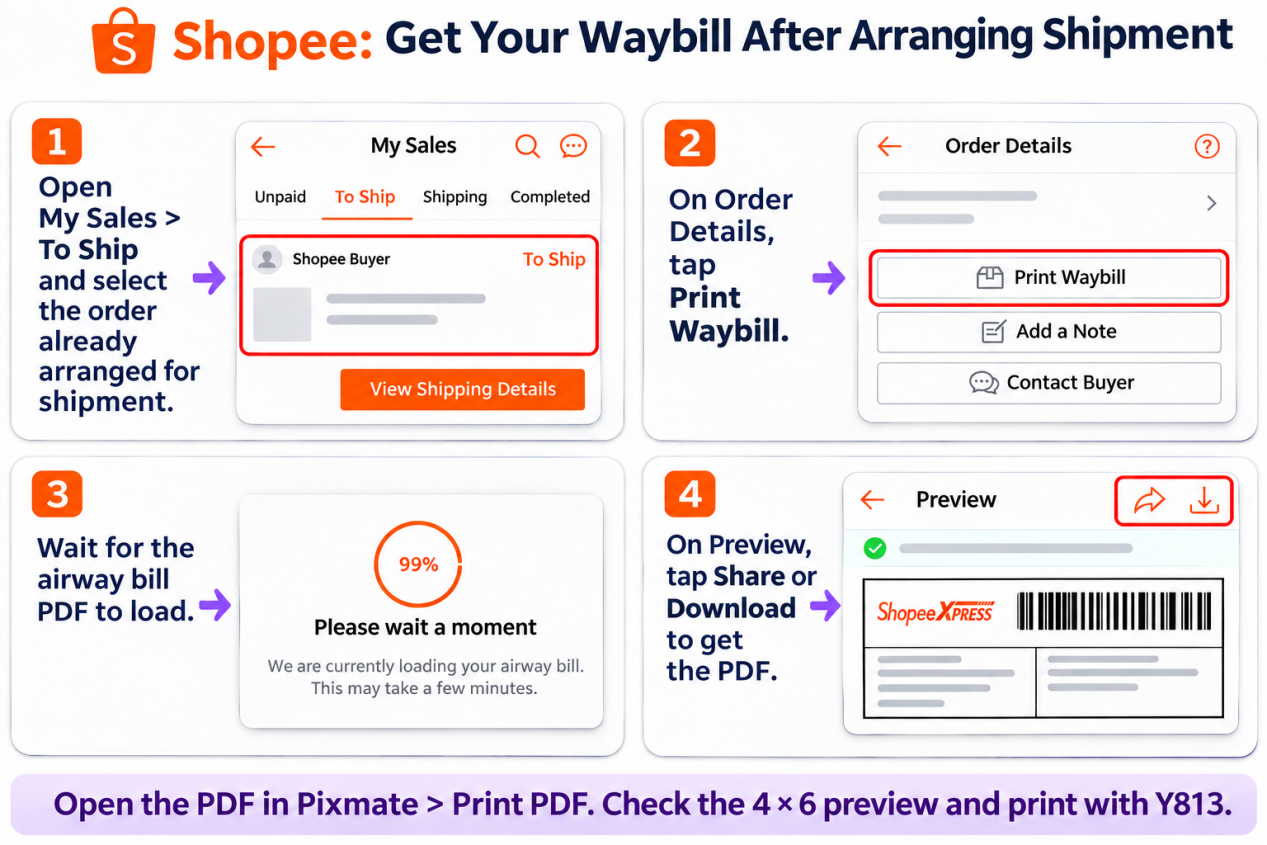
B) AFTER the order is arranged for shipment:

1

Select “My Sales” → “To Ship”, and tap on the order that has been arranged for shipment.

2

Select “Print Waybill” to generate a PDF file.

3

Wait for the PDF file to be generated.

4

Tap on the following icons to print, share or download the AWB file.

9

TikTok

1

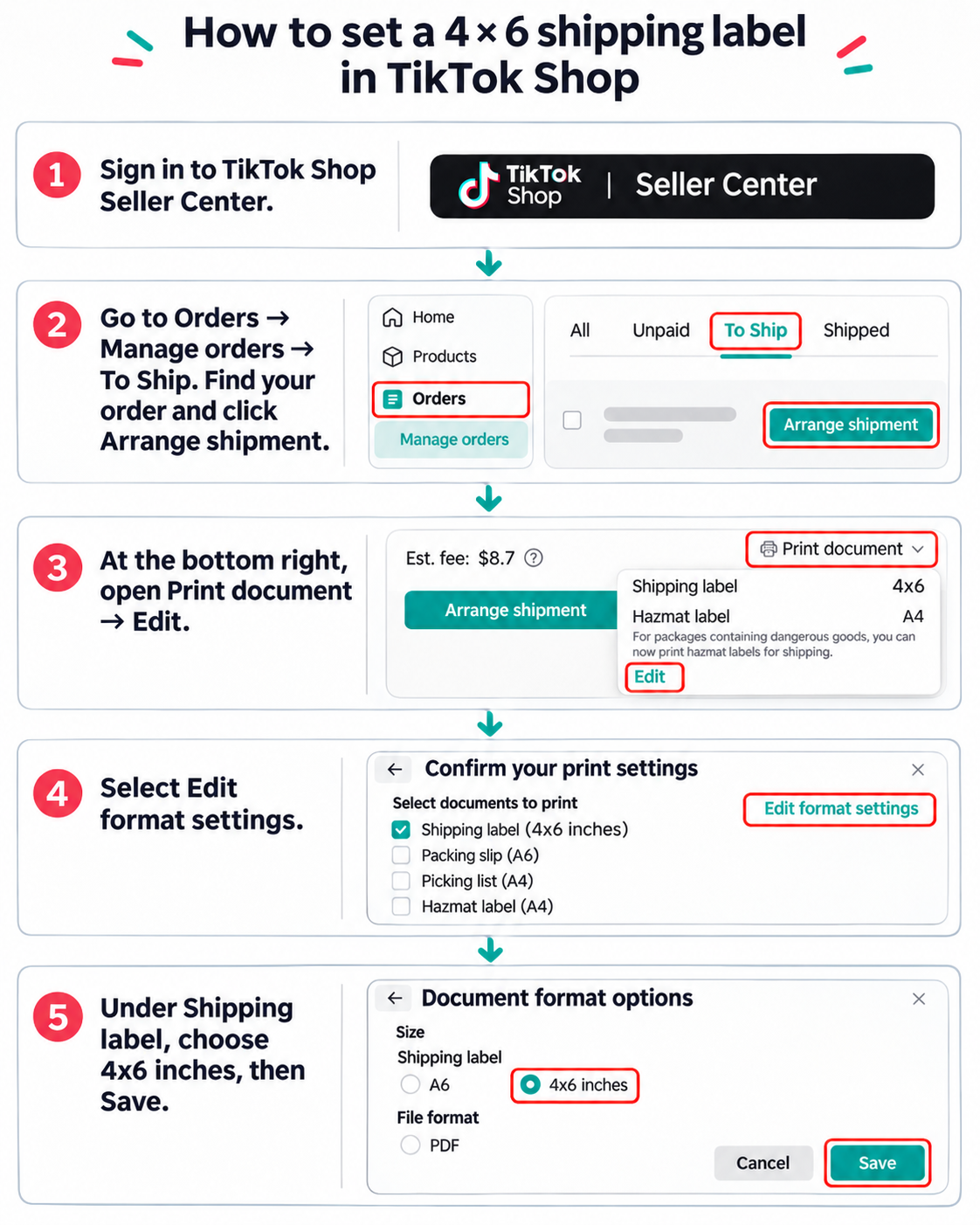
Log into your “TikTok Shop” Seller Center.

2

On the left sidebar, select “Orders” → “Manage orders”.

3

In the order list, switch to the “To Ship” tab.

4

Locate your target order, then click the “Arrange shipment” button next to it.

5

In the “Arrange shipment” pop-up window, scroll to the bottom right, then click the “Print document” dropdown menu.

6

From the “Print document” dropdown, select “Edit” to adjust label dimensions.

7

In the “Confirm your print settings” window, click “Edit format settings”.

8

On the “Document format options” page, under “Size”, select “4x6 inches” for the “Shipping label” (and “Packing slip”, if needed).

9

Click “Save” to apply the 4x6 inches configuration.

10

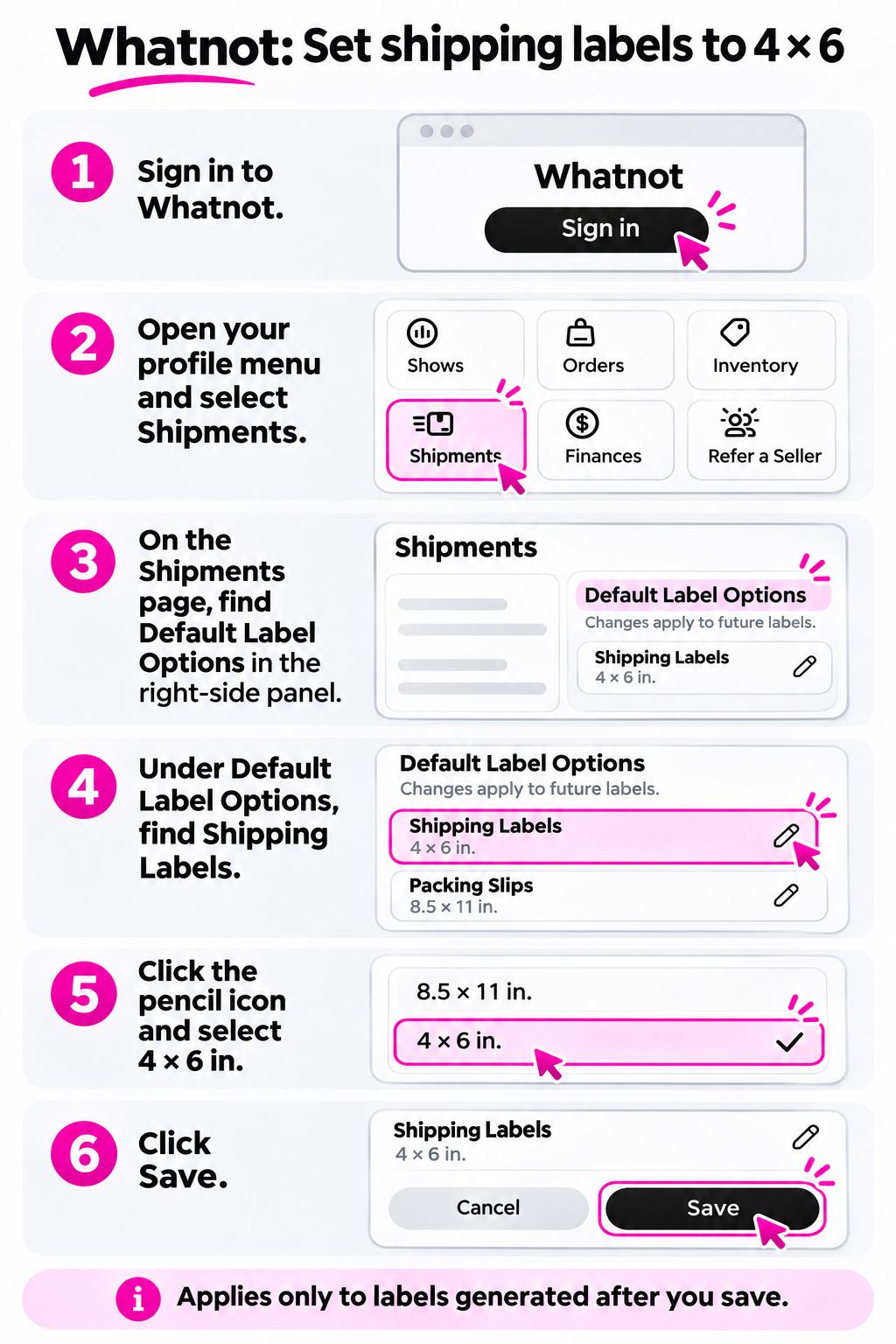
Whatnot

1

Go to Whatnot's homepage and log into your account.

2

Hover over your profile icon in the upper right corner of the screen.

3

Select “Shipments” from the dropdown menu to open your active shipping orders.

4

On the “Shipments” page, look for the menu panel on the right side.

5

Scroll all the way down to the bottom of this menu to find “Default Label Options”.

6

Next to “Shipping Labels”, click the pencil icon to edit the settings.

7

A dropdown menu will appear, select “4x6 in.” (the other option is 8 1/2 by 11, which causes sizing issues for standard label printers).

8

Click “Save” to confirm the change.

Important Notes:
1.This setting applies to all new shipping labels you generate. It won't retroactively adjust labels you've already printed, so always set it before creating labels.
2.If you use a thermal label printer, 4x6 is the standard size for seamless printing.

11

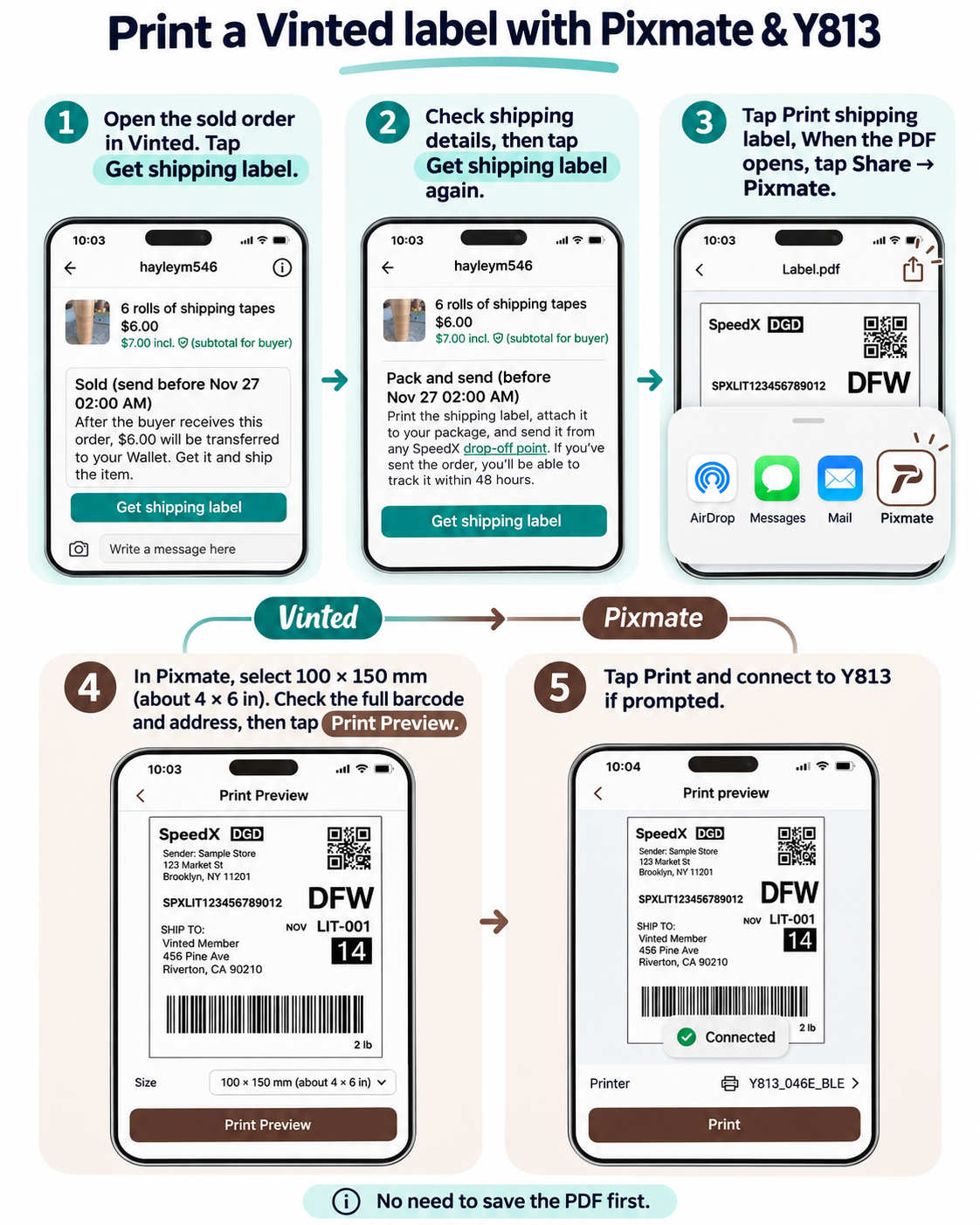
Vinted

1

In the Vinted app, open the sold order and tap Get shipping label.

2

Check your shipping details and tap Get shipping label to generate it.

3

Tap Print shipping label to open the PDF. Tap the iPhone Share icon and select Pixmate.

4

In Pixmate, check the label at 100 × 150 mm (about 4 × 6 in). Tap Print Preview and make sure the full barcode and address are visible.

5

Tap Print, connect to your Y813 if prompted, and print the label.

Tip:You can share the PDF directly from the Vinted label viewer; you don’t need to save it to Files first.

02

Payments

12

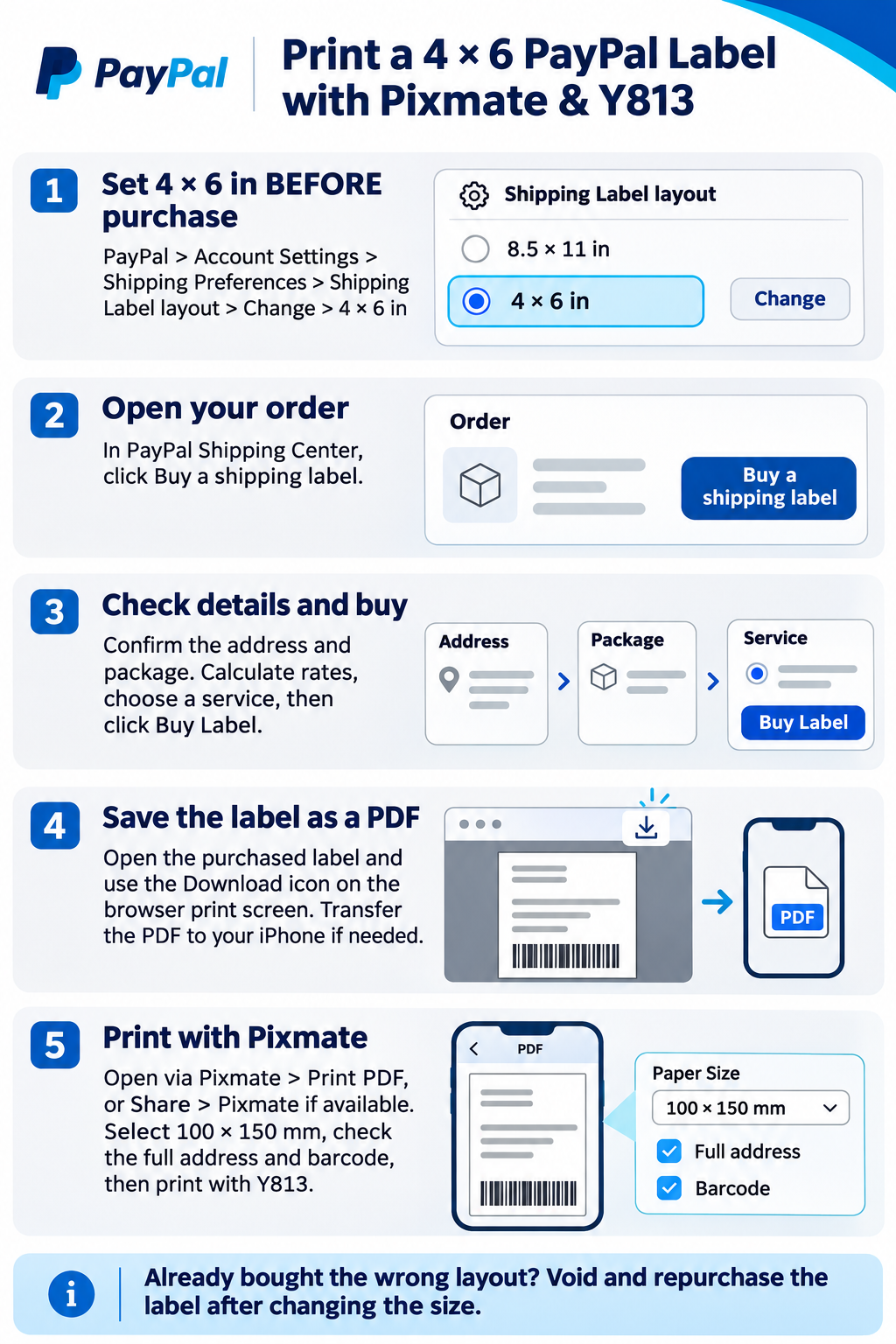
PayPal

1

In PayPal, go to Account Settings > Shipping Preferences. Under Shipping Label layout, click Change and select 4 × 6 in.

2

Open PayPal Shipping Center, find your order, and click Buy a shipping label.

3

Check the delivery address and package details. Click Calculate rates, choose a shipping service, then click Buy Label to complete the purchase.

4

Open the purchased label, then use the Download icon on the browser’s print screen to save the PDF. If you’re using a computer, transfer the PDF to your iPhone.

5

On your iPhone, open the PDF through Pixmate > Print PDF, or use Share > Pixmate if it appears. Select 100 × 150 mm (about 4 × 6 in), check the full address and barcode in the preview, then print with Y813.

Tip: If you bought the label before changing its layout, PayPal says you must void and repurchase it to apply the new size.

03

Label & shipping tools

13

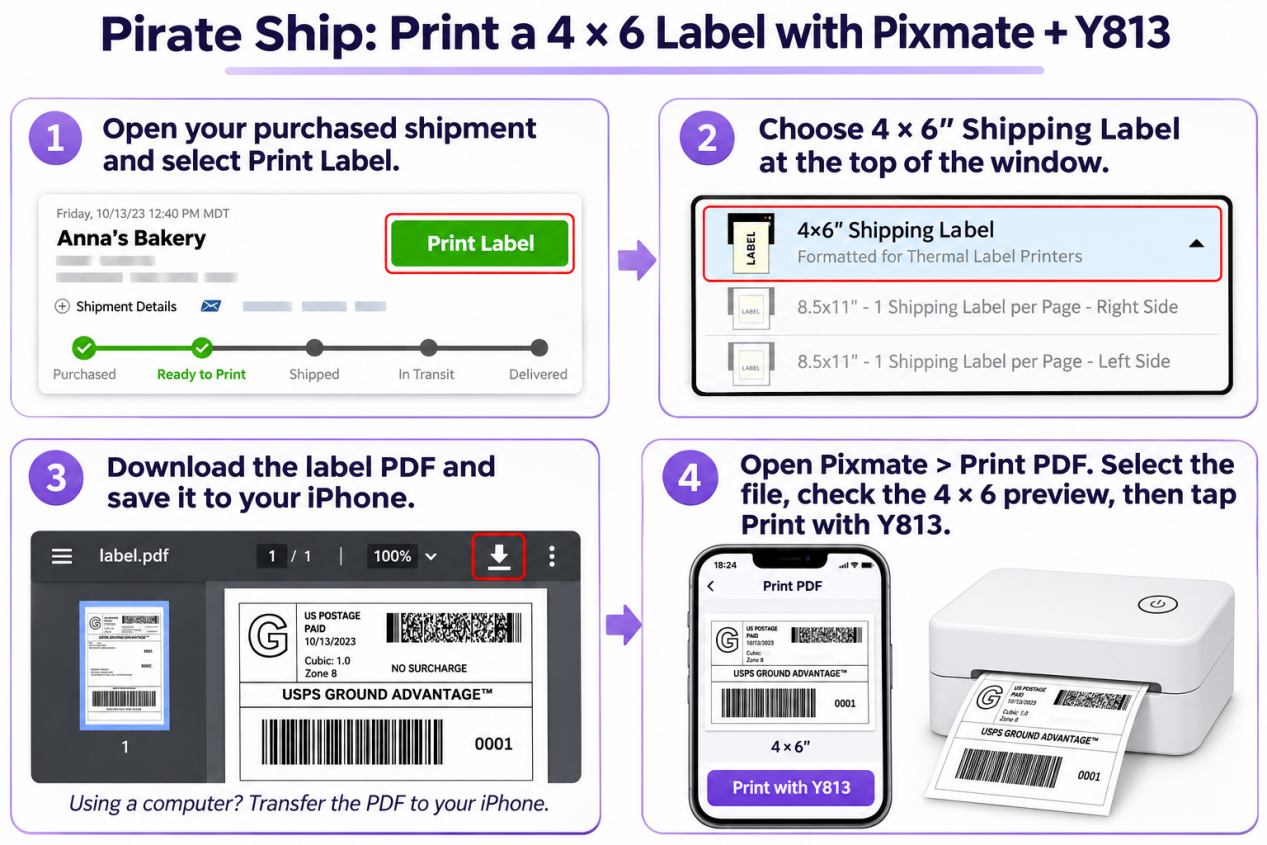
Pirate Ship

1

On the Pirate Ship website, open your purchased shipment and click Print Label.

2

At the top of the window, select 4 × 6″ Shipping Label.

3

Click Download Label or the PDF download icon, and save the label to your iPhone. If you downloaded it on a computer, transfer the PDF to your iPhone.

4

Open Pixmate > Print PDF, select the saved label, and connect your Y813.

5

Check that the full label fits the 4 × 6 in preview, then tap Print.

14

Shippo

1

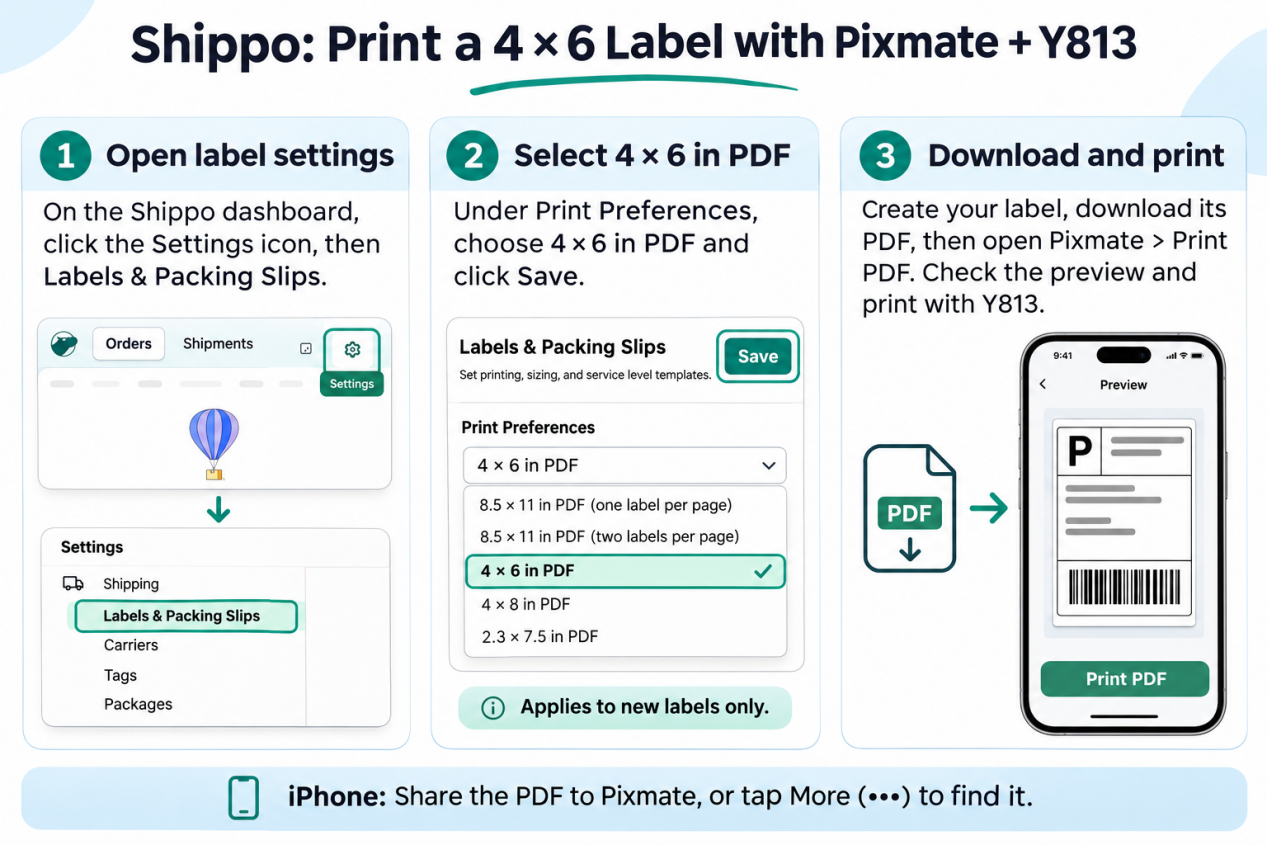
Sign in to Shippo and click the Settings icon.

2

Open Labels & Packing Slips.

3

Under Print Preferences, select 4 × 6 in PDF as the label format, then click Save.

4

Create and purchase your shipping label. Download the label PDF to your iPhone.

5

Open Pixmate > Print PDF, select the label, check the 4 × 6 preview, and print with Y813.

Tip: Changing the format will not resize labels you already created. If you open the PDF on your iPhone, you can also use Share > Pixmate; tap More (•••) if Pixmate is not immediately visible

15

Sellbrite

1

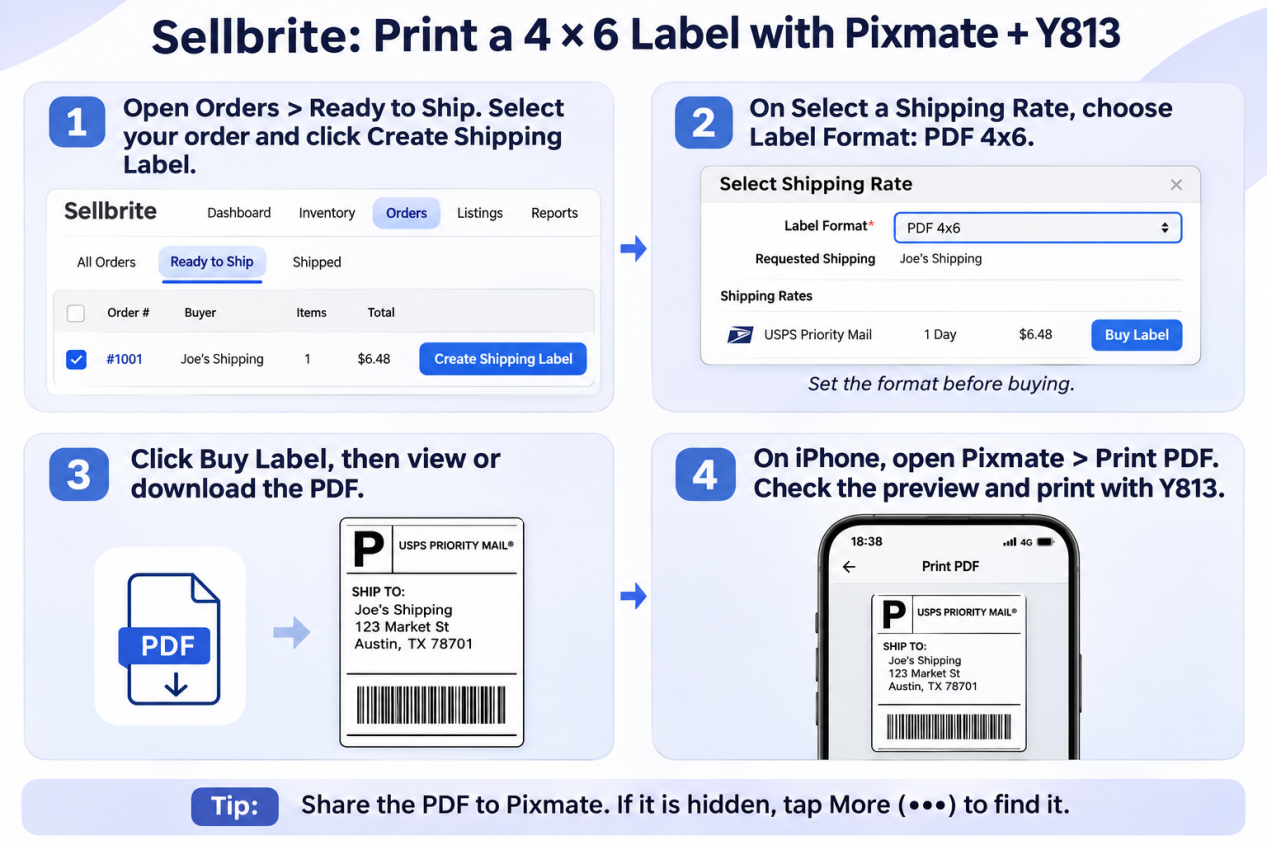
In Sellbrite, go to Orders > Ready to Ship and open your order.

2

Click Create Shipping Label and follow the prompts to Select a Shipping Rate.

3

Under Label Format, choose PDF 4x6 before clicking Buy Label.

4

Open or download the purchased label PDF. On your iPhone, open it in Pixmate > Print PDF, check the preview, and print with Y813.

Tip: If Pixmate aappears when you share the PDF, tap it. If you don’t see it, tap More (•••) to check the app list.
16

ShippingEasy

1

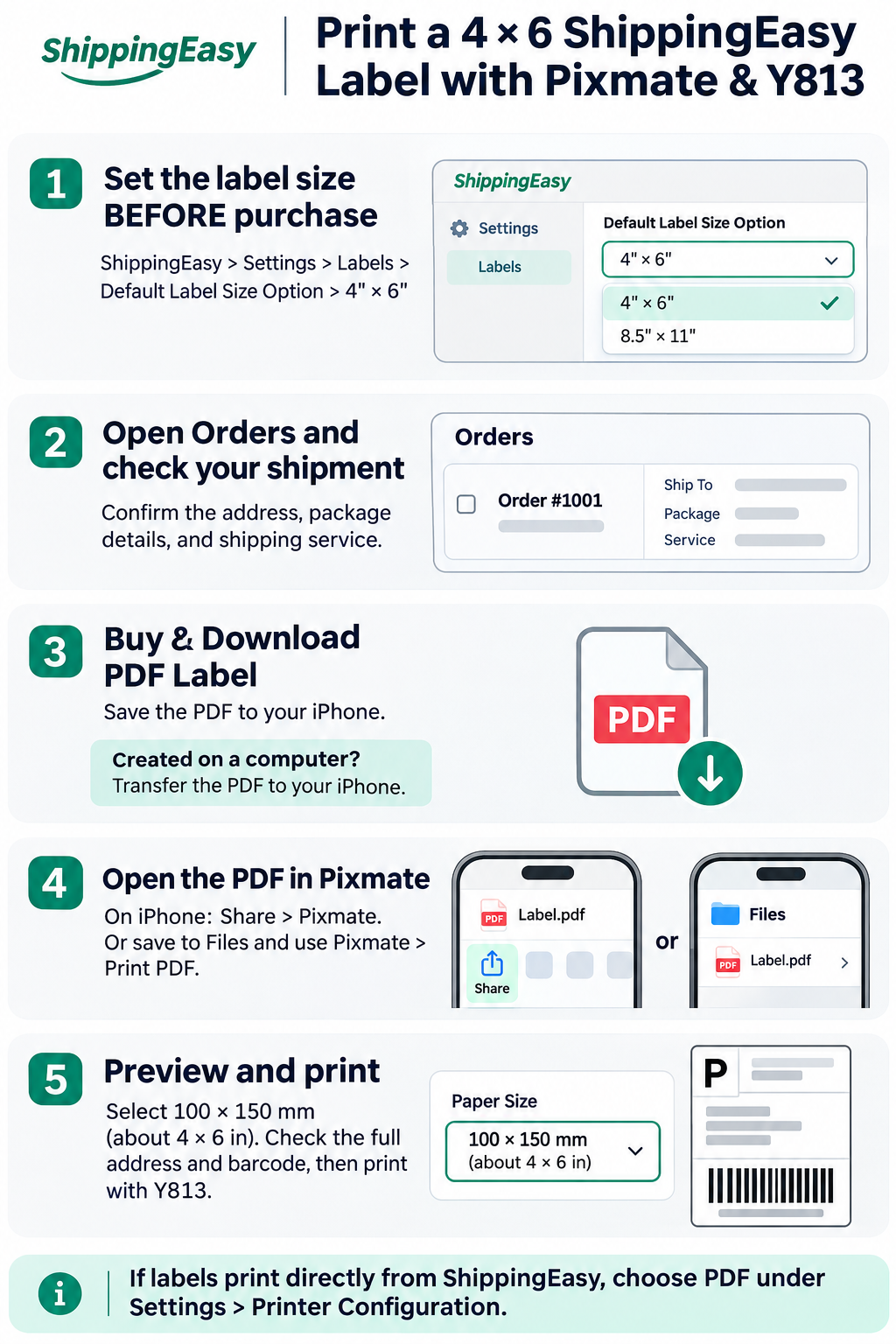
In ShippingEasy, go to Settings > Labels. Set Default Label Size Option to 4" × 6" before buying the label.

2

Open Orders, select your order, and check the address, package details, and shipping service.

3

Choose Buy & Download PDF Label to purchase and open the label as a PDF. Save the PDF to your iPhone. If you created it on a computer, transfer it to your iPhone first.

4

On your iPhone, open the PDF and tap Share > Pixmate. If Pixmate does not appear, tap More (•••), or save the PDF to Files and open it through Pixmate > Print PDF.

5

In Pixmate, select 100 × 150 mm (about 4 × 6 in). Check that the full address and barcode appear in the preview, then tap Print and connect to Y813 if prompted.

Tip: If ShippingEasy sends the label directly to a printer, set the relevant carrier’s output to PDF under Settings > Printer Configuration first.

17

Stamps

1

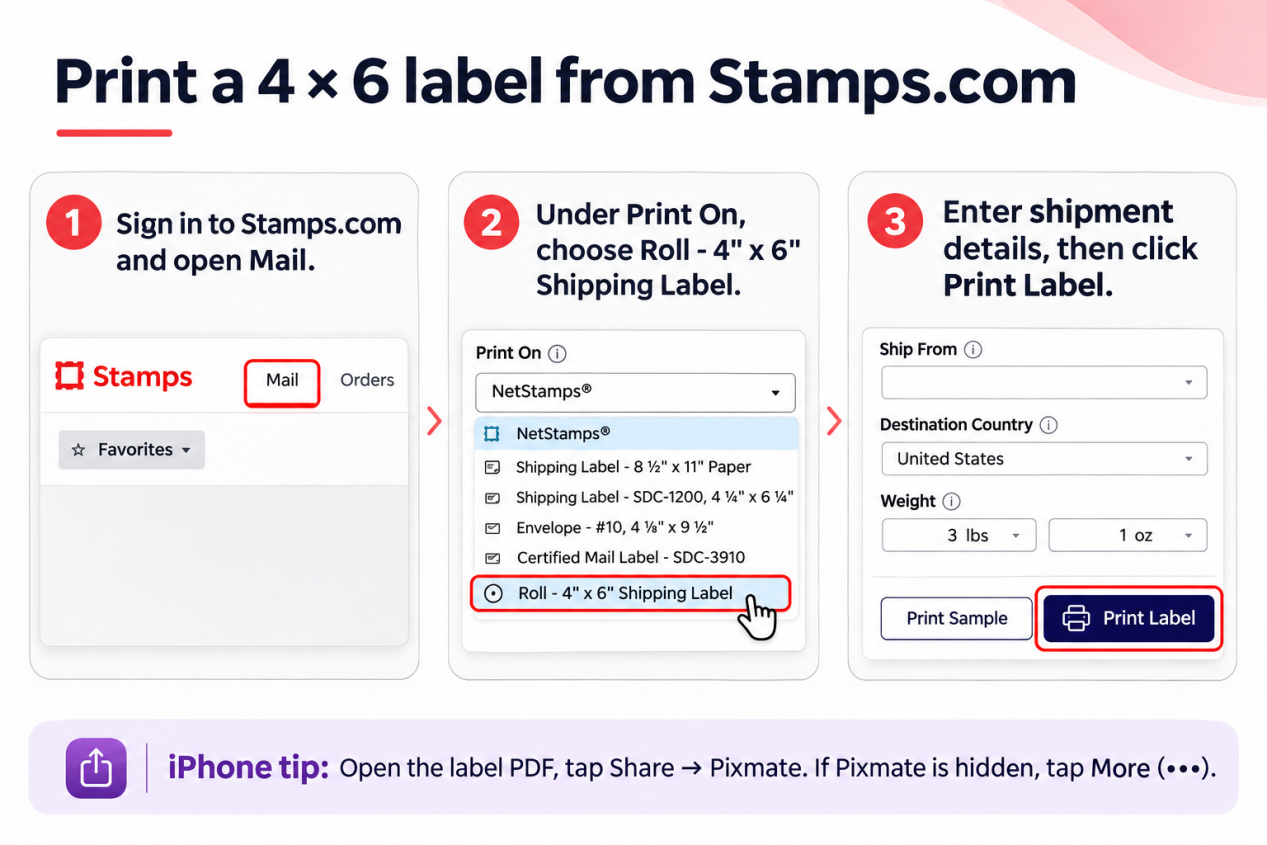
Log in to your "Stamps.com" account.

2

Into "stamps.com", select the "Mail" tab. On the page, open the label size drop down menu and select "4 x 6 Shipping Label".

3

After filling in all other information, click "Print Label" in the bottom right corner to print.

Hot tip: If you are using an iPhone with Stamps, go to "Save Label" and scroll down, you'll see the "Print with Pixmate" option (see screenshot). You can print directly from here, no need to save PDFs or images first.

18

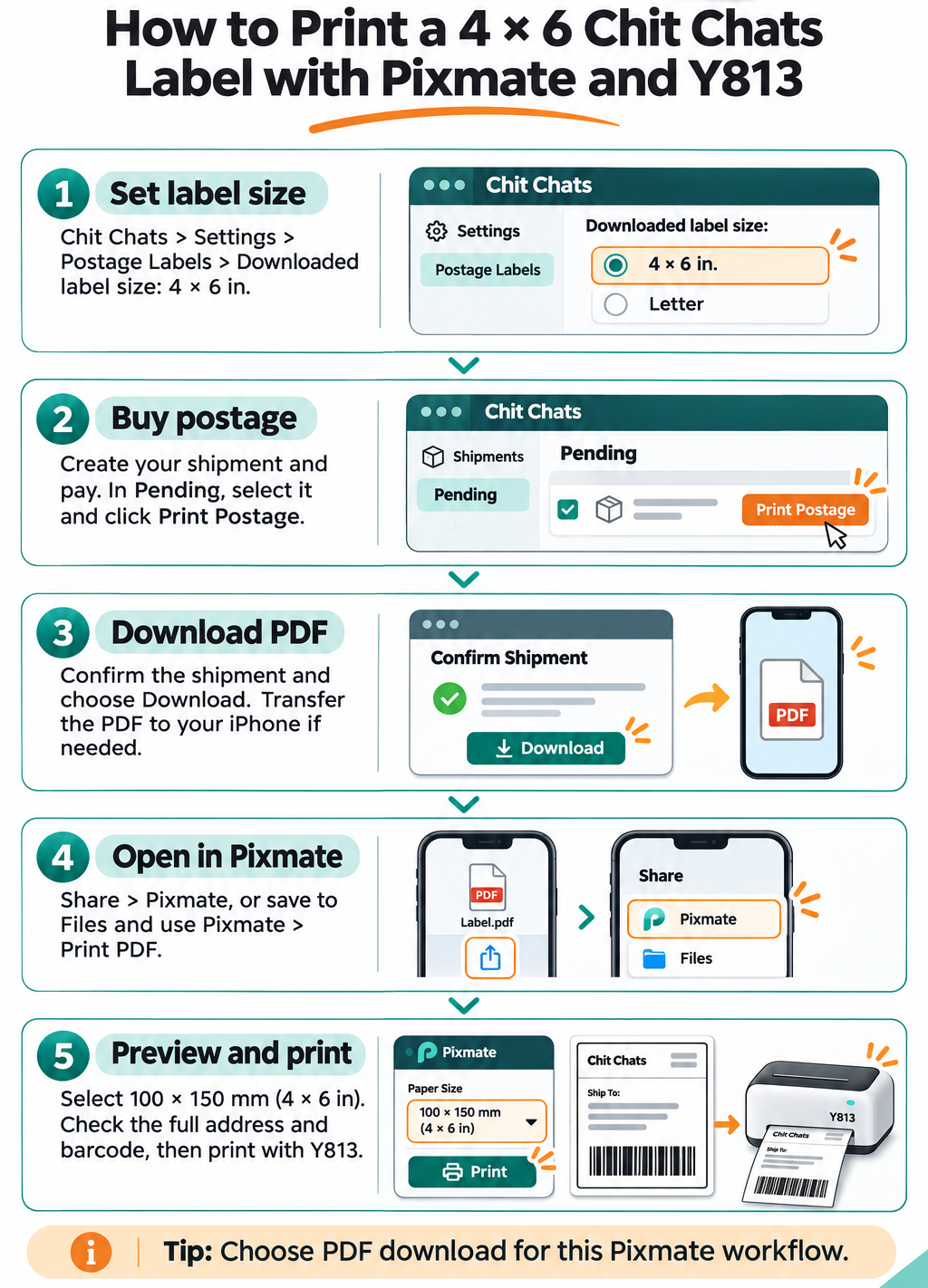
Chit Chats

1

In Chit Chats, go to Settings > Postage Labels and set your downloaded label size to 4 × 6 in. Chit Chats downloads labels in letter size by default, so check this setting first.

2

Create your shipment and pay for postage. Under Pending, select the paid shipment and click Print Postage.

3

Confirm the shipment, then choose Download to get the label as a PDF. Open the PDF on your iPhone; if you downloaded it on a computer, transfer it to your iPhone first.

4

Tap Share > Pixmate if Pixmate appears. Otherwise, save the PDF to Files and import it through Pixmate > Print PDF.

5

Select 100 × 150 mm (about 4 × 6 in). Check that the full address and barcode appear in the preview, then print with Y813.

Tip: Choose the PDF download for this Pixmate workflow; Chit Chats also offers direct printing options intended for other printer setups.

04

Carriers

19

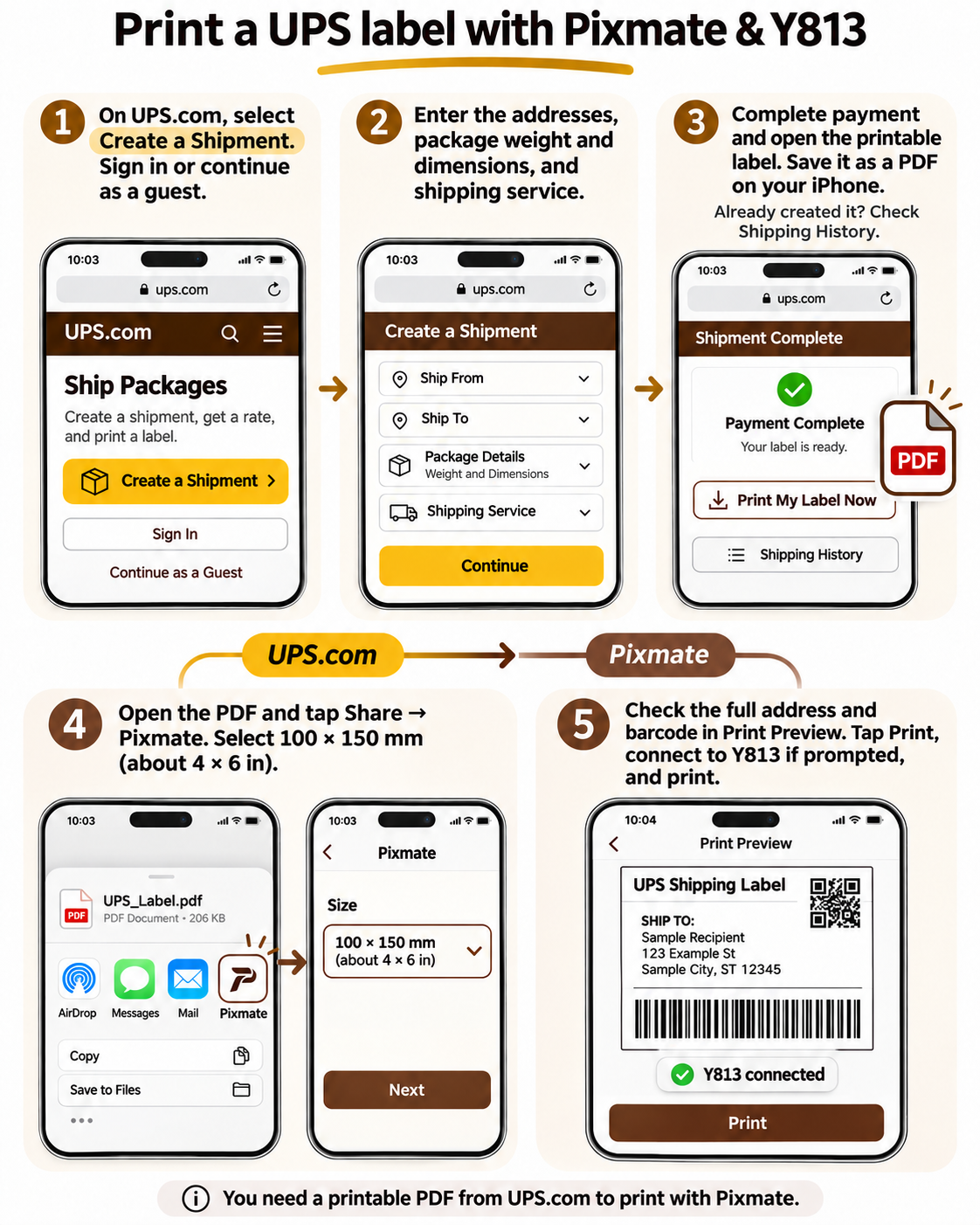
UPS

1

On UPS.com, select Create a Shipment. Sign in or continue as a guest.

2

Enter the sender and recipient addresses, package weight and dimensions, and shipping service.

3

Complete payment and open the printable shipping label. Save it as a PDF on your iPhone. If you created the label earlier, find it in Shipping History.

4

Open the PDF on your iPhone, tap Share → Pixmate, and select 100 × 150 mm (about 4 × 6 in).

5

Check that the full address and barcode appear in Print Preview. Tap Print, connect to Y813 if prompted, and print.

20

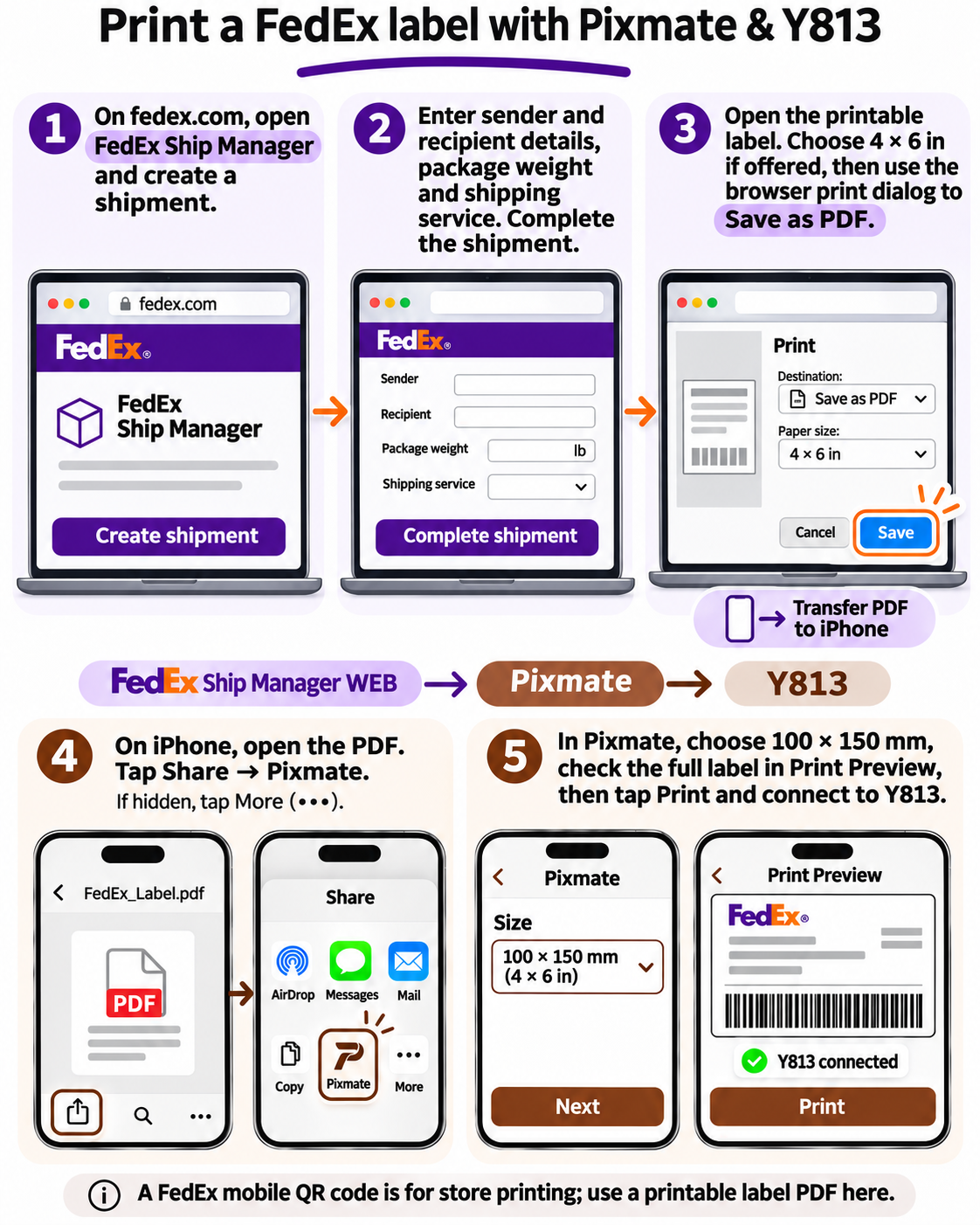
FedEx Ship Manager

1

On fedex.com, open FedEx Ship Manager and create a shipment. Sign in or ship as a guest if that option is available.

2

Enter the sender and recipient details, package weight and type, and shipping service. Complete the shipment.

3

On the Print label page, choose a 4 × 6 in label format if offered. In the print dialog, save the printable label as a PDF, then transfer it to your iPhone.

4

Open the PDF on your iPhone and tap Share → Pixmate. If Pixmate isn’t shown, tap More (•••), or import the file through Pixmate > Print PDF.

5

In Pixmate, select 100 × 150 mm (about 4 × 6 in). Check that the full address and barcodes are visible in Print Preview, then tap Print and connect to Y813 if prompted.

Tip: If the PDF is on a letter-size page, select or crop only the shipping-label area in Pixmate and check the preview carefully before printing.

21

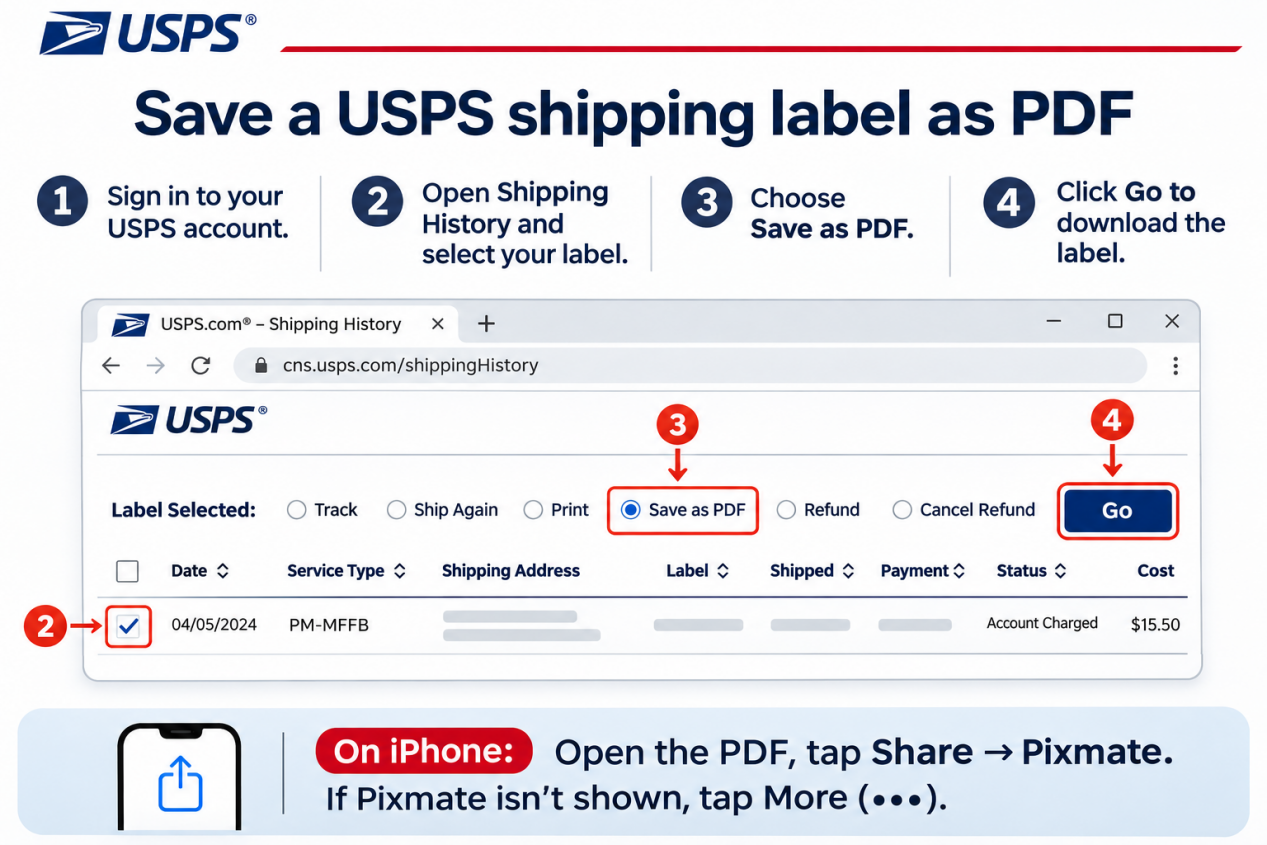
USPS

1

Log in to your USPS account.

2

Locate the order you wish to print.

3

Select “Save as PDF”.

4

Click “Go”

Hot tip: If you are using an iPhone with USPS, go to “Save Label” and scroll down, you'll see the “Print with Pixmate” option (see screenshot). You can print directly from here, no need to save PDFs or images first.

22

DHL

1

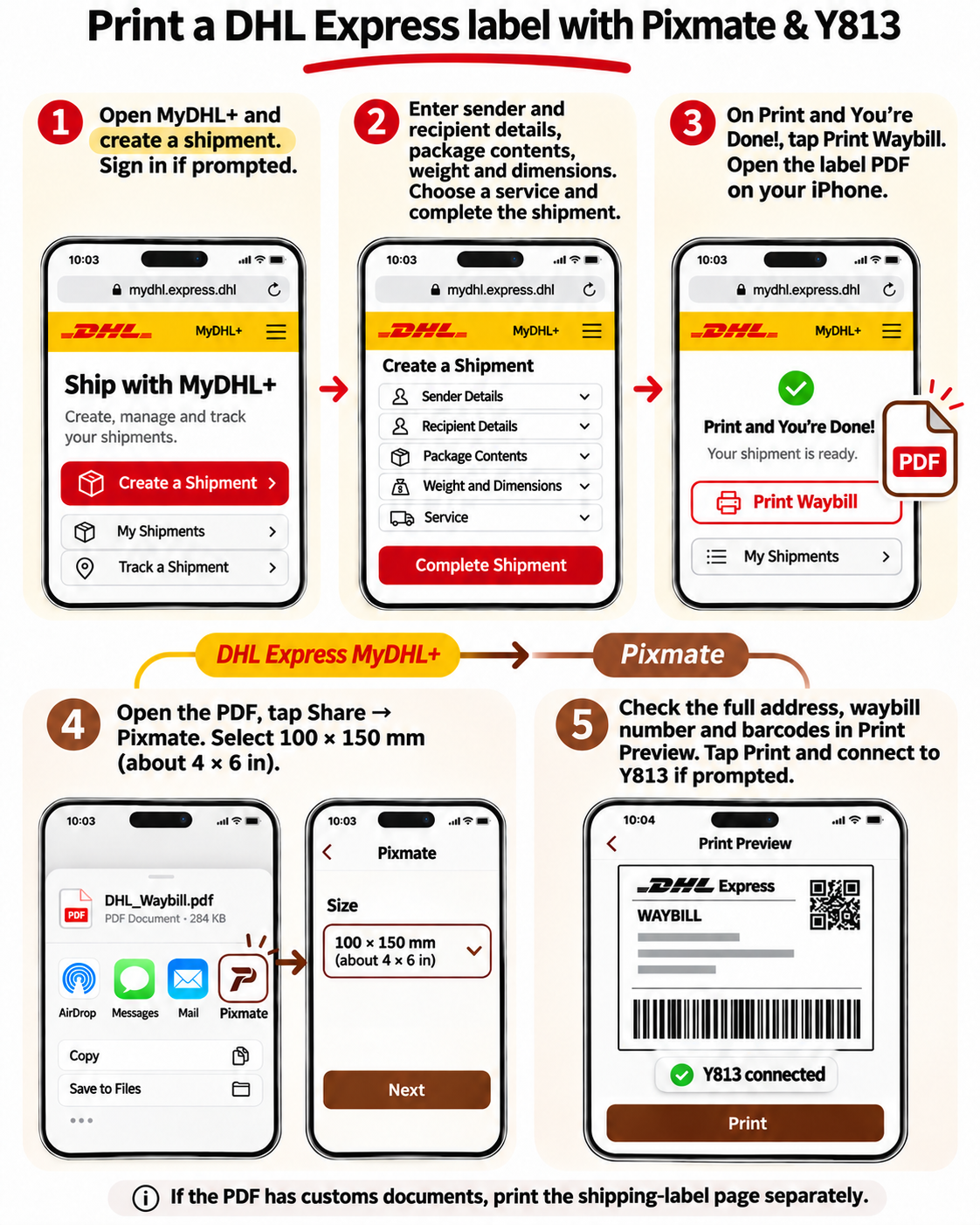
Open MyDHL+ and create a shipment. Sign in if prompted.

2

Enter the sender and recipient details, package contents, weight and dimensions. Choose a shipping service and complete the shipment.

3

On the Print and You’re Done! page, tap Print Waybill. Open the label PDF and save it to your iPhone.

4

Open the PDF, tap Share → Pixmate, and choose 100 × 150 mm (about 4 × 6 in).

5

In Print Preview, check that the full address, waybill number and barcodes are visible. Tap Print, connect to Y813 if prompted, and print.

Tip: If the PDF also contains customs documents, select only the shipping-label page in Pixmate. Keep any required customs documents available separately. If Pixmate is not in the Share menu, tap More (•••), or save the PDF to Files and import it through Pixmate > Print PDF.

My Cart
Wishlist
Recently Viewed
Categories
Compare Products (0 Products)