 English
 Nederlands
 Français
 English (UK)
 Deutsch


If Pixmate takes a long time to open a file, shows a blank Print Document or Print Preview screen, or becomes unresponsive, start by updating the app. A large file may also take longer to process, while a file that did not download completely may fail to preview.
If a particular Pixmate feature is difficult to use, we would also like to see where you get stuck so we can help and review your feedback.
1. Update Pixmate First
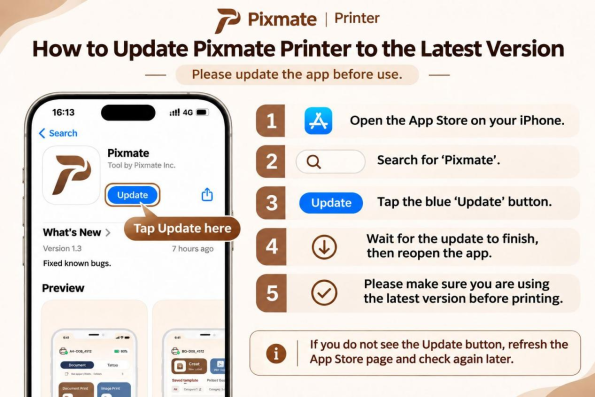
On iPhone: Open the App Store, search for Pixmate, and tap Update if available.
On Android: Open Google Play, search for Pixmate, and tap Update if available.
After the update finishes, close and reopen Pixmate, then try the file again. If the store does not show an Update button, continue with the steps below. Both Apple and Google provide manual app updates through their respective stores.
2. Let the File Preview Finish Loading
1) Open your PDF or image in Pixmate and wait up to about 15 seconds for the Print Document screen or full Print Preview to appear.
2) If it remains blank, leave the preview, close Pixmate completely, and open it again.
3)再次导入文件。如果文件来自物流平台,请检查下载是否完成,以及保存的文件是否可以在手机上正常打开。
4) 如果只有一个文件出现问题,请尝试使用另一个较小的 PDF 或图像文件。这有助于确定问题是否仅限于原始文件。
Do not tap Print while the preview is blank or incomplete.
3. Try Turning Off Auto Crop
If the file opens but the preview becomes blank or gets stuck while Pixmate processes it:
1) Return to the file settings screen.
2) Turn Auto Crop off.
3) Open Print Preview again and check whether the complete file appears.
If turning off Auto Crop reveals the file but leaves large white borders, check whether your shipping platform offers a correctly sized 4 × 6 in label PDF. You can also review the crop and label size settings after the file loads successfully.
4. Restart Your Phone and Reconnect the Y813
1) Restart your phone and Y813.
2) Turn on Bluetooth on your phone.
3) Open Pixmate and reconnect to the Y813 inside the app if needed.
4) Import the file again and check the preview.
A blank preview points first to the app or file. If the preview loads correctly but the printer does not respond when you tap Print, continue with the printer reset below.
5. Restore the Y813 to Factory Settings if It Still Does Not Respond
Use this step when Pixmate can show the label correctly but the Y813 still does not respond as expected.
1) Turn off the Y813.
2) Press and hold Feed, then press Power while continuing to hold Feed.
3) Keep holding Feed as the indicator changes from purple to red to blue.
4) Release Feed when the indicator turns blue. Allow the printer to finish starting.
5) Reconnect the Y813 in Pixmate. If you changed label size or type, calibrate the loaded labels again before printing.
This is the Y813 factory reset procedure. Do not use the Y813BT button sequence for this model.
6. Reinstall Pixmate if the App Still Gets Stuck
If Pixmate continues to freeze or show a blank preview after the steps above, save any designs or files you need to keep before deleting the app. Then reinstall Pixmate from the App Store or Google Play, reconnect your Y813, and import the file again.
Tell Us What Is Difficult to Use
If a Pixmate screen, setting, or workflow is confusing or inconvenient—even if printing still works—please tell us what you were trying to do and where you got stuck. A short screen recording or screenshot showing the steps is especially helpful. Please include what you expected to happen and what happened instead.
Still Need Help?
Send our support team a short screen recording or screenshots showing the problem, your phone model, whether you use iOS or Android, and the Pixmate app version. If the problem affects only one file, tell us whether it is a PDF or image and approximately how large it is.



