 English
 Nederlands
 Français
 English (UK)
 Deutsch


If a shipping label appears tiny in Pixmate or prints with large white borders, the label artwork may occupy only a small part of the original file, or the size selected in Pixmate may not match the labels loaded in your Y813.
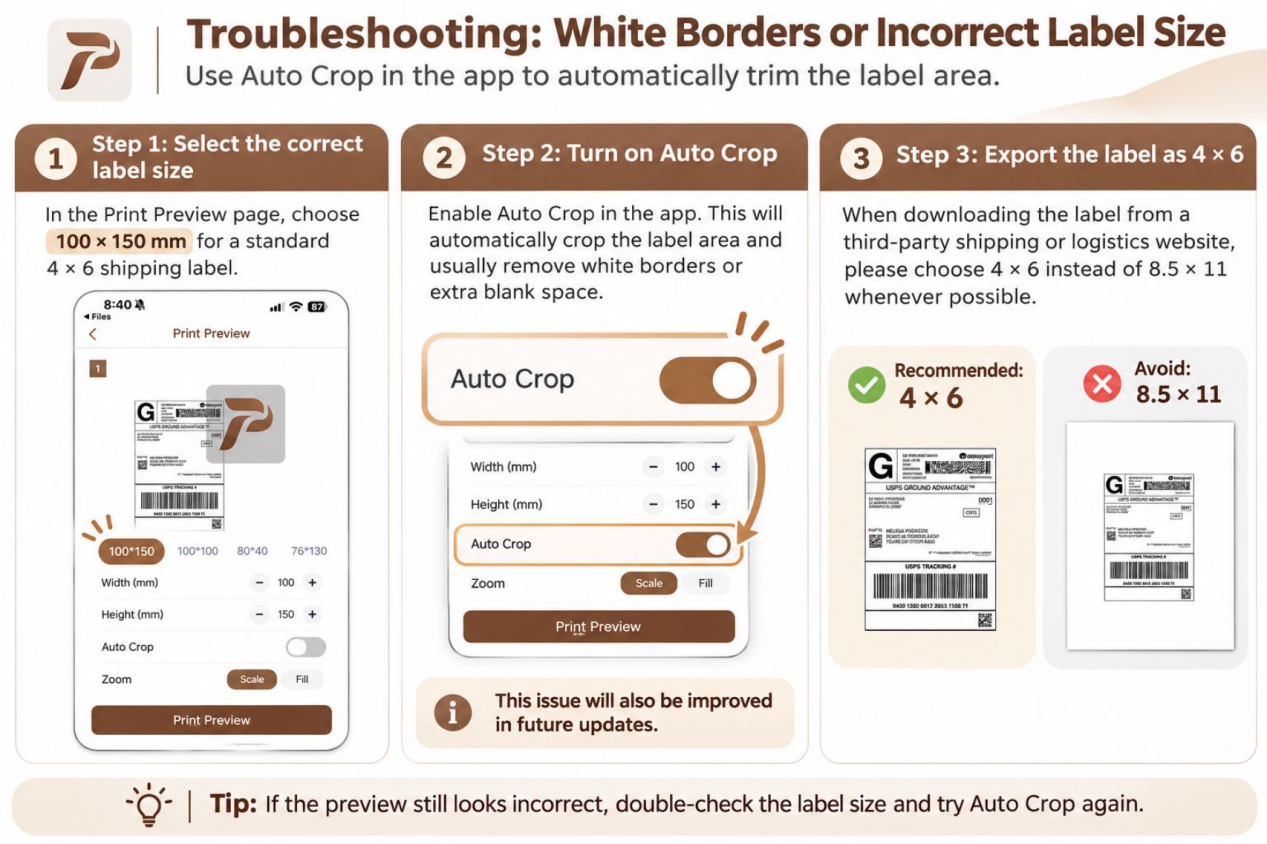
Follow the steps below before printing again.
1. Select the Size of Your Loaded Labels
1) Open the PDF or image in Pixmate and go to the label size settings before opening Print Preview.
2) Select the size shown on your label package. If you loaded labels marked 100 × 150 mm, select 100 × 150 mm. For another label size, select its actual dimensions.
3) Check the preview. The address and barcode should be large enough to read while remaining fully inside one label.
Important: Selecting a larger paper size will not automatically enlarge artwork that occupies only a small corner of an A4, US Letter, or other full-page file.
2. Remove Extra White Space with Auto Crop
If the original file has a white border around the label, turn on Auto Crop in Pixmate, then open Print Preview again.
Check the result carefully. Auto Crop may remove surrounding blank space, but it may not correctly isolate a label when the page also contains a receipt, packing slip, or other content. Make sure the full address, barcode, and any required shipping details remain visible. Pixmate’s Y813 guidance recommends checking the preview and using Auto Crop when available.
3. Download the Label in the Correct Format
If the label still looks small, check the original file from the shipping platform.
1) Return to the website or app where you created the shipping label.
2) Look for Label Format, Printer Type, or Download Label.
3) For standard shipping labels, choose 4 × 6 in, 100 × 150 mm, or Thermal Label, according to the option that matches your paper.
4) Download the new PDF, import it into Pixmate, and check the preview again.
A US Letter 8.5 × 11 in or A4 PDF may place the shipping label on only part of a full page. Printing that entire page on one thermal label makes the shipping information appear too small. Both Rollo and MUNBYN recommend obtaining a correctly sized label file or cropping the label area when the platform supplies a full-page PDF.
4. Check Scale and Fill Before Printing
If your Pixmate screen offers Scale and Fill, compare both in Print Preview.
Scale can keep the whole source page visible, including unwanted white borders. Fill may enlarge the content, but it can also cut off an address or barcode when the source file has the wrong shape or size.
Choose the option that shows the complete shipping label at a readable size. If neither preview looks correct, return to Step 3 and obtain a properly sized file. Do not print a preview with missing shipping information.
5. Print the Corrected Label
Once the complete label fills the preview appropriately, confirm that your Y813 is selected and tap Print. Check that the printed address and barcode are clear and that no information is cut off.
Still Need Help?
Tell our support team which shipping platform supplied the label and whether you downloaded it from the platform’s app or website. Send a screenshot of the original file and one screenshot of the Pixmate preview showing the selected label size.
Note for the accompanying image: The instruction “This issue will also be improved in future updates” should be removed. An app update may change the cropping behavior, but it should not be promised as the solution to an incorrectly sized source file.



