 English
 Nederlands
 Français
 English (UK)
 Deutsch


If you created a shipping label in a marketplace, carrier, or shipping app, you can usually share the label directly to Pixmate. If Pixmate is not visible in the first row of the Share menu, tap More (•••) to find it in the full Apps list.
The steps below use an iPhone as an example. Button names may vary by shipping platform.
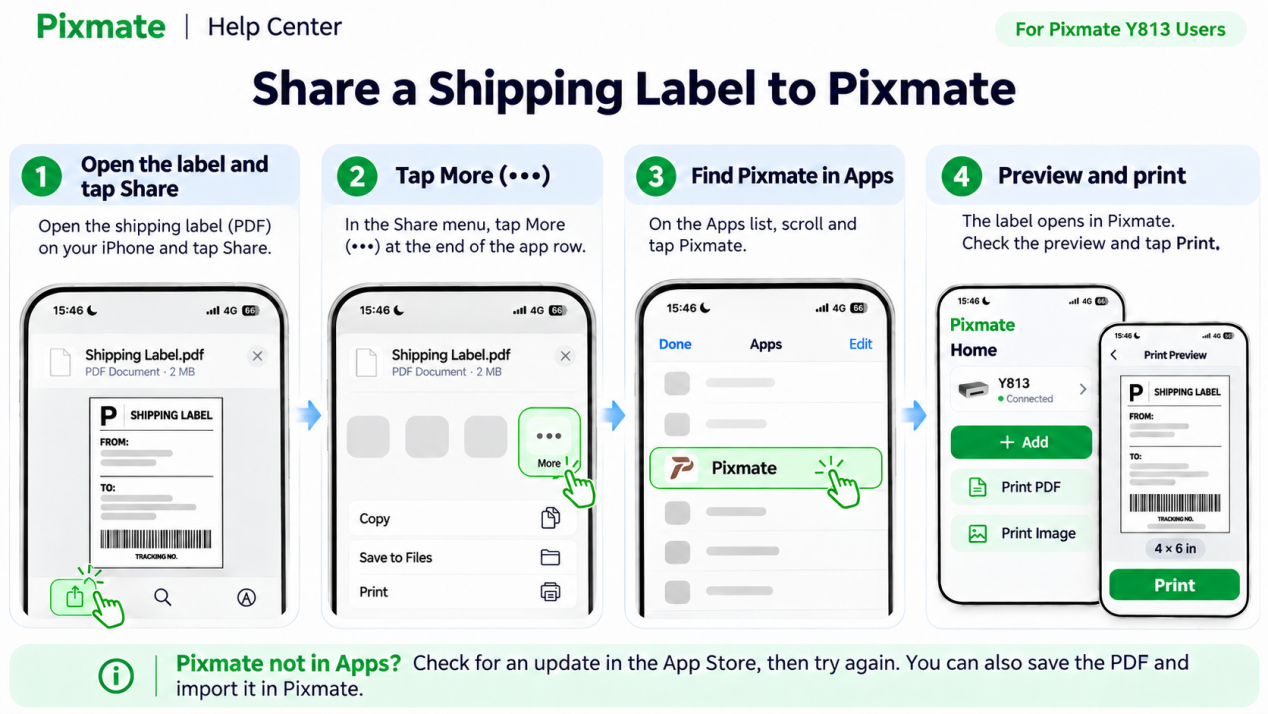
1. Open the Shipping Label
1) Open the order or shipment in the shipping app or on its website.
2) Open the shipping label PDF or image, then tap Share.
3) Check the item shown at the top of the Share menu. If it shows an order page or login webpage instead of the label, return to the shipment and look for View Label, Download Label, or Download PDF.
If the platform asks you to choose a format, select 4 × 6 in / Thermal Label when you are using standard 4 × 6 shipping labels.
2. Find Pixmate in the Full Apps List
1) Look for Pixmate in the row of app icons in the Share menu.
2) If you do not see it, swipe left to the end of the row and tap More (•••).
3) Scroll through the full Apps list and tap Pixmate.
4) Wait for the label to open in Pixmate. Check that the complete label appears in the preview and that the selected size matches your loaded labels. Then tap Print.
Tip: If Pixmate appears in the full Apps list and you use it often, you may be able to tap Edit and add it to your sharing favorites. Share menu options can vary between apps.
[Image 1: Show Share > More (•••) > Apps > Pixmate.]
3. If Pixmate Is Not in the Full Apps List
1) Open the App Store and search for Pixmate.
2) If an Update button appears, update the app.
3) Close and reopen Pixmate and the shipping app. Open the label again and check Share > More (•••) > Apps.
4) If Pixmate still does not appear, save the label file to your phone and import it from inside Pixmate.
An app update may help, but it does not guarantee that every shipping app will show Pixmate in its Share menu.
4. If the Shipping App Shares a Link Instead of the Label
Some shipping apps display a webpage preview or share a link to the shipment instead of the label file. If tapping Pixmate does not bring in the label:
1) Return to the shipment and look for Download Label, Download PDF, Save as PDF, or an export option.
2) If there is no download option in the app, open the same shipment on the platform’s website using Safari or Chrome and check whether the label can be downloaded there.
3) Save the PDF or image to your phone. On iPhone, you can save a PDF to the Files app and usually find downloaded files in Files > Downloads.
4) Open the saved file once to confirm that it contains the complete shipping label, including the address and barcode.
The available download options depend on the shipping platform. Other printer Help Centers also recommend saving a label file from a third-party platform and importing it into the printing app when direct sharing does not work.
5. Import the Saved Label in Pixmate
1) Turn on your Y813 and enable Bluetooth on your phone.
2) Open Pixmate and connect to the Y813 if needed.
3) Tap Print PDF for a saved PDF or Print Image for a saved image.
4) Select the label from your phone’s Files or Downloads folder.
5) Wait for the complete preview. Check that the address and barcode are visible and that the selected size matches the labels loaded in your Y813.
6) Tap Print.
Pixmate supports PDF and image imports, so this method works even when Pixmate is absent from another app’s Share menu.
Still Need Help?
Please tell our support team which shipping platform you use, whether you access it through its app or website, and where you tap to print or share the label. Include one screenshot of the screen where you get stuck.



