 English
 Nederlands
 Français
 English (UK)
 Deutsch


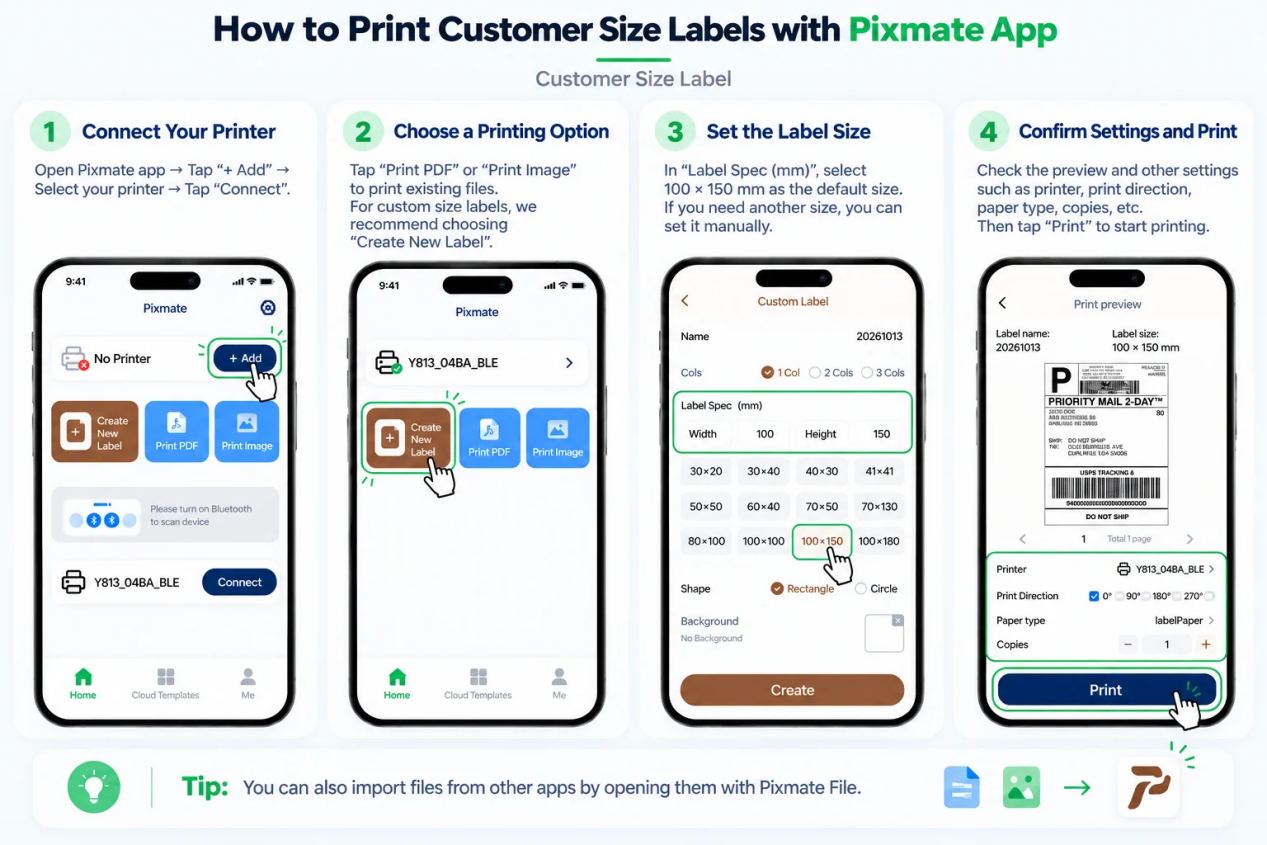
Use the Pixmate Printer app to import a shipping label from your phone and print it with your Y813. For the best result, download the label in a 4 × 6 in thermal label format before importing it.
1. Prepare the Printer and Labels
1) Check that the model label underneath your printer says Y813.
2) Load compatible direct thermal labels with the printable side facing up. Keep the strip straight, adjust the width guides so they touch the backing paper without bending it, and close both sides of the cover securely.
3) Turn on the Y813 and enable Bluetooth on your phone.
Check the dimensions on your label package. Many standard shipping labels are marked 100 × 150 mm. Select the size that matches the labels you actually loaded.
2. Save the Shipping Label to Your Phone
1) Open the website or app where you created your shipping label.
2) If a format option is available, select 4 × 6 in or Thermal Label.
3) Download the label as a PDF and save it to your phone. If only an image is available, save the complete label image.
If the platform provides an A4 or US Letter PDF with a receipt or packing slip beside the label, look for a 4 × 6 download option first. Printing the whole page on one shipping label can make the address and barcode too small.
3. Connect the Y813 in Pixmate
1) Open the Pixmate Printer app.
2) On the Home screen, tap + Add.
3) Select your Y813 from the printer list and tap Connect.
4) Return to the Home screen and confirm that the printer appears at the top of the app.
Connect the printer inside Pixmate. If it does not appear, move your phone closer, check that Bluetooth is enabled, and make sure the printer is not connected to another phone.
4. Import Your Shipping Label
1) Tap Print PDF for a saved PDF, or Print Image for a saved image.
2) Select the file from your phone.
3) If the PDF contains several pages, select the page or page range you want to print.
Wait for the file to finish loading before adjusting its size or printing.
5. Check the Size and Print Preview
1) Select a size that matches the labels loaded in your Y813. If the package says 100 × 150 mm, select 100 × 150 mm.
2) Check the print direction and rotate the file if the label appears sideways.
3) Confirm that the complete address, barcode, and other required information appear on one label.
4) If there is extra blank space around the shipping label, use Pixmate’s crop or fit controls where available. Check the preview again after making a change.
5) Set Copies to 1 for the first test print.
6. Print One Label and Check the Result
Tap Print. Compare the printed label with the preview. Make sure the address is complete, the barcode is clear, and nothing important is cut off. If the test label looks right, select the number of copies you need.
If the Label Does Not Print Correctly
The label is too small: Check whether the original file is an A4 or US Letter page. Download a 4 × 6 version from the shipping platform if available, then confirm the size selected in Pixmate.
Part of the label is cut off or sideways: Check the preview, print direction, selected size, and crop or fit setting. Change one setting at a time and print another test label.
The printer skips labels or stops in the wrong place: Reload the labels straight. With the Y813 on, hold Feed for about 6 seconds and release it after two red flashes and two beeps. Wait for calibration to finish before printing again.
Pixmate cannot find the printer: Check that the Y813 is on and your phone’s Bluetooth is enabled. Disconnect the printer from another phone if needed, restart it, and reconnect inside Pixmate.
Still Need Help?
Send our support team a screenshot of the original label file, a screenshot of the complete Pixmate preview showing the selected size, and a photo of the printed label. Include the dimensions shown on your label package.



